IPSW files are the iPhone and iPad software files a computer downloads when you update or restore a device through a Mac or Windows PC. Apple’s support pages explain the update and restore steps but don’t say where that file is saved, so the folders below are the locations commonly reported for Finder and iTunes, not ones Apple documents. If a folder isn’t there, searching a Windows PC for .ipsw is the dependable fallback.
Which computer and app are you using?
Apple’s update tool depends on the computer, and so does the folder people report:
| Computer and app | Apple’s update route | Commonly reported folder (not documented by Apple) |
|---|---|---|
| Mac with macOS Catalina or later (Finder) | Finder sidebar > your device > General > Check for Update | ~/Library/iTunes/iPhone Software Updates (iPad: iPad Software Updates) |
| Mac with macOS Mojave or earlier (iTunes) | iTunes > device button > Summary > Check for Update | The same ~/Library/iTunes folders |
| Windows with iTunes | iTunes > device button > Summary > Check for Update | %AppData%\Apple Computer\iTunes\iPhone Software Updates |
| Windows with the Apple Devices app | Apple Devices > your device > General > Update | No folder reported consistently; search for .ipsw |
What Apple documents about the downloaded software
Apple’s pages confirm that the computer, not the iPhone or iPad, downloads the software during these updates and restores. During a recovery-mode restore, Apple’s recovery mode instructions tell you to wait while your computer downloads software for your device, and note that if the download takes more than 15 minutes, the device might leave the Connect to computer screen.
What Apple’s pages don’t cover: the folder the file goes into, whether the computer keeps it after the update, and whether it is safe to delete. Treat every path below as a starting point to look, not a guarantee.
Folders people report (not documented by Apple)
On a Mac
The folders most often reported sit inside your user Library, which Finder doesn’t show in the sidebar. Go to Folder gets you there directly:
- Open a Finder window.
- Press Shift + Command + G, or choose Go > Go to Folder (Apple’s Go to Folder instructions).
- Type
~/Library/iTunes/iPhone Software Updatesand press Return. For iPad software, try~/Library/iTunes/iPad Software Updates.
The illustration below shows that commonly reported folder; Apple does not document it as the place where Finder saves software.
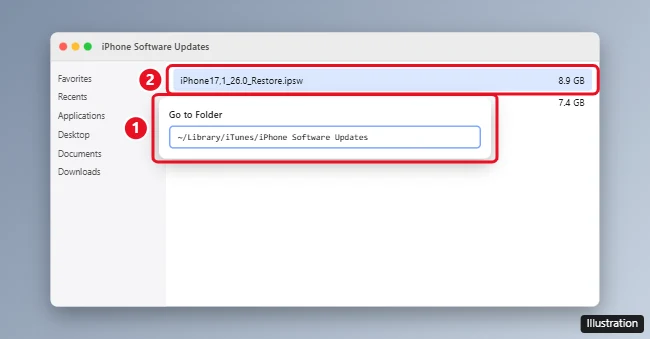
If Finder says the folder can’t be found, or it is empty, the file may have been removed after the update, or your Mac may keep it somewhere else.
On Windows with iTunes
- Press Windows logo key + R to open Run.
- Type
%AppData%and press Enter. - Open Apple Computer, then iTunes, then iPhone Software Updates.
That path is the one reported for the iTunes version installed from Apple’s website. The Microsoft Store version of iTunes is reported to keep its data elsewhere, so use the search method below if the folder isn’t there. Which version you have also decides how iTunes itself updates, as changing iTunes update settings on Windows explains.
Search a Windows PC for .ipsw files
When the reported folder is missing, or you use the Apple Devices app, search the whole drive:
- Open File Explorer and select This PC.
- Type
*.ipswin the search box and press Enter. - When a result appears, right-click it and choose Open file location to see the folder it is in.
A full-drive search can take several minutes. If it finds nothing, the computer probably isn’t holding a copy, which is normal: the update or restore itself does not depend on you finding the file.
Update or restore with Apple’s own steps
You don’t need to locate an IPSW file to update or restore a device. Apple’s tools download the right software for you.
Mac with Finder
Per Apple’s update with your Mac page: connect the device, select it in the Finder sidebar, click General, click Check for Update, then click Download and Update and enter your passcode when prompted.
Windows with the Apple Devices app
Select the device in the sidebar, select General, then select Update. If the button isn’t there yet, select Check for Update first.
iTunes (Windows, or macOS Mojave and earlier)
Click the device button in the iTunes toolbar, click Summary, click Check for Update, then click Download and Update. Running an old copy? Updating iTunes on Windows comes first.
To restore instead, Apple’s restore your device page has you select the device in Finder or the Apple Devices app and click Restore [device] (in Apple Devices, it is on the General page). Restoring deletes all your information and settings, so back up first. Other Apple routes, such as erasing from Settings, are covered in ways to restore an iPhone without iTunes.
IPSW files are not backups
An IPSW file holds system software only: no photos, messages, apps or settings. Your personal data lives in a device backup, which is saved in a different place. To make one on a PC, see backing up an iPhone to a Windows computer; to move where those backups go, see changing the iTunes backup location on Windows 11.
IPSW file questions
Can I delete an IPSW file I found?
Apple doesn’t say. These files are commonly reported to take several gigabytes and to be downloaded again when your computer needs them for the next update or restore. If you decide to delete one, do it after the update has finished, never while Finder, iTunes or Apple Devices is working with the device.
Where can I download an IPSW file?
Let Finder, iTunes or the Apple Devices app get it for you during an update or restore. That way the software comes from Apple and matches your device. Avoid files offered on other websites.
My iPhone is low on space. Will deleting IPSW files help?
No. IPSW files sit on the computer, not the phone. To free space on the device itself, check your iPhone storage and work through the biggest categories.

Kermit Matthews runs Live2Tech from just outside Philadelphia. He is an IT specialist with over 20 years of experience, from a university help desk to small-business IT, IT management and his own consulting practice, and has written tech guides full time since 2020. Steps are checked against the current software on a real device or the maker’s official documentation. More about Kermit.