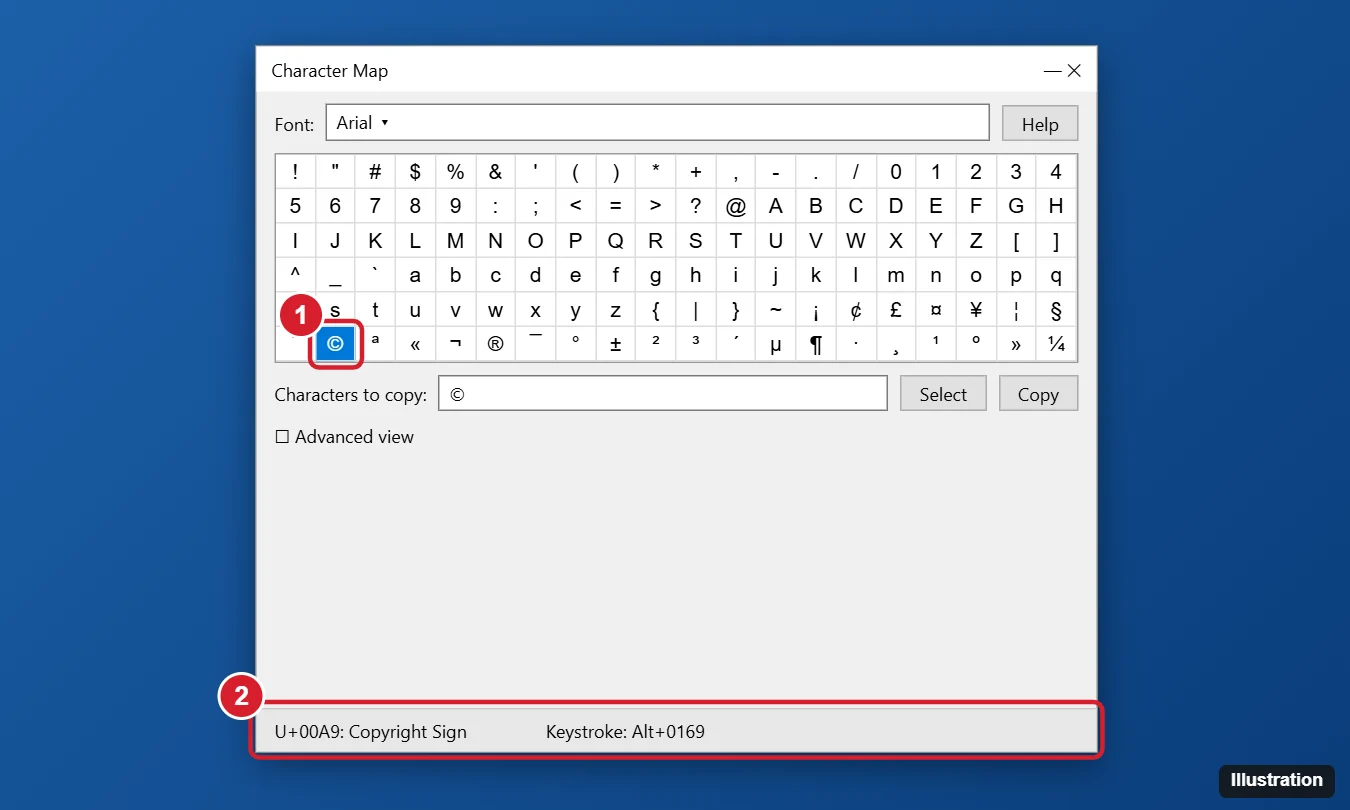
The easiest way to type a special character in Windows 10 is to press Windows + . (period) to open the emoji panel, click the Ω (Symbols) tab, and pick a character. In Word, type the Unicode hex code (for example, 00A9) and press Alt + X to turn it into ©. Anywhere with a number pad, hold Alt and type the decimal code on the numeric keypad (for example, Alt + 0169 for ©). Character Map shows each character’s Unicode code and Alt keystroke.
Method 1: Emoji and Symbol Panel
- Click where you want the character.
- Press Windows + . or Windows + ;.
- Click the Ω tab for symbols (punctuation, currency, Latin letters, math, arrows, and more).
- Click a character to insert it.
The symbols tab is available in Windows 10 version 1903 and later.
Method 2: Alt Codes (Numeric Keypad)
- Turn on Num Lock.
- Hold Alt, type the code on the numeric keypad (not the number row), and release Alt.
Codes starting with 0 (like 0169) use the Windows character set; codes without a leading 0 use an older set and may give different characters. Alt codes only cover a limited range of characters. On laptops without a keypad, use the Fn-key embedded keypad if available, or another method.
For example, Alt + 0167 gives the section sign, one of several routes in how to type § in Word and Windows.
Method 3: Alt + X in Microsoft Word and WordPad
- Type the character’s Unicode hex code, such as 2122 for ™ or 1F600 for an emoji.
- Press Alt + X. Word replaces the code with the character.
- Press Alt + X again with the cursor after a character to see its code.
This works with any Unicode character, including those beyond Alt codes. It also works in Outlook’s message editor.
Characters like these can come out wrong in a text file opened with the wrong rule, which is when you pick a file encoding in Microsoft Word.
In Word, the same code trick inserts a map pin: adding a location symbol in Word shows the 1F4CD code and the other routes.
Method 4: Character Map
- Press Windows + R, type charmap, and press Enter.
- Choose a font, then click a character. The status bar shows its Unicode code (U+…) and Alt keystroke if one exists.
- Check Advanced view and use Go to Unicode or Search for to find characters by code or name.
- Click Select, then Copy, and paste it where you need it.
Common Unicode Characters
| Character | Unicode (Word Alt + X) | Alt code |
|---|---|---|
| © Copyright | 00A9 | Alt + 0169 |
| ® Registered | 00AE | Alt + 0174 |
| ™ Trademark | 2122 | Alt + 0153 |
| ° Degree | 00B0 | Alt + 0176 |
| € Euro | 20AC | Alt + 0128 |
| — Em dash | 2014 | Alt + 0151 |
| • Bullet | 2022 | Alt + 0149 |
| é e acute | 00E9 | Alt + 0233 |
| ñ n tilde | 00F1 | Alt + 0241 |
| → Right arrow | 2192 | — |
| ✓ Check mark | 2713 | — |
Touch keyboard, layouts and AutoCorrect
- Touch keyboard: Press and hold a letter on the on-screen touch keyboard to see accented versions.
- International keyboard layouts: The US-International layout lets you type accents with dead keys (for example, ‘ then e for é). Add it in Settings > Time & Language > Language.
- AutoCorrect: In Word, set up entries like (c) for © under File > Options > Proofing > AutoCorrect Options.

Kermit Matthews runs Live2Tech from just outside Philadelphia. He is an IT specialist with over 20 years of experience, from a university help desk to small-business IT, IT management and his own consulting practice, and has written tech guides full time since 2020. Steps are checked against the current software on a real device or the maker’s official documentation. More about Kermit.