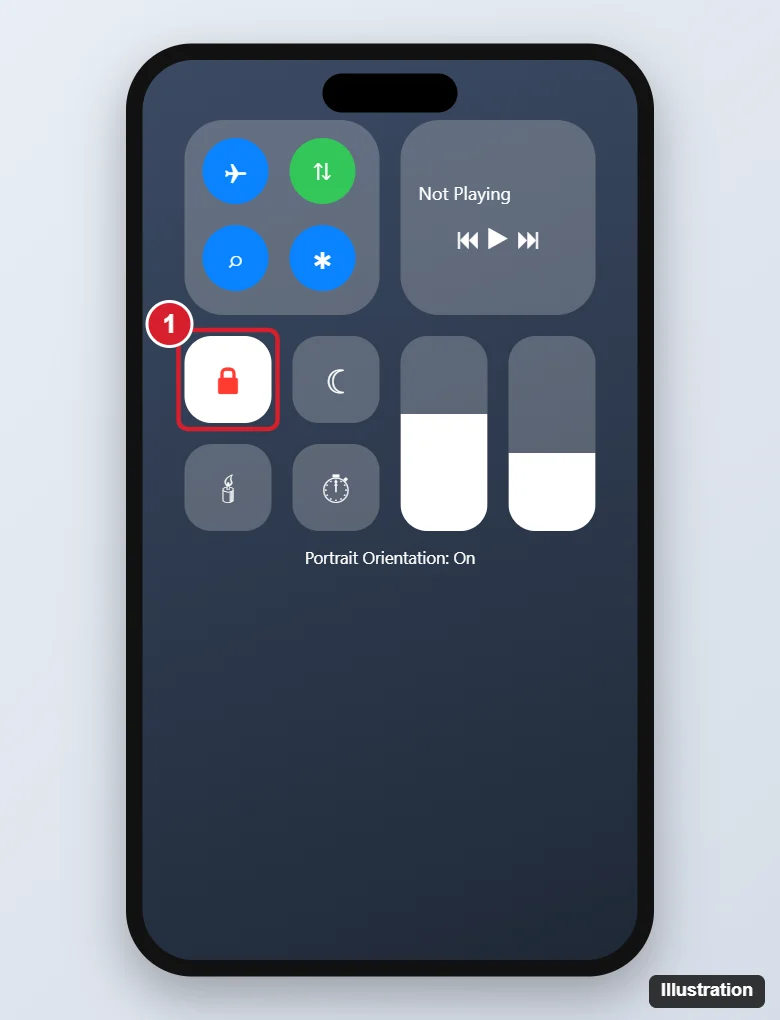
To turn auto-rotation on or off on an iPhone 14, open Control Center and tap the Portrait Orientation Lock button (a padlock inside a circular arrow). On iPhones with Face ID, swipe down from the top-right corner. On iPhones with a Home button, swipe up from the bottom. When the button is highlighted, the screen stays in portrait, so auto-rotation is off. Tap it again to turn auto-rotation back on. iOS doesn’t have an “auto-rotate” setting in the Settings app.
How to Turn Auto-Rotation Off (Lock Portrait)
- Open Control Center:
- iPhone X and later (Face ID, including iPhone 14): swipe down from the top-right corner.
- iPhone SE, 8, and earlier (Home button): swipe up from the bottom edge.
- Tap the Portrait Orientation Lock button so it turns white and red.
- “Portrait Orientation: On” appears briefly. A lock icon also shows in the status bar in Control Center.
How to Turn Auto-Rotation On
Open Control Center again and tap Portrait Orientation Lock so it’s no longer highlighted. Then turn your iPhone sideways in an app that supports landscape, such as Photos, Safari, or YouTube.
Button Missing from Control Center?
On iOS 18 and later, Control Center is customizable. Long-press an empty area of Control Center (or tap + at the top left), choose Add a Control, and search for Orientation Lock.
Why Some Screens Don’t Rotate
| Screen or app | Rotates? |
|---|---|
| Photos, Safari, Messages, Notes, Mail, Calculator | Yes |
| Most video apps (full-screen playback) | Yes, often even without auto-rotate when you tap full screen |
| Home Screen | Only on larger Plus and Max models, and not with Display Zoom set to Larger Text |
| Some apps and games | Only in the orientation the developer chose |
| Lock Screen and Control Center | No |
iPhones only have a portrait lock. There’s no built-in landscape lock like on the iPad. Some apps have their own orientation setting.
If you spot a padlock inside a curved arrow at the top of the screen, what the lock with a circle means on iPhone explains that icon and the other lock symbols.
This lock only affects the screen; to turn a saved photo or video instead, see how to rotate a picture on iPhone.
iPhone Won’t Rotate? Try These Fixes
- Check Portrait Orientation Lock in Control Center. It’s the most common cause.
- Try another app such as Photos. If that rotates, the first app doesn’t support landscape.
- Turn the phone fully sideways and hold it upright for a second. Rotation may not trigger when the phone lies flat.
- Check Display Zoom: go to Settings > Display & Brightness > Display Zoom. The Home Screen won’t rotate on Plus and Max models when it’s set to Larger Text.
- Restart the iPhone.
- Update iOS in Settings > General > Software Update.
- Test the motion sensors with the Compass or Measure app’s Level. If they don’t respond either, contact Apple Support.
Stop Accidental Rotation While Watching Videos in Bed
Turn on Portrait Orientation Lock, then use the full-screen button in the video app. Many apps show video in landscape regardless of the lock, while everything else stays upright.

Kermit Matthews runs Live2Tech from just outside Philadelphia. He is an IT specialist with over 20 years of experience, from a university help desk to small-business IT, IT management and his own consulting practice, and has written tech guides full time since 2020. Steps are checked against the current software on a real device or the maker’s official documentation. More about Kermit.