A BIOS or UEFI password protects your PC’s firmware settings and, in some cases, the whole boot process. It is separate from your Windows 10 password. You can remove it yourself only if you know the current password; if you have forgotten it, the legitimate route is the PC or motherboard manufacturer, who will ask for proof of ownership. Windows 10 reached end of support on October 14, 2025. Consumer Extended Security Updates (ESU) now run until October 12, 2027.
How to Remove a BIOS Password You Know
- Restart the PC and press the setup key shown during startup, or use Settings, Update and Security, Recovery, Advanced startup, then UEFI Firmware Settings.
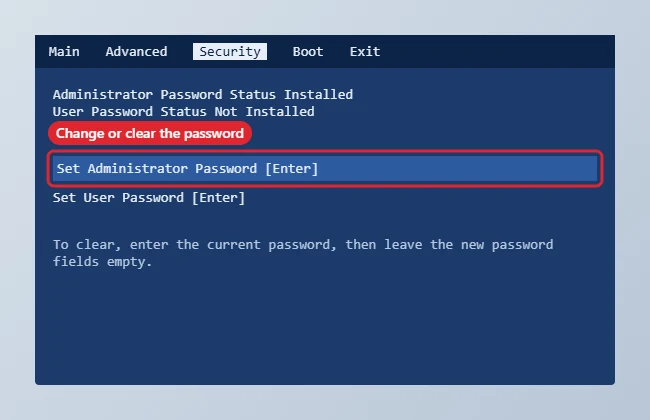
- Open the Security tab (the name varies by manufacturer).
- Select Set Administrator Password or Set Supervisor Password.
- Enter the current password, then leave the new password fields empty and confirm.
- Save and exit, usually with F10, and confirm the PC starts without asking for the firmware password.
If You Have Forgotten It
| Situation | What to do |
|---|---|
| Personal PC | Contact the manufacturer’s support with proof of purchase |
| Work or school PC | Ask your IT department; they manage the password |
| Second-hand PC | Contact the seller or manufacturer before buying further |
| Windows password forgotten instead | Use Windows account recovery, not firmware changes |
When the password option looks different
- The PC asks for a password before Windows starts: that is the BIOS or power-on password, not your Windows password.
- There is no option to clear it: some firmware requires setting an empty new password; others use a Clear option. Check your manual.
- To find the setup key, see how to pull up BIOS.
- For other firmware options, read how to change BIOS settings.
More about firmware passwords
Why won’t you show how to reset a forgotten BIOS password?
Those methods are often used to get into PCs without permission, and many modern laptops store the password in secure hardware. The manufacturer can verify ownership and help.
Is a BIOS password worth keeping?
It helps protect a laptop if it is lost or stolen, especially with drive encryption. Remove it only if you have another plan to secure the device.
Will removing it affect Windows?
No. Windows and your files are unaffected.

Kermit Matthews runs Live2Tech from just outside Philadelphia. He is an IT specialist with over 20 years of experience, from a university help desk to small-business IT, IT management and his own consulting practice, and has written tech guides full time since 2020. Steps are checked against the current software on a real device or the maker’s official documentation. More about Kermit.