Seeing a red number on the YouTube icon even though nothing new shows on your Lock Screen? That number is tied to YouTube’s notifications, and YouTube doesn’t publish exactly what it counts. You can check what’s waiting with the bell inside YouTube, hide the number while keeping alerts, or cut down what YouTube sends. Find your situation in the table, then jump to the matching fix.
What the red number means and what to do
| Your situation | What to do |
|---|---|
| You want to know what the number is about | Open YouTube and tap the bell to see your notifications. |
| You never want a number on the icon | Turn off Badges for YouTube in iPhone Settings. Your alerts can stay on. |
| The number fills up because YouTube sends too much | Trim YouTube’s own notification settings and the bell on each channel. |
| You want nothing at all from YouTube | Turn off Allow Notifications for YouTube in iPhone Settings. |
| The number won’t go away after you check | See “When the number won’t go away” below for what is and isn’t documented. |
What YouTube and Apple say about the number
The number is part of how notifications work on an iPhone. In Apple’s notifications overview, badges are described as a way for certain app icons to display information, and the example given is Mail showing the number of unread emails in your inbox. Apple’s notification settings guide lists badges as a per-app option: “Show a badge on the app icon: Turn on Badges.”
YouTube decides what it sends. Its help pages cover the bell, channel notifications and the switches in the app, but none of the pages for iPhone describe the icon number, what it includes, or what resets it. So the honest summary is this: the number is YouTube using the iPhone’s badge feature, it’s tied to YouTube’s notifications, and the setting you fully control is the Badges switch.
See what the number is counting
The quickest way to find out what YouTube wanted to tell you is the notifications list inside the app.
- Open the YouTube app.
- Tap the bell at the top of the screen. YouTube’s help says this is where you view updates.
- Read through the list of notifications.
One case surprises people. YouTube says that if a channel’s bell is set to All but you haven’t engaged with that channel in a while, its notifications go only to the app, through the bell at the top right of the Home tab.
Remove only the number from the icon
If the number is all that bothers you, switch off the badge and leave everything else alone.
- Open the iPhone Settings app.
- Tap Notifications, then tap YouTube in the list below Notification Style.
- Turn off Badges.
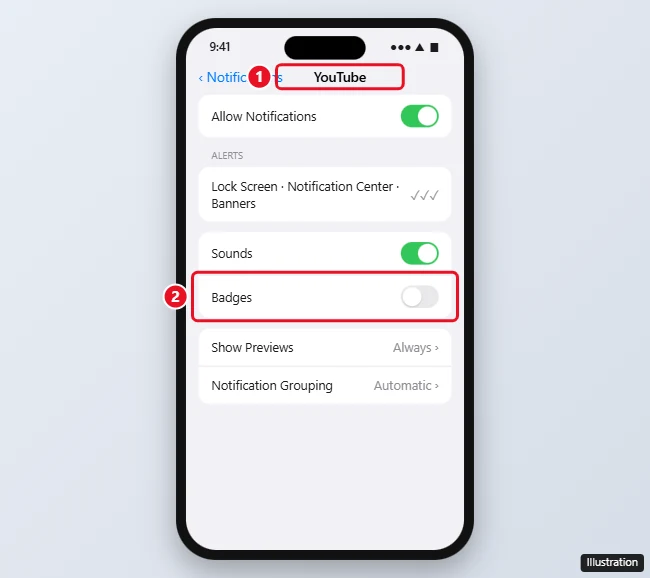
Badges sits on the same screen as the Lock Screen, Notification Center and banner choices and the Sounds switch, and Apple lists each as a separate option. Turning off Badges leaves those alone, so new uploads can still appear as banners if you want them. To bring the number back, turn Badges on again in the same place.
Get fewer YouTube alerts
If YouTube simply sends more than you want, cut it down inside the app, as described in YouTube’s iPhone and iPad notification help.
Change the app-wide switches
- In the YouTube app, tap your profile picture at the bottom of the screen.
- Tap Settings, then Notifications.
- Turn off the types you don’t care about, such as Recommended videos.
Set the bell on each channel
Next to Subscribed on a channel, tap the bell and pick one of three options. YouTube describes them this way:
- All: notifications for long-form uploads and live streams.
- Personalized: notifications for some regular uploads, Shorts and live streams. New subscriptions start here automatically.
- None: no notifications from that channel.
To change many channels at once, tap Subs at the top of the Home tab, tap All at the top right, then tap the bell next to each channel. If you only want to quiet subscription alerts, turning off subscription notifications in the YouTube app walks through that one switch.
Stop every YouTube alert on the iPhone
For a clean break, go to Settings > Notifications > YouTube and turn off Allow Notifications. Google’s help for turning YouTube notifications off gives the same iPhone step. Apple doesn’t say what this does to the badge, so if a number lingers, turn off Badges on that screen as well.
When the number won’t go away
Here’s what the vendors do and don’t cover, so you can skip the guesswork:
- Documented: turning off Badges for YouTube is Apple’s control for the number on the icon. That works no matter what YouTube counts.
- Not documented: what resets YouTube’s count, how long it takes, or whether reading notifications on another device changes it. Neither Apple nor YouTube describes it on the pages above.
Same question for Mail and other apps
Every app with badges uses the same Settings switch: Settings > Notifications, the app’s name, then Badges. For more on how badges behave across the iPhone, read what badges are on an iPhone. Mail is the app where the number is easiest to explain, since it tracks unread email, and getting rid of the red number on the Mail app covers that case.
YouTube has other iPhone settings worth a look while you’re in there, such as uploading only over Wi-Fi in the YouTube app.
YouTube badge answers
Why is there a number on the icon but nothing on my Lock Screen?
YouTube sends some notifications only to the bell inside the app, for example from channels set to All that you haven’t engaged with lately. Banners and the Lock Screen can also be switched off separately in Settings, while the badge stays on.
If I set a channel’s bell to None, does that lower the number?
YouTube says None means you get no notifications from that channel, so that channel stops adding new ones. It doesn’t say whether older notifications already in your list still count.
If the red number is the only thing you dislike, start with the Badges switch. It takes a few seconds and doesn’t change anything else about YouTube.

Kermit Matthews runs Live2Tech from just outside Philadelphia. He is an IT specialist with over 20 years of experience, from a university help desk to small-business IT, IT management and his own consulting practice, and has written tech guides full time since 2020. Steps are checked against the current software on a real device or the maker’s official documentation. More about Kermit.