Encrypted ZIP files either open after a password prompt or stop with an error, depending on how the sender encrypted them and which tool you open them with. In Windows 11, start by confirming who sent the file and getting the password through a separate channel. Then try File Explorer’s Extract All, and if Windows can’t handle the encryption, open the archive with 7-Zip, which asks for the password before it extracts anything.
Before you open it: two checks that matter
A password-protected attachment is also a common way to slip malware past email scanners, because the scanner can’t see inside an encrypted file. So the first job is making sure you were meant to receive it.
- Confirm the sender. If the ZIP arrived out of the blue, or the message pushes you to open it urgently, contact the sender by phone or a separate message you start yourself, not by replying to the email.
- Get the password separately. The safe pattern is the file by email and the password by text message or phone call. If the password sits in the same email as the ZIP, the encryption protected very little; ask the sender to use a separate channel next time.
Save the ZIP to your Downloads folder rather than opening it straight from the email. That gives you a copy you can scan and extract into a folder of your choice.
Try File Explorer first
Microsoft’s zip and unzip files page gives the standard route:
- Open File Explorer and find the ZIP file.
- Right-click it (or press and hold) and select Extract All….
- Choose a destination folder and follow the instructions.
- If Windows asks for a password, type it exactly as the sender gave it, then continue.
The same Microsoft page states that Windows 11, version 24H2 does not support operations on encrypted archive files, and it suggests non-Microsoft apps such as 7-Zip or WinRAR for creating or extracting them. In practice, that means you shouldn’t spend long on File Explorer: if it shows an error, an empty folder or files that won’t open instead of a password box, move on to 7-Zip. Plain, unencrypted ZIP files are a different case, and extracting ZIP files in Windows covers those.
Open it with 7-Zip
7-Zip is a free archive program whose own documentation lists strong AES-256 encryption for its 7z format and says it supports encryption with the AES-256 algorithm, and it prompts for the password when you extract a protected archive. Get it only from 7-zip.org, the project’s own site; 7-Zip’s format page describes its encryption.
- Install 7-Zip from 7-zip.org. Choose the 64-bit Windows version on most current PCs.
- In File Explorer, right-click the ZIP file. In Windows 11, select Show more options if you don’t see the 7-Zip menu.
- Point to 7-Zip and select Extract files… to choose a folder, or Extract to “file name\” to create a folder with the archive’s name.
- Type the password in the password box when 7-Zip asks, then select OK.
- Open the new folder and check that the files open normally.
You can also open the archive in the 7-Zip window first (right-click, 7-Zip > Open archive) to see the file list before extracting. If you’d rather double-click ZIP files and land in 7-Zip every time, making 7-Zip the default in Windows 11 shows how to change the association. For other archive types such as RAR or 7z, see extracting files on Windows 11.
When the password doesn’t work
Most failed attempts come down to a few small things:
| What happens | Likely reason | What to try |
|---|---|---|
| “Wrong password” on every try | A typo, a wrong letter case, or an extra space copied with the password | Type it by hand instead of pasting; check Caps Lock |
| Some files extract, others fail | The archive was damaged in transit | Ask the sender to send it again, or to share it as a cloud link |
| File Explorer shows an error with no password box | The encryption method isn’t one File Explorer handles | Use 7-Zip as above |
| The download is much smaller than expected | The attachment was blocked or cut off | Download it again from the original message |
If none of that helps, the fix is with the sender, not with your PC. Ask them to confirm the password and send it again by phone, or to recreate the archive. Skip any website or app that claims it can get past or guess a ZIP password: you’d be uploading private files to a stranger or running unknown software, and it isn’t your file to break into.
If you’re asking the sender to resend it
A short request makes the second attempt work. Ask the sender to create the archive with AES-256 encryption (7-Zip offers it when you set a password), to send the password by a different channel, and to tell you the file name so you can spot a fake. The screen they’ll use looks like this:
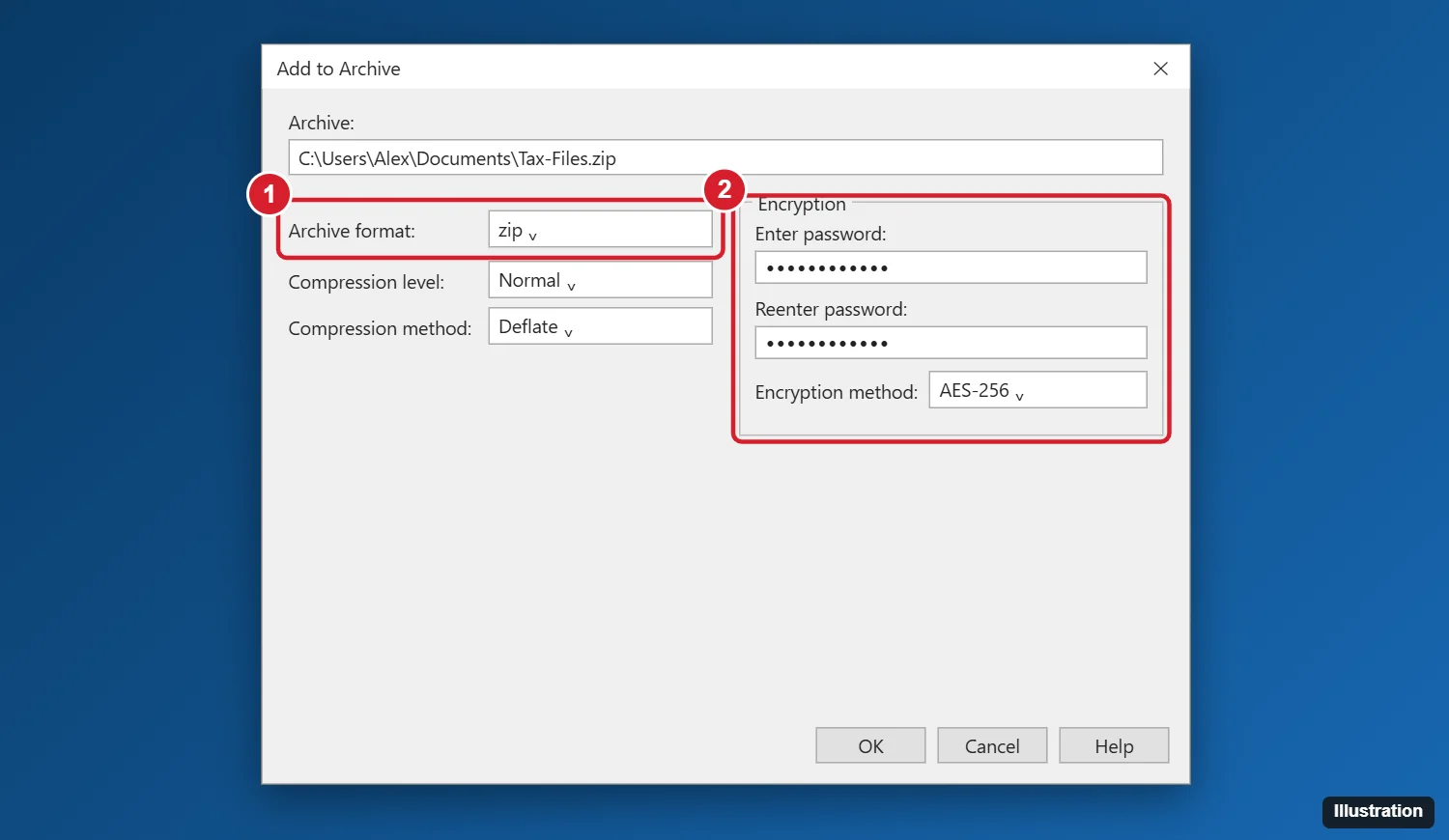
Sometimes a protected ZIP is the wrong tool altogether. For a single Word file, encrypting a Word document with a password keeps the protection on the document itself. For files that stay on one PC, password protecting a folder in Windows compares the options, and if the files will live on a laptop, checking whether BitLocker is on in Windows 11 tells you whether the whole drive is already encrypted.
After the files are out
- Scan the extracted folder. Right-click it and use the Microsoft Defender scan option before opening documents or running anything.
- Remember the files are now unprotected. Once extracted, they’re ordinary files. Microsoft’s zip page makes a similar point about encrypted files added to a zipped folder: they’re unencrypted when they’re unzipped. Store them somewhere private, not a shared folder.
- Delete what you don’t need. If you only needed to read the files, delete the extracted copies and the ZIP when you’re done.
- Sending files back? Re-zip them with a password in 7-Zip, or for a quick unprotected bundle, zipping a folder in Windows covers the built-in option.
Encrypted ZIP questions
Is it safe to install 7-Zip on a work PC?
On a managed work computer, ask your IT team first. Many companies block installs or provide an approved archive tool, and they may prefer to open the file for you.
The sender says there’s no password. Why am I asked for one?
The file may have been encrypted by a tool or mail system along the way, or it may not be the file they sent. Confirm the file name and size with them before typing anything.

Kermit Matthews runs Live2Tech from just outside Philadelphia. He is an IT specialist with over 20 years of experience, from a university help desk to small-business IT, IT management and his own consulting practice, and has written tech guides full time since 2020. Steps are checked against the current software on a real device or the maker’s official documentation. More about Kermit.