What you can do depends on the archive in front of you. A .zip file opens in every version of Windows 11: right-click it, choose Extract All, then click Extract. RAR, 7z and TAR files also open without extra software on Windows 11 version 24H2 and later, according to Microsoft. Password-protected (encrypted) archives and split, multi-part sets are a different story: Windows can’t handle them, so you need a free tool such as 7-Zip.
Which route fits your file
Look at the file extension first. If File Explorer hides extensions, open the View menu, choose Show, and turn on File name extensions. Then match the file to a row below.
| What you have | Built into Windows 11? | What to do |
|---|---|---|
| .zip (a “compressed folder”) | Yes, every version | Use Extract All, or open it and copy out only what you need |
| .rar, .7z or .tar | Yes on version 24H2 and later, per Microsoft | Try Extract All; if the option is missing, use 7-Zip |
| A ZIP or RAR that asks for a password | No | Use 7-Zip (or WinRAR) and enter the password the sender gave you |
| Split sets such as .7z.001, .zip.001 or .part1.rar | No | Put every part in one folder and open the first part with 7-Zip |
| .gz or .tar.gz | Not listed on Microsoft’s page | See opening a GZ file in Windows |
| Dozens of ZIP files at once | One at a time only | See extracting several ZIP files in one go on Windows 11 |
Still on an older PC? The Windows 10 unzip walkthrough and the Windows 7 version cover those menus, and the batch method for Windows 10 and 11 handles a whole folder of archives.
Unpack a ZIP with File Explorer
This is the route Microsoft’s zip and unzip help page describes, and it needs nothing installed.
- Press Windows + E to open File Explorer and go to the folder that holds the archive (usually Downloads).
- Right-click the ZIP file (or press and hold on a touchscreen) and select Extract All.
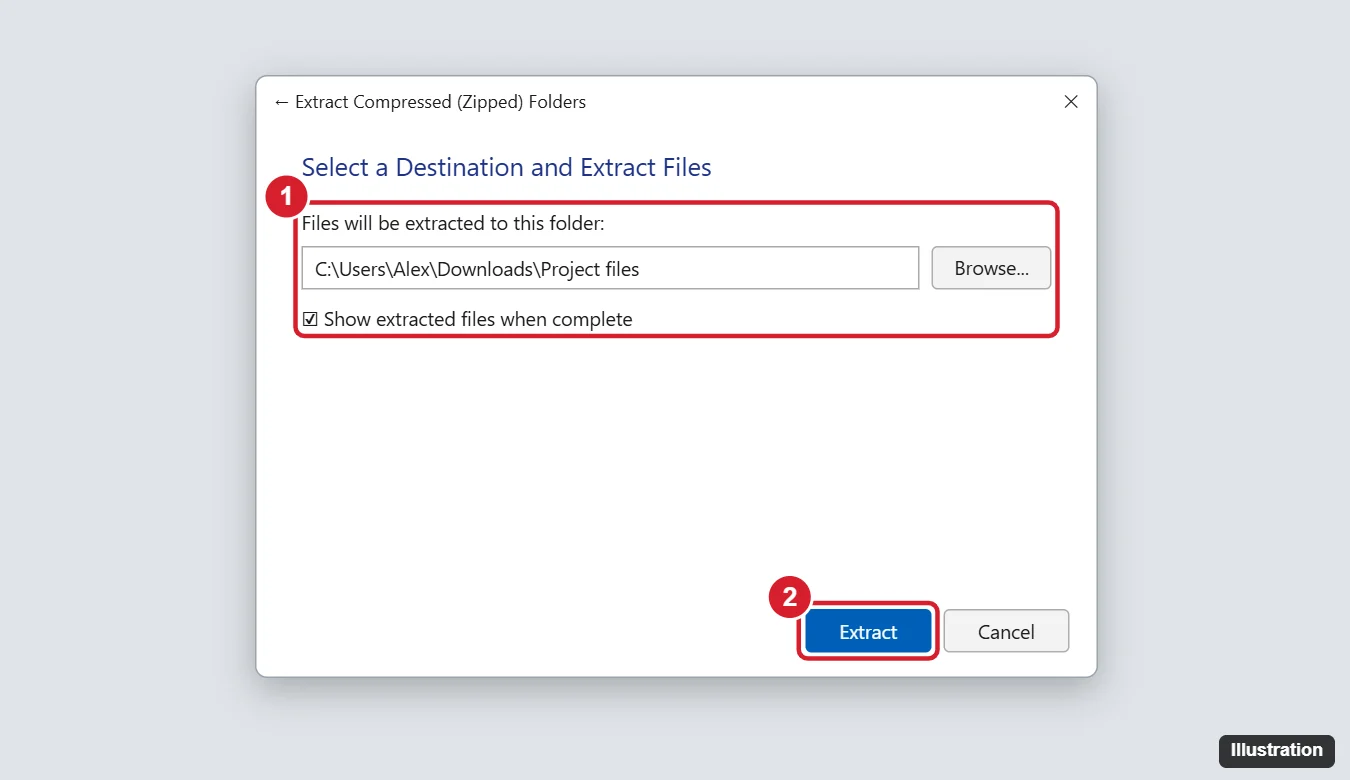
- The Extract Compressed (Zipped) Folders window suggests a new folder next to the ZIP with the same name. Keep it, or click Browse to pick another location, such as a USB drive or a project folder.
- Leave Show extracted files when complete checked if you want the new folder to open on its own afterward. Uncheck it if you are extracting several files in a row.
- Click Extract. A progress window appears for large archives; small ones finish almost instantly.
A shortcut reaches the same window. Click the ZIP once and select Extract all on the File Explorer command bar at the top.
The original ZIP stays where it was. Once you have checked that the extracted files open, you can delete the ZIP to save space.
Pull out only the files you need
A big download sometimes holds one file you actually want, such as a single PDF in a folder of course materials. You don’t have to unpack the whole thing.
- Double-click the ZIP. File Explorer shows its contents like an ordinary folder.
- Select the files or subfolders you want (hold Ctrl to pick several).
- Drag them to the desktop or another folder, or press Ctrl + C, go to the destination, and press Ctrl + V.
Avoid working on files while they are still inside the ZIP. Windows copies an opened file to a temporary location, so edits to a document may not save back into the archive, and an installer often fails because it can’t find the other files it needs. Copy the files out first, then open them.
What version 24H2 changed for RAR, 7z and TAR
Microsoft’s help page states that Windows 11, version 24H2 supports the ZIP, RAR, 7z and TAR archive formats. Current versions of Windows 11 build on that release, so a fully updated PC should list Extract All for these files too. Some tutorials report that earlier builds picked up RAR and 7z support through updates, but Microsoft’s page does not say so.
To see which version you have, open Settings > System > About and look under Windows specifications. If your PC shows an older version, or a .rar file opens in a blank window or offers no extract option, don’t spend long on it: install 7-Zip (below) and extract it there. The guide to opening RAR files on Windows covers that format in more depth.
Built-in support also stops at encrypted archives. Microsoft says Windows does not support operations on encrypted archive files, so a password prompt never appears in File Explorer; the extraction simply fails.
Extract from the command line
Commands help when you script a task or work on a remote PC. Windows 11 offers two options, and they behave differently.
| Expand-Archive (PowerShell) | tar (PowerShell or Command Prompt) | |
|---|---|---|
| Formats | ZIP only | ZIP, TAR and others (check the tar reference) |
| Size limit | 2 GB maximum file size | Not documented on the pages checked here |
| Overwriting files | Doesn’t overwrite unless you add -Force |
Extract to an empty folder to be safe |
| Destination | Created if it doesn’t exist | Create the folder first to be safe |
A typical PowerShell command, from the Expand-Archive reference on Microsoft Learn:
Expand-Archive -Path "C:\Users\<name>\Downloads\photos.zip" -DestinationPath "C:\Users\<name>\Pictures\photos"
If you leave out -DestinationPath, PowerShell creates a folder named after the ZIP in your current location. Use -LiteralPath instead of -Path when the file name contains square brackets, because brackets can be read as wildcard characters. Add -Force to replace files that already exist in the destination.
For tar, the usual form is tar -xf archive.tar -C C:\Extract, where -x extracts, -f names the file and -C sets the destination. Create the destination folder first. Treat tar as the fallback for formats Expand-Archive refuses, and check the result in File Explorer afterward.
When you need 7-Zip
7-Zip is free, open-source software, so download it from the official 7-Zip download page rather than a look-alike site. Its own site lists RAR, ISO, CAB and dozens of other formats it can unpack, along with AES-256 encryption for 7z and ZIP files. That makes it the right tool for three jobs Windows can’t do: password-protected archives, split sets, and unusual formats.
- Download the 64-bit Windows installer from 7-zip.org (choose ARM64 for an ARM-based PC) and run it.
- Right-click the archive. On Windows 11 you may need to select Show more options to see the 7-Zip submenu.
- Choose 7-Zip, then the extract option that keeps files in their own folder (labeled Extract to “folder name\” in current versions), or Extract Here to drop files next to the archive.
- Type the password if asked. For a split set, right-click only the first part (.001 or .part1); 7-Zip finds the rest as long as every part sits in the same folder.
If you’ll open archives often, you can make 7-Zip the default app for archives. WinRAR also works, but it is paid software with a trial period.
Fixes by symptom
| What you see | Likely cause | Fix |
|---|---|---|
| “The Compressed (zipped) Folder is invalid” | The download didn’t finish, or the file is really a RAR or 7z renamed to .zip | Download it again; if that fails, open it with 7-Zip |
| Error about the file name or path being too long | Deep folders inside the archive | Extract to a short path such as C:\Extract, or turn on long paths in Windows 11 |
| Extraction stops partway | Not enough free space (extracted files can be far larger than the ZIP) | Check Settings > System > Storage and free space or pick another drive |
| “Access denied” or “You need permission” | Destination is a protected folder such as Program Files | Extract to Documents, Downloads or the desktop |
| Files from a download refuse to run or show a warning | Windows marked the download as coming from the internet | If you trust the source, right-click the ZIP, choose Properties, select Unblock on the General tab, click OK, and extract again |
| No Extract All on the right-click menu | Another app took over ZIP files, or the format isn’t supported | Use Extract all on the command bar, try Show more options, or set File Explorer back as the app for .zip files |
A quick safety check before you open anything
Archives are a common way to deliver malware, because the risky file stays hidden until you unpack it. Extract only files from people and sites you trust. Before you open what came out, right-click the new folder and choose Scan with Microsoft Defender (you may need Show more options first). Be wary of .exe, .msi, .scr, .js or .bat files in an archive that was supposed to hold photos or documents.
Archive extraction questions
Why does my .rar file have no extract option at all?
Your PC is probably on a version of Windows 11 older than 24H2, or another program is set to open .rar files. Check Settings > System > About, install pending updates, or extract the file with 7-Zip.
Can Windows 11 open a password-protected ZIP?
No. Microsoft states that Windows does not support operations on encrypted archive files. Use 7-Zip and enter the password. If you are the one sending files, see how to password protect a ZIP file in Windows 11 and tell the recipient they’ll need 7-Zip too.
Does extracting delete or change the original archive?
No. Extract All, Expand-Archive and 7-Zip all leave the archive untouched and write copies to the destination. Delete the archive yourself once you’ve confirmed the files work.
Can I extract a ZIP straight to a USB drive?
Yes. In the Extract Compressed (Zipped) Folders window, click Browse, pick the USB drive or a folder on it, and click Extract. Make sure the drive has enough free space for the unpacked files, which can be much larger than the ZIP.
Is Extract All any different from opening the ZIP and copying files out?
The files are the same. Extract All copies everything and keeps the folder structure in one step; copying out lets you take only part of the archive. For installers and software, use Extract All so every supporting file lands in place.
For a broader look at compressed folders across Windows versions, the general guide to unzipping files in Windows is a good next stop.

Kermit Matthews runs Live2Tech from just outside Philadelphia. He is an IT specialist with over 20 years of experience, from a university help desk to small-business IT, IT management and his own consulting practice, and has written tech guides full time since 2020. Steps are checked against the current software on a real device or the maker’s official documentation. More about Kermit.