Before you email or share a ZIP, decide who has to open it, because that decides which protection to use. File Explorer in Windows 11 has no password option for ZIP files, so use a free tool such as 7-Zip: a ZIP with AES-256 encryption suits recipients who have 7-Zip, WinZip or a similar app, and a 7z archive can also hide the file names. Either way, the recipient needs that app, not File Explorer, to open it.
Pick the protection by who will open the file
A password only helps if the person on the other end can actually enter it. Use this table to choose the format and encryption method before you build anything.
| Situation | Use | Why |
|---|---|---|
| The recipient has 7-Zip, WinZip or a similar archiver | ZIP format, AES-256 | Strong encryption in a format most archivers recognize. |
| You don’t know what the recipient uses, and the content is low risk | ZIP format, ZipCrypto | 7-Zip’s help describes ZipCrypto as the choice for compatibility with most ZIP archivers, but AES-256 provides stronger encryption. File Explorer won’t open it either way. |
| Even the file names are private (for example, names of clients or patients) | 7z format, AES-256, Encrypt file names on | 7-Zip offers file-name encryption for 7z archives, so assume a ZIP’s file list is visible without the password. |
| The files never leave your own PC | A protected folder or drive encryption instead | An archive is meant for sharing; for local files, see the options near the end. |
For most people sending documents to a colleague or a tax preparer, the first row is the right answer: ZIP plus AES-256, with a long password.
Build the protected archive in 7-Zip
Download 7-Zip only from the official site, 7-zip.org. It is free, including for use at work, and has builds for 64-bit, 32-bit and ARM64 PCs. If you already zipped the files in File Explorer, start from the original files or folder and build a new archive rather than reusing the existing ZIP.
- In File Explorer, select the files or the folder you want to protect, then right-click the selection.
- If 7-Zip isn’t in the short Windows 11 menu, choose Show more options, then choose 7-Zip > Add to archive.
- In the Add to Archive dialog, change Archive format to zip. It may be set to 7z, so check this field every time.
- Under Encryption, type the password in Enter password and again in Reenter password. Turn on Show Password if you want to check for typos.
- Set Encryption method to AES-256.
- Optionally, rename the archive in the Archive box at the top so the name doesn’t reveal what’s inside.
- Click OK. The new ZIP is saved to the location shown in the Archive box.
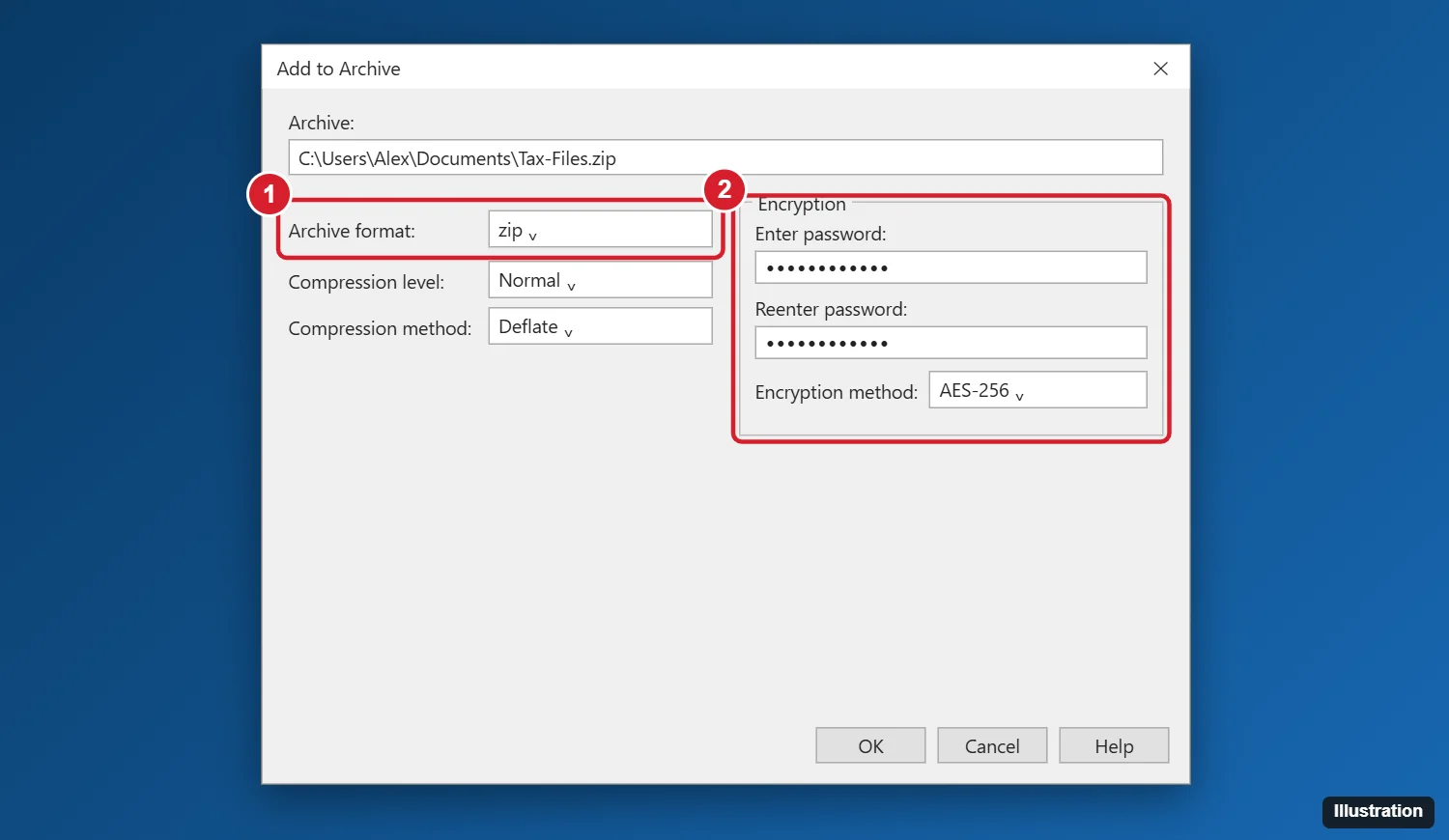
To hide the file names as well, pick 7z in step 3 instead and tick Encrypt file names, which is available for the 7z format. If you use 7-Zip constantly, you can also make 7-Zip the default archive app in Windows 11 so archives open in it directly.
Test the archive before you delete anything
A typo in the password field is the most common way to lock yourself out, so check the archive while the originals still exist.
- Create an empty test folder, for example on the desktop.
- Right-click the new ZIP and choose 7-Zip > Extract files, then pick the test folder.
- Enter a wrong password first. 7-Zip should refuse to extract, which confirms the archive is really encrypted.
- Extract again with the right password and open a couple of the files.
- Delete the test folder. Delete the unprotected originals too if they shouldn’t stay on the PC.
What Windows 11 can and can’t do with an encrypted ZIP
Built-in archive support has grown, which leads to some confusion. Microsoft’s zip and unzip help says that starting with Windows 11 version 24H2, File Explorer supports ZIP, RAR, 7z and TAR archives, but it does not support operations on encrypted archive files and suggests tools such as 7-Zip or WinRAR for those. In practice:
- Making: Show more options > Send to > Compressed (zipped) folder creates a ZIP with no password.
- Opening: anyone on Windows who receives your encrypted archive should install 7-Zip or another archiver rather than rely on File Explorer. Send them a note on which archives Windows 11 can extract on its own so they know what to expect.
- “Encrypt contents to secure data”: this File Explorer checkbox is the Encrypting File System, found under Properties > Advanced. It isn’t available in Home edition, according to Microsoft’s file encryption page. It is not a ZIP password, and Microsoft warns that encrypted files added to a zipped folder come out unencrypted when unzipped.
WinRAR, which Microsoft names alongside 7-Zip for encrypted archives, can also create password-protected archives, but 7-Zip is free.
Send the file and the password separately
The protection is only as good as the password and the way you share it.
- Use a passphrase of four or more unrelated words rather than a short word with a number on the end.
- Send the password through a different channel from the file: email the ZIP, then text or phone the password.
- Tell the recipient which app to use. A short line such as “open this with 7-Zip, not by double-clicking” saves a confused reply.
- Store the password in a password manager. There is no password reset for an encrypted archive, so treat a forgotten password as losing the contents.
A recipient on an older PC can follow the same idea: the steps to unzip files in Windows 10 explain what happens when a ZIP asks for a password.
Open the archive yourself later
- Right-click the archive and choose 7-Zip > Extract Here, or Extract files to choose a destination.
- Type the password when 7-Zip asks for it and click OK.
With a 7z archive that has encrypted file names, 7-Zip asks for the password before it shows the file list.
Mistakes that leave the ZIP readable
- Leaving ZipCrypto selected for sensitive files. Check Encryption method before clicking OK.
- Assuming file names are hidden. Assume anyone can see the names inside a ZIP without the password.
- Zipping in File Explorer and expecting a password prompt. That route never adds one.
- Keeping the unprotected originals in a synced folder, which leaves copies outside the archive.
- Writing the password in the same email as the attachment.
Related ways to lock files down
An encrypted archive is best for sending files. For files that stay put, consider these:
- Protecting a whole folder on your PC: see how to password protect a folder in Windows, which compares 7-Zip, BitLocker and other methods.
- Protecting the entire drive: you can check whether BitLocker is on in Windows 11 before adding anything else.
- Protecting a single Office document: Word can encrypt a Word document with a password without any archive at all.
- Just making a plain ZIP: the methods to zip a folder in Windows work the same way when no password is needed.
Encrypted ZIP questions
What happens if I forget the password?
Expect to lose access: 7-Zip offers no password reset, so keep the original files or store the password somewhere safe until the recipient confirms they opened it.
Is an AES-256 ZIP safe if someone intercepts the email?
The encryption itself is strong, so the weak point is the password. A long passphrase sent separately makes the archive very hard to open. ZipCrypto is the weaker method, so don’t use it for financial or personal records.
Why does my recipient get an error when opening the ZIP in File Explorer?
Windows doesn’t support encrypted archives, so File Explorer may show the files but fail to extract them, or show an error. Installing 7-Zip and using Extract files fixes it.
Can I protect a RAR or 7z file someone sent me?
Extract it first, then create a new protected archive from the extracted files using the steps above.
Is 7-Zip free for work use?
Yes. The official site states that 7-Zip is free software and that you can use it on any computer, including one in a commercial organization, without paying or registering.
Next time you send something private, build the archive, test it in an empty folder, and send the password by text before the email goes out.

Kermit Matthews runs Live2Tech from just outside Philadelphia. He is an IT specialist with over 20 years of experience, from a university help desk to small-business IT, IT management and his own consulting practice, and has written tech guides full time since 2020. Steps are checked against the current software on a real device or the maker’s official documentation. More about Kermit.