You downloaded a .zip file, and now you need what is inside it without installing another program. Windows already handles this: right-click the ZIP in File Explorer, choose Extract All, pick a destination folder and click Extract. You get an ordinary folder with every file ready to use. The steps below cover current versions of Windows 11 first, then Windows 10, plus single-file extraction, other archive types and the errors that stop an extraction.
Extract a ZIP file in Windows 11
- Open File Explorer (Windows key + E) and go to the folder that holds the ZIP. Browser downloads usually land in Downloads.
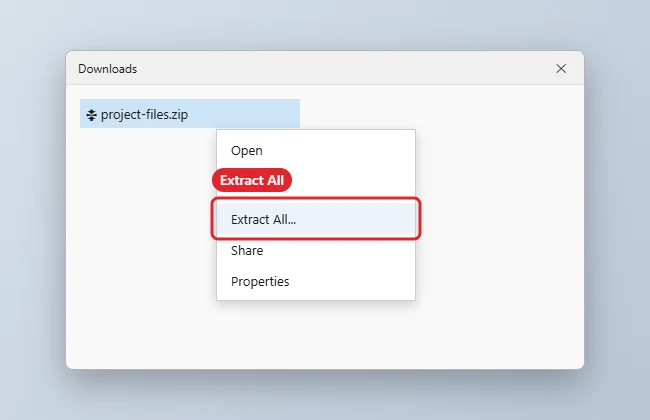
- Right-click the ZIP file (or press and hold on a touchscreen) and choose Extract All.
- A window titled Extract Compressed (Zipped) Folders opens. The box under “Files will be extracted to this folder” suggests a new folder with the same name as the ZIP, in the same location. Keep it, or click Browse to choose somewhere else.
- Leave Show extracted files when complete checked if you want the new folder to open automatically.
- Click Extract. A progress bar appears for large archives; small ones finish almost instantly.
If the destination folder doesn’t exist yet, Windows creates it. The original ZIP stays where it was, so you now have two copies of the data: the compressed file and the extracted folder.
When a ZIP is selected, current versions of Windows 11 also offer Extract all from the command bar at the top of File Explorer (in some builds it sits under the See more menu, the three dots). It opens the same window as the right-click route.
Extract a ZIP file in Windows 10
Windows 10 is past its end of support date (October 14, 2025), but its File Explorer still unzips files the same way. The right-click method above works unchanged: right-click the ZIP, choose Extract All, then Extract. Windows 10 also has a ribbon button:
- Click the ZIP file once to select it.
- At the top of File Explorer, open the Extract tab under Compressed Folder Tools.
- Click Extract all, or click one of the listed destination folders to send the files straight there.

On Windows 10, File Explorer only extracts ZIP files. For RAR, 7z and similar formats you need a separate archive app (see the formats section below). Anyone still on Windows 7 can use the older menus in unzipping files on Windows 7.
Take out only the files you need
Microsoft’s own instructions for a single file are simple: open the zipped folder and drag the file to a new location. This works on Windows 11 and Windows 10.
- Double-click the ZIP. It opens in File Explorer like a normal folder.
- Select the file you want. Hold Ctrl and click to pick several.
- Drag them to another folder or the desktop, or press Ctrl + C, open the destination and press Ctrl + V.
Viewing is not the same as extracting. You can preview a photo or PDF inside a ZIP, but Windows works from a temporary copy, so changes you save may vanish, and installers or programs often fail when launched from inside the archive. If a setup file throws an error, extract the whole ZIP first and run it from the new folder.
Choosing a method
| Situation | Best route |
|---|---|
| You need everything, such as a software download or a set of photos | Right-click > Extract All |
| You need one or two documents from a large archive | Open the ZIP and drag the files out |
| You have a dozen ZIPs from the same source | A batch method (see below) |
| You are scripting or working on a remote PC | PowerShell or tar |
Unzip with PowerShell or tar
For repeat jobs, a command is faster than clicking. In PowerShell, the Expand-Archive cmdlet extracts a ZIP to the folder you name:
Expand-Archive -Path "C:\Users\<name>\Downloads\photos.zip" -DestinationPath "C:\Users\<name>\Downloads\photos"
Add -Force to overwrite files that already exist in the destination. Recent builds of Windows 10 and Windows 11 also include the tar command, so tar -xf photos.zip in Command Prompt extracts into the current folder. If the archive is encrypted, skip to the password section below first.
Several ZIP files at once
Extract All works on one archive at a time; selecting five ZIPs and right-clicking won’t give you a single “extract everything” option. If you regularly get batches of archives, the options in extracting multiple ZIP files at once on Windows 11 (a short PowerShell loop or a free archive app) save a lot of repetition. Windows 10 users can follow extracting several ZIP files at once in Windows 10 and 11.
RAR, 7z, TAR and other archive types
Microsoft’s ZIP help page says Windows 11, version 24H2 supports ZIP, RAR, 7z and TAR archive formats, so current versions of Windows 11 open these with the same Extract All and drag-out steps. Older Windows 11 releases and Windows 10 handle ZIP only. If you’re unsure which you have, press Windows key + R, type winver and press Enter; if your PC is behind, installing updates from Settings > Windows Update brings the newer support.
Multi-part (split) archives and some less common formats still need a dedicated tool. For format-by-format details, see extracting RAR, 7z and other archives on Windows 11, and on older systems, opening RAR files on Windows. If you settle on a separate app, you can make 7-Zip the default for archive files so a double-click opens it instead of File Explorer.
Password-protected ZIP files
Microsoft states that File Explorer’s archive support doesn’t cover operations on encrypted archive files, and it suggests third-party tools such as 7-Zip or WinRAR for those. In practice, File Explorer may still prompt for a password on some older-style protected ZIPs; if it does, type the password the sender gave you. If it shows an error instead, or the archive is an encrypted RAR or 7z file, open it in 7-Zip or WinRAR and enter the password there. There is no legitimate way around a password you don’t have; ask the person who created the file.
If you are the one sending protected files, password-protecting a ZIP file in Windows 11 covers creating the archive and sharing the password separately.
Fix ZIP errors and missing options
Extract All is missing from the right-click menu
Another archive app has probably taken over .zip files. Right-click the ZIP, choose Open with, then Choose another app, select File Explorer (listed as Windows Explorer on many PCs) and turn on the option to always use it. You can also change the default for .zip under Settings > Apps > Default apps.
“The Compressed (zipped) Folder is invalid”
The download is usually incomplete or damaged. Delete it and download it again, ideally on a stable connection. If it still fails, the file may use a format File Explorer doesn’t read, such as an encrypted or split archive.
Path or file name too long
ZIPs with deeply nested folders can produce names longer than Windows’ traditional 260-character path limit. Extract to a short location, such as a folder named Extract at the root of drive C, then move the result. Some apps can work past the limit once you enable long paths in Windows 11.
Files are blocked or won’t run
Windows marks files downloaded from the internet. Before extracting, right-click the ZIP, choose Properties, check Unblock on the General tab and click OK, then extract again. Only do this for sources you trust, and scan the files with Microsoft Defender if you are unsure. New to working with downloads in general? Opening a downloaded file on Windows 10 explains where they go and how to open them.
Not enough space
Extracted files usually take more room than the ZIP. Check free space on the destination drive, or extract to a different drive.
Check that the extraction worked
A finished extraction leaves a regular folder (shown with a plain folder icon, not the zipper icon) next to the ZIP or wherever you pointed it. Open it and compare it with the archive: the same top-level files and subfolders should be there, and their sizes will usually be larger than inside the ZIP. Open one or two files to be sure they aren’t damaged. If the folder looks empty, look one level deeper; many archives wrap everything in a single inner folder. If you can’t find the output at all, check the path that was shown in the Extract window, or search File Explorer for a file name you know is inside.
Unzipping questions
Can I delete the ZIP after extracting?
Yes. Once you have opened a few extracted files and confirmed they work, the ZIP is just a duplicate. Keep it only if you may need a clean copy later.
Do I need WinZip or another app?
Not for ordinary ZIP files on Windows 11 or 10. A third-party app only matters for encrypted archives, split archives, or other formats your version of Windows can’t open.
Is unzipping safe?
Extracting itself is harmless, but the files inside can carry malware like any download. Open archives only from senders you trust, and be wary of a ZIP that contains a single program file when you expected documents.
Why is Extract All slow?
Very large or highly compressed archives, or thousands of small files, take time. Extracting to a fast internal drive rather than a USB stick or network folder helps.
How do I make a ZIP myself?
Select the files, right-click and choose the option to compress to a ZIP file. Zipping a folder in Windows 10 walks through three ways.
For the official wording on what File Explorer supports, Microsoft’s zip and unzip files page is the reference. For everyday downloads, right-click, Extract All, Extract is all you need.

Kermit Matthews runs Live2Tech from just outside Philadelphia. He is an IT specialist with over 20 years of experience, from a university help desk to small-business IT, IT management and his own consulting practice, and has written tech guides full time since 2020. Steps are checked against the current software on a real device or the maker’s official documentation. More about Kermit.