To unsubscribe from an email in Gmail, open the email and click Unsubscribe next to the sender’s name at the top of the message, then click Unsubscribe again in the pop-up. In the Gmail app on an iPhone, iPad or Android device, tap the same Unsubscribe link next to the sender’s name. To clear out many mailing lists at once, use Gmail’s subscription list instead: More > Manage subscriptions on a computer, or Menu > Manage subscriptions in the app.
Below you’ll find both methods step by step, what to do when the Unsubscribe link isn’t there, how unsubscribing differs from blocking, reporting spam and filtering, how to deal with dozens of newsletters at once, and how to undo an unsubscribe you regret.
What You Need and What This Covers
- A Gmail account. A personal Gmail address or a work or school Google account both work. Google lists the Manage subscriptions view as available to all Google Workspace customers, Workspace Individual subscribers and personal Google accounts.
- Gmail on the web or the Gmail app. The steps cover Gmail in a browser on a computer (mail.google.com) and the official Gmail app for Android, iPhone and iPad. If you read your Gmail in another app, such as Apple Mail or Outlook, Gmail’s own Unsubscribe controls won’t appear there, although that app may have its own.
- An email that’s actually a subscription. Unsubscribe is meant for newsletters, promotions and other mailing-list email. Personal messages, receipts and account notices usually don’t have an unsubscribe option at all.
Two terms that come up a lot: a mailing list is a list of addresses a company sends the same email to, such as a weekly newsletter or a sale announcement. One company can run several mailing lists, which matters later. Spam is Gmail’s folder for unwanted or suspicious mail, and also the act of reporting a message as unwanted.
This guide reflects Gmail and Google’s Gmail Help pages as of October 2026. Google says the Manage subscriptions view is rolling out gradually, so if you don’t see it yet, the single-email method in the first section still works.
How to Unsubscribe From an Email on a Computer
This is the quickest method when a newsletter or promotion is right in front of you. It unsubscribes you from the mailing list that sent that particular email.
Step 1: Open Gmail and find an email from the sender
Go to mail.google.com in your browser and sign in. Find a recent email from the newsletter or store you want to stop hearing from. Check the Promotions tab if you use inbox tabs, because that’s where Gmail usually sorts marketing mail. Click the email to open it.
Step 2: Click Unsubscribe next to the sender’s name
Look at the top of the message, where the sender’s name and address appear. If the sender supports it, Gmail shows a small Unsubscribe link right next to the sender’s name. Click it. You don’t need to scroll to the bottom of the email to hunt for the sender’s tiny footer link.

Step 3: Confirm in the pop-up
A small pop-up opens. What it offers depends on the sender:
- Unsubscribe: click it, and Gmail sends the unsubscribe request to the sender for you. You stay in Gmail and don’t have to visit the company’s website or fill in a form.
- Go to website: some senders require you to unsubscribe on their own site. Clicking this opens the sender’s unsubscribe or preferences page in a new tab, where you finish the process. Only do this for a company you recognize (more on that in the safety section below).

Step 4: Give it a few days
Google notes that it can take a few days for the emails to stop. The sender has to process the request on their end, and messages that were already scheduled may still arrive. In the US, the FTC’s CAN-SPAM rules give commercial senders up to 10 business days to honor an opt-out request, so an email or two in the first week isn’t a sign that it failed.
What you should see: after a successful unsubscribe, Gmail no longer shows the Unsubscribe link on that email in the same way, and new mail from that list should stop. If you later spot the sender’s name replaced by a code or list name, that’s normal. Google says you may see a unique identifier for the mailing list, called a list ID, instead of the sender’s name.
One email, one list. Unsubscribing from a single email might only remove you from that one mailing list. If a store sends you a weekly newsletter, sale alerts and product updates from three separate lists, you may need to unsubscribe from each, or use Manage subscriptions (below), which unsubscribes you from all active lists related to a sender in one go.
How to Unsubscribe in the Gmail App (iPhone, iPad and Android)
The Gmail app works almost the same way on an iPhone, iPad, Android phone or Android tablet.
Step 1: Open the email in the Gmail app
Open the Gmail app and tap the newsletter or promotion you want to stop.
Step 2: Tap Unsubscribe next to the sender’s name
At the top of the message, tap Unsubscribe beside the sender’s name. If you don’t see it, the sender hasn’t given Gmail a way to unsubscribe automatically; see what to do when there’s no Unsubscribe link.
Step 3: Tap Unsubscribe or Go to website
In the pop-up, tap Unsubscribe to have Gmail send the request, or Go to website if that’s the only choice. The website option opens the sender’s page, where you complete the opt-out.
Optional: turn on unsubscribe tips
The Gmail app can suggest unsubscribing from mailing lists you rarely open. On an iPhone or iPad, tap Menu (the three lines at the top left) > Settings, then under Inbox tap Inbox customizations > Inbox tips and turn on Unsubscribe tips. On Android, tap Menu > Settings, choose your email address, tap Inbox Tips settings under “Inbox Tips,” and check the box next to Unsubscribe tips.
How to Unsubscribe From Many Senders With Manage Subscriptions
Manage subscriptions is a Gmail view that lists your active subscriptions in one place, sorted by the senders who email you most, with the number of emails each has sent recently. It’s the closest thing Gmail has to a built-in bulk unsubscribe tool, and it has one big advantage over the single-email method: when you unsubscribe from a sender here, Gmail unsubscribes you from all active mailing lists related to that sender.
Google introduced it in July 2025 and rolled it out gradually to the web, Android and iOS. Google’s help page still notes that it may not be available to everyone yet.
On a computer
- Open Gmail in your browser.
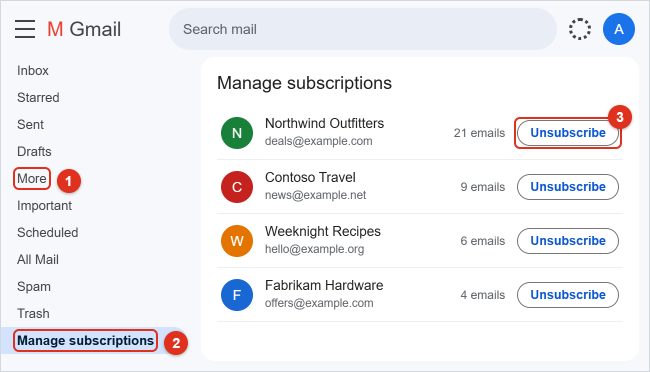
- In the menu on the left, click More, then Manage subscriptions. If the left menu is collapsed, click the three-line menu icon at the top left first.
- Scroll through the list. Each row shows a sender and how many emails they’ve sent you recently. To check what a sender has been sending before you decide, click the sender’s name or picture to see all their emails.
- Next to the sender you want to stop, click Unsubscribe.
- If a pop-up appears, choose Go to website to finish on the sender’s site, or Block if you’d rather just send their mail to Spam.
In the Gmail app on iPhone, iPad or Android
- Open the Gmail app.
- Tap Menu (the three lines at the top left), then tap Manage subscriptions.
- Tap a sender’s name or picture to see their recent emails, if you want to check first.
- Tap Unsubscribe on the right, next to the sender.
- If a pop-up appears, tap Go to website or Block.
What happens next: Google says that after you unsubscribe from a sender in Manage subscriptions, any new emails from them go to your Spam folder, with a banner explaining why they’re there. That gives the sender time to process your request without the stragglers landing in your inbox. If you change your mind, open one of those emails in Spam and click Report not spam to move the sender’s mail back to the inbox.
Unsubscribing doesn’t delete the emails you already have. Old newsletters stay where they are until you delete or archive them. Our guide on how to delete Gmail emails in bulk shows how to clear out thousands of old promotions in a few clicks.
Unsubscribe, Block, Report Spam or Filter: Which to Use
Gmail gives you four different tools for unwanted email, and they don’t do the same thing. Picking the right one saves you from emails that keep coming back.
| Option | What it does | Best for | Where to find it |
|---|---|---|---|
| Unsubscribe | Asks the sender to remove you from their mailing list, so the email stops being sent. | Newsletters and promotions from real companies you signed up with. | Next to the sender’s name in an open email, or in Manage subscriptions. |
| Block | Sends every future email from that address straight to Spam. It doesn’t unsubscribe you, so the sender keeps emailing. | A specific address you never want to see, or a sender that ignores unsubscribe requests. | Open the email, click More (three dots) next to Reply > Block “sender”. |
| Report spam | Moves the email to Spam and helps Gmail recognize similar messages. Google receives a copy of the email to analyze. | Junk you never signed up for, scams and suspicious mail. | Select the email and click Report spam at the top (in the app, More > Report spam). |
| Filter | A rule you create that archives, labels or deletes matching mail as it arrives. The sender keeps sending. | Mail you can’t stop but want out of your inbox, or a whole domain of senders. | Gmail on a computer only, from the search bar or Settings. |
A simple way to decide:
- You recognize the company and once gave them your address: unsubscribe. It’s the only option that actually stops the email at the source.
- You’ve never heard of the sender, or the email looks like a scam: report spam (or phishing, if it asks for passwords or personal details). Don’t click any links inside it.
- You unsubscribed, waited more than two weeks, and the email still arrives: block the address so its mail goes to Spam.
- You still want the mail, just not in your inbox: create a filter that labels and archives it. Our guide on how to create filters in Gmail walks through every filter action.
Blocking has one catch worth knowing: Google says that once you block a sender, Gmail keeps identifying their emails as spam even if you move individual messages out of Spam. To let them back in, unblock them first (see how to undo).
What to Do When There’s No Unsubscribe Link
Gmail can only show its Unsubscribe link when the sender includes the technical information it needs. Behind the scenes, a marketing email can carry hidden instructions called a List-Unsubscribe header that tell mail apps where to send an opt-out request. Google’s email sender guidelines require anyone sending more than 5,000 messages a day to Gmail accounts to support one-click unsubscribe for marketing and subscribed messages. Smaller senders aren’t held to that requirement, and some don’t include the header at all, so Gmail has nothing to attach the link to.
The link is also missing, on purpose, from email that isn’t a subscription: messages from people, receipts, shipping updates, password resets and security alerts. These aren’t marketing lists, and under US law transactional messages like these are exempt from most CAN-SPAM rules.
If the email has no Unsubscribe link at the top, try these in order:
- Check the bottom of the email. Most legitimate newsletters still have their own unsubscribe or “email preferences” link in the footer, usually in small gray text. Use it only if you trust the sender.
- Change your preferences in your account. For a shop, bank or app you have an account with, sign in to its website or app directly (not through the email) and look for notification or email preferences. This is often where you can turn off specific kinds of mail.
- Block the sender. Open the email, click More next to Reply, and choose Block “sender”. Future mail from that address goes to Spam.
- Report it as spam. If you never signed up, select the email and click Report spam.
- Filter it. If the mail comes from many different addresses at the same company, a filter on the company’s domain (for example
@example.comin the From field) can archive or delete all of it.
A safety warning before you click any unsubscribe link inside an email: a link in the body of a message takes you to whatever website the sender chose. For a real company you signed up with, that’s fine. For junk you never asked for, clicking can confirm to a spammer that your address is active, and a fake unsubscribe page can be a phishing trap that asks you to sign in. Gmail’s own Unsubscribe link next to the sender’s name is the safer choice because Gmail sends the request for you. If the only option is a link in a suspicious email, report it as spam instead.
Dealing With a Lot of Newsletters at Once
Gmail doesn’t have a single “unsubscribe from everything” button, and that’s probably a good thing, since some of your subscriptions are ones you want to keep. These approaches get you close:
- Work through Manage subscriptions. Start at the top of the list, where the busiest senders are, and click Unsubscribe on each one you don’t need. Because the list is sorted by how much each sender emails you, the first ten or so rows usually account for most of the clutter.
- Find every newsletter with a search. Type
unsubscribein the Gmail search bar. Almost every marketing email includes that word in its footer, so the results are a rough list of your subscriptions. You can also searchcategory:promotionsto see everything in the Promotions tab. - Catch what you can’t stop with a filter. For mail that keeps coming no matter what, create a filter from that search, such as Has the words
unsubscribe, with the action Skip the Inbox (Archive it) and a label like “Newsletters.” Archiving is safer than deleting here, because banks, schools and services sometimes include the word “unsubscribe” in important mail too. - Clean out what’s already there. Unsubscribing only stops new mail. To free up space, search
category:promotions older_than:1y, select all matching conversations, and delete them. Then empty the Trash if you want the space back right away; our guide to emptying the trash in Gmail, Google Drive and Google Photos covers that step.
Third-party “mass unsubscribe” apps and browser extensions exist, but they work by connecting to your mailbox, which means granting another company access to your email. If you consider one, read exactly what access it asks for on the Google permission screen. For most people, Gmail’s Manage subscriptions view now covers the same job without giving anyone else access to your messages.
A Worked Example
Say Alex Rivera opens Gmail and finds 40 unread promotions from the past week. Here’s how Alex clears them out in about ten minutes:
- Alex clicks More > Manage subscriptions. The top of the list shows a clothing store with 21 recent emails, a travel site with 9, a recipe newsletter with 6 and a hardware store with 4.
- Alex still reads the recipe newsletter, so it stays. Alex clicks Unsubscribe next to the clothing store and the travel site. Because this is Manage subscriptions, both companies’ other mailing lists are included too.
- The hardware store’s row shows a pop-up with Go to website. Alex isn’t sure about leaving Gmail, so instead Alex signs in to the hardware store’s own website directly and turns off marketing emails in the account settings, keeping order confirmations.
- Over the next few days, a couple of stray emails from the clothing store land in Spam, with a banner explaining that Alex tried to unsubscribe from this sender. After two weeks, nothing new arrives.
- Finally, Alex searches
category:promotions older_than:6mand deletes the old promotions to reclaim storage.
How to Undo an Unsubscribe or a Block
Undo an unsubscribe: Gmail doesn’t have a “resubscribe” button. Unsubscribing removes you from the sender’s list on their side, so to start receiving the emails again, go to the company’s website or account settings and sign up for the newsletter again. If you unsubscribed through Manage subscriptions and the sender’s emails are now landing in Spam, open one, click Report not spam, and the sender’s mail returns to your inbox.
Undo a block: open an email from the sender, click More next to Reply, and choose Unblock “sender”. If you can’t find a message from them, go to Settings (gear icon) > See all settings > Filters and Blocked Addresses, check the box next to the address, and click Unblock selected addresses. In the Gmail app, look in Menu > Spam for one of their messages, open it and tap More > Unblock.
Undo a spam report: open Spam (under More in the left menu on a computer), check the box next to the email and click Not spam. In the app, open the email in Spam and tap More > Report not spam.
Troubleshooting
I don’t see the Unsubscribe link at the top of the email
The sender hasn’t included the information Gmail needs, or the email isn’t a mailing-list message. Use the footer link if you trust the sender, change your email preferences in your account with the company, or block the address. Also make sure you’re in the Gmail website or Gmail app; other mail apps show their own controls, not Gmail’s.
I can’t find Manage subscriptions
On a computer, it’s under More in the left menu, so click More to expand the list. In the app, it’s in Menu. If it isn’t there, it hasn’t reached your account yet; Google says the feature is rolling out gradually. Updating the Gmail app from the App Store or Google Play is worth trying on a phone. Until it appears, unsubscribe from individual emails instead.
I unsubscribed but the emails keep coming
Wait a week or two first, because the sender needs time to process the request. If emails still arrive after that, check whether they come from a different mailing list run by the same company (unsubscribe from that email too, or use Manage subscriptions to cover all of the sender’s lists). If the sender is ignoring you, block the address or report the emails as spam.
The Unsubscribe button opens a website that asks me to sign in
Stop and close the page if you have any doubt. A genuine unsubscribe page sometimes asks you to confirm your email address, but it shouldn’t need your password. Sign in to the company’s website directly by typing its address instead, or report the email as phishing if it looks fake.
Important emails from the company stopped too
Unsubscribing from marketing shouldn’t stop receipts, shipping notices or security alerts, which are sent separately. If they’ve vanished, check Spam, especially if you blocked the sender or unsubscribed through Manage subscriptions (which routes new mail from that sender to Spam). Click Report not spam on anything you want back, and consider adding the sender to your contacts, which Google says stops Gmail from sending their messages to Spam.
My work or school account behaves differently
The unsubscribe and Manage subscriptions features are available for Google Workspace accounts, and Google says there’s no admin setting for Manage subscriptions. However, your organization may route or filter some mail before it reaches you. For mail from your own organization, such as internal announcement lists, ask your IT team how to leave the list.
Frequently Asked Questions
Is it safe to click Unsubscribe in Gmail?
Gmail’s own Unsubscribe link next to the sender’s name is the safest way to opt out, because Gmail sends the request to the sender for you. Be more careful with links inside the body of an email, and with the Go to website option, which opens the sender’s page. For an email from a company you don’t recognize, report it as spam instead of clicking anything.
How long does it take to stop getting emails after I unsubscribe?
Google says it can take a few days. US law gives commercial senders up to 10 business days to process an opt-out, so allow up to about two weeks before you block or report the sender.
Can I unsubscribe from all emails at once in Gmail?
Not with one click. The fastest built-in route is More > Manage subscriptions on a computer (or Menu > Manage subscriptions in the app), where you can click Unsubscribe down the list of senders one after another. Each click covers all of that sender’s active mailing lists.
Does unsubscribing delete the emails I already have?
No. Unsubscribing only stops future emails. Old messages stay in your inbox, Promotions tab or archive until you delete them.
What’s the difference between unsubscribing and blocking?
Unsubscribing asks the sender to stop emailing you. Blocking doesn’t contact the sender at all; it just sends their future emails to your Spam folder, and they keep arriving there. Unsubscribe from companies you signed up with, and block senders that ignore your request.
Why does Gmail say “Go to website” instead of Unsubscribe?
Some senders require you to unsubscribe on their own site, so Gmail can’t do it for you. Clicking Go to website opens their unsubscribe page. If you don’t trust the sender, block or report the email instead.
Will unsubscribing close my account with the company?
No. Unsubscribing removes you from a marketing mailing list. Your account, orders and subscriptions you pay for aren’t affected, and you should still get transactional mail such as receipts and password resets. Canceling a paid subscription is a separate step you take with the company.
Can I unsubscribe in the Gmail app on my iPhone?
Yes. Open the email in the Gmail app and tap Unsubscribe next to the sender’s name, then tap Unsubscribe or Go to website. You can also tap Menu > Manage subscriptions to see and unsubscribe from all your subscriptions.
Next Step
Open More > Manage subscriptions now and unsubscribe from the three or four busiest senders you no longer read. That alone usually removes most of the daily clutter. For anything that keeps arriving after two weeks, block it or set up a filter, and see Google’s Manage your subscriptions in Gmail and Unsubscribe from an email help pages for the latest details.

Kermit Matthews runs Live2Tech from just outside Philadelphia. He is an IT specialist with over 20 years of experience, from a university help desk to small-business IT, IT management and his own consulting practice, and has written tech guides full time since 2020. Steps are checked against the current software on a real device or the maker’s official documentation. More about Kermit.