To mute a conversation in Google Messages, open the app, press and hold the conversation in your list, tap the three-dot More menu in the top-right corner, and choose Mute (on some versions it says Notifications off or shows a bell with a line through it). Muted chats still receive messages, but your phone won’t ring or buzz for them, and a crossed-out bell appears next to the conversation. You can also open the chat, tap More > Details > Notifications, and set it to Silent.
Google updates Messages often, so the exact labels can vary by phone and app version. Here’s every way to do it, plus how to unmute, mute group chats, and snooze notifications for a while.
Method 1: Mute from the conversation list
- Open Google Messages.
- Press and hold the conversation you want to mute. You can tap more conversations to select several.
- Tap the three-dot More icon at the top right.
- Tap Mute or Notifications off. If you see a bell icon in the top toolbar instead, tap it.
Method 2: Mute from inside the chat
- Open the conversation.
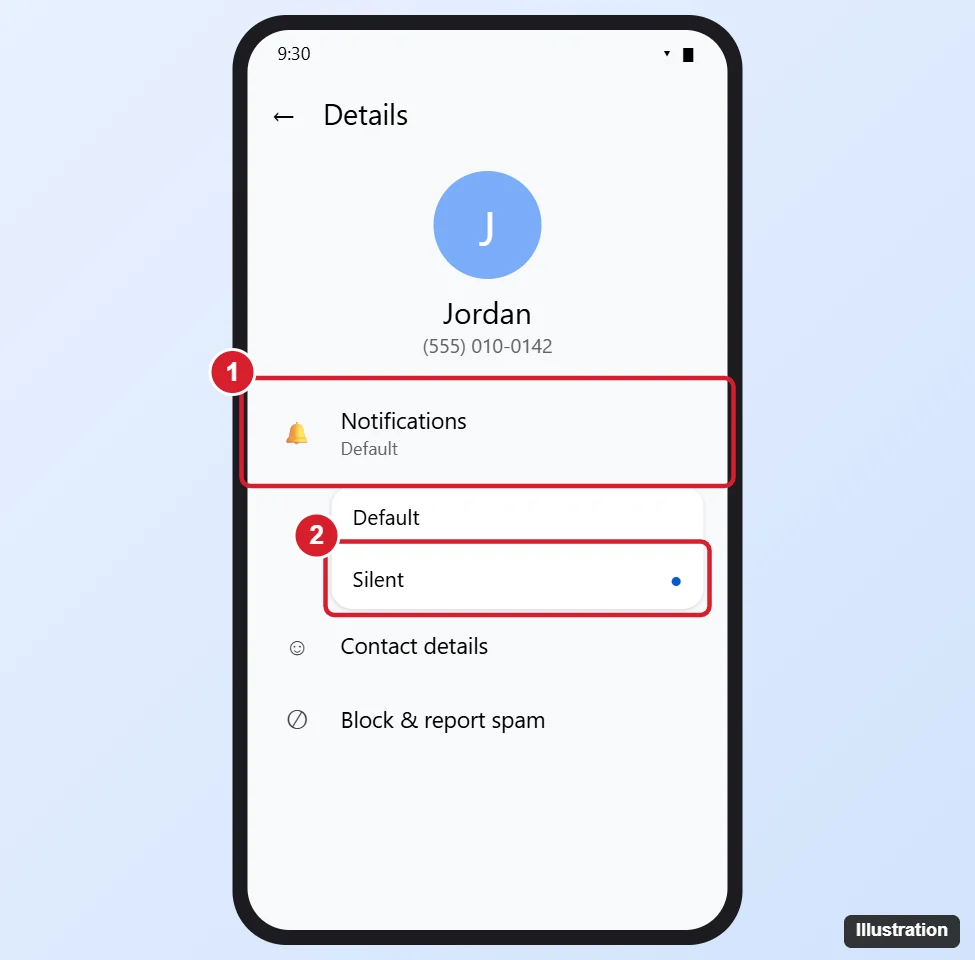
- Tap the three-dot More icon, then Details. In group chats, tap Group details.
- Tap Notifications.
- Choose Silent, or turn off notifications for this conversation. On some phones this opens your Android notification settings for the chat, where you’ll see the same choices.
Method 3: Silence it from the notification
- When a message from that chat arrives, swipe down to see the notification.
- Press and hold the notification.
- Tap Silent, then Done or Apply.
On Android 11 and later, each Messages conversation can have its own notification settings, so this only affects that chat.
Each chat can also get its own colors or wallpaper, and setting a Google Messages chat theme works from the same conversation menu.
Muted vs. silent vs. archived vs. blocked
| Option | Still get messages? | Notification? | Where the chat shows |
|---|---|---|---|
| Mute / Notifications off | Yes | No | Main list, with a crossed-out bell |
| Silent | Yes | Quiet notification in the shade, no sound or vibration | Main list |
| Archive | Yes | Yes, and the chat returns to the main list when a new message arrives | Archived folder |
| Block | No (goes to Spam & blocked) | No | Spam & blocked folder |
How to unmute a conversation
- Press and hold the muted conversation (look for the crossed-out bell).
- Tap More > Unmute or Notifications on.
Or open the chat and go to More > Details > Notifications and set it back to Default or Alerting.
How to mute a group chat
Use either method above. Muting a group only affects your phone. Other members aren’t told. In an RCS group chat, you can also leave the group from Group details > Leave group. You can’t leave a regular MMS group, so muting is the best option there.
How to pause all message notifications for a while
- Do Not Disturb: Swipe down twice and tap Do Not Disturb to silence everything for a set time.
- Snooze notifications: Turn it on in Settings > Notifications > Notification snoozing. Then swipe a notification slightly and tap the snooze icon. The option’s location varies by phone maker.
- Turn off all Messages notifications: In Messages, tap your profile picture, then Messages settings > Notifications.
For iPhone, see how to turn off the send text sound on iPhone.
More questions about muted chats
Does the other person know I muted them?
No. Muting only changes notifications on your phone. They can still see delivery and read receipts if you have those turned on for RCS chats.
Can I mute a conversation for a set time?
Google Messages doesn’t have a timed mute for single chats. Use notification snoozing or Do Not Disturb, or unmute the chat later.
Why am I still getting notifications from a muted chat?
Check that you muted the right thread. The same contact can have separate threads for different numbers or for a group. Also check whether your watch or another device shows notifications on its own.
Does muting work in Messages for web?
Muting is tied to your phone’s settings, so notifications usually follow what you set on your phone. Browser notifications for messages.google.com are controlled separately in your browser settings.

Kermit Matthews runs Live2Tech from just outside Philadelphia. He is an IT specialist with over 20 years of experience, from a university help desk to small-business IT, IT management and his own consulting practice, and has written tech guides full time since 2020. Steps are checked against the current software on a real device or the maker’s official documentation. More about Kermit.