Customize one conversation from its menu: in Google Messages, open the chat, tap More (or the person’s or group’s name at the top), then tap Chat theme to pick a color or wallpaper for that chat alone. Changed your mind? The same menu has Reset to default, which brings back the original look. A chat theme is visible only to you, and Google says RCS must be turned on.
Set a chat theme for one conversation
These steps follow Google’s Customize conversations help page for the current Google Messages app on Android. A chat theme changes the background and the message bubbles of one conversation; every other chat keeps its look.
- Open Google Messages and open the conversation you want to change. It can be a one-on-one chat or a group.
- At the top, tap the recipient or group name. Or, in the upper right, tap More (three dots).
- Tap Chat theme.
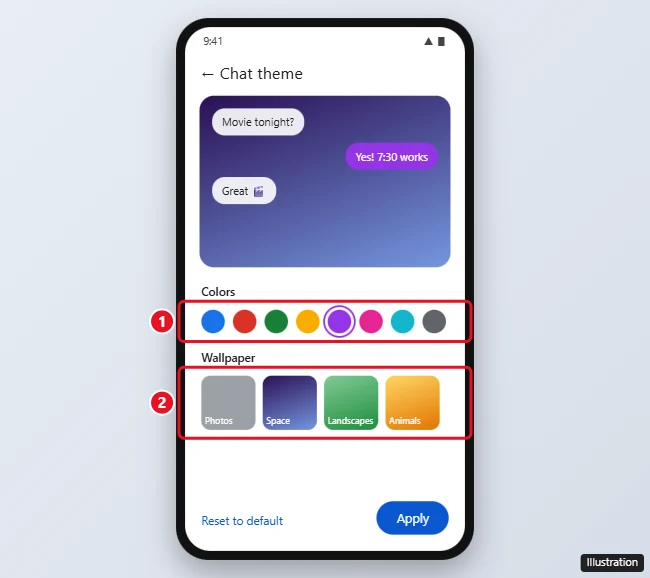
- Select one of the color themes from the palette.
- To add a wallpaper as well, select a category and then a wallpaper from it, or tap Choose a photo (details in the next section).
- Tap Apply. After picking a wallpaper, Google’s announcement says you tap Next to reach a preview screen first, then Apply.
Use your own photo or a preset wallpaper
Yes, photo backgrounds exist now. Google announced custom backgrounds and themes in its Messages Community post of August 27, 2026, and the help page now lists a photo option.
- Your own photo: in Chat theme, tap Choose a photo and pick an image from your gallery.
- A preset wallpaper: select a category, then a wallpaper from that category. Google’s announcement names categories such as Animals, Landscapes and Space.
Pick a photo that is fairly plain behind the middle of the screen, where the bubbles sit. A busy picture makes text harder to read, and the preview screen is the moment to catch that before you tap Apply.
Change only the bubble colors
Not everyone wants a picture behind their messages. Pick a color from the palette and skip the wallpaper, and the chat gets new colors without an image. When you do choose a background color or a preset wallpaper, Google’s announcement says your message bubbles adjust automatically to match, and you can still tweak the color palette by hand afterward.
Colors are also a handy safety check. Give a family group one color and a work contact another, and a quick glance tells you which chat you are typing in before you hit send.
Put a chat back to the default look
- Open the conversation and tap the name at the top, or tap More.
- Tap Chat theme.
- Tap Reset to default, then Apply.
Resetting clears only that conversation. Other chats with their own themes keep them, so repeat the steps in each chat you want to return to normal.
Google’s help page gives no reason for a missing option, so work through these checks based on what Google does say:
- Turn on RCS chats. Google’s announcement says RCS must be turned on. Following Google’s RCS chats page, tap your profile picture or initial at the top right, then Messages settings > RCS chats, and turn it on. Google warns against switching RCS on and off repeatedly, because that can remove you from group chats.
- Update Google Messages. Chat themes are recent, so an older copy of the app may not have them. Open the Play Store, find Google Messages and install any update. Google does not publish a minimum version.
- Give it time. Google rolls features out gradually, so one phone can get the option before another.
- Check which app you’re in. Chat theme belongs to Google Messages. If your phone still opens a different texting app, the option won’t appear there. Galaxy owners can follow moving from Samsung Messages to Google Messages first.
What a chat theme doesn’t change
Chat themes are set one conversation at a time, and Google’s help documents no option that applies one background to every chat. App-wide changes live elsewhere:
- Dark theme: Google’s Messages settings page says that on Android 10 and up you turn dark theme on or off in your device’s Settings app, under Display & touch > Dark theme. Menu names can differ by phone maker.
- Notifications, swipe actions and other app-wide options: see customizing Google Messages as a whole.
- Alerts from one busy chat: a theme changes the look, not the sound. To quiet a noisy group, mute that conversation instead.
Chat theme questions
Can the other person see the background I picked?
No. Google states that chat theme changes are only visible to you. If they want a theme for the same chat, they set their own on their phone.
Does a chat theme work in group chats?
Yes. Google’s steps say to tap the recipient or group name at the top of the conversation, so a group uses the same Chat theme menu as a one-on-one chat.
Will my chat themes carry over to a new phone?
Google’s help pages don’t say whether chat themes come back when you restore Messages on a new phone, so plan to set them again. To protect the messages themselves, set up Google Backup on Android before you switch.
Why do some articles say you can’t change the background?
They were written before Google announced chat themes on August 27, 2026, so they describe an older version of the app.
Start with the chat you open most, try a color first, and add a wallpaper only if the bubbles stay easy to read in the preview.

Kermit Matthews runs Live2Tech from just outside Philadelphia. He is an IT specialist with over 20 years of experience, from a university help desk to small-business IT, IT management and his own consulting practice, and has written tech guides full time since 2020. Steps are checked against the current software on a real device or the maker’s official documentation. More about Kermit.