To make Undertale full screen, press F4 while the game window is active: the developer’s own help page refers to the tutorial telling players to press F4 to go full-screen. If the picture then looks framed or blurry, your Windows display resolution is the setting to check.
Below is what the developer actually documents, the F4 steps, and the Windows settings that change how the result looks.
What the developer says about full screen
Undertale doesn’t come with a published controls page or settings guide. The only place its developer mentions full screen is the Undertale help and FAQ page, in an answer about the PlayStation versions. It says the tutorial frog character “that talks about pressing F4 to go full-screen has slightly different dialogue now.”
In other words, the PC game’s own tutorial tells you to press F4, and that is the one full-screen control the developer refers to. The FAQ doesn’t describe a full-screen option in the game’s menus, a window-size setting or any other key, so this article doesn’t invent one.
The Undertale Steam store page lists system requirements only, with no notes on controls or display modes.
Switch Undertale to full screen
- Start Undertale the way you normally do, from Steam, GOG or its desktop shortcut.
- Click once inside the game window so Undertale is the active window and receives your key presses.
- Press F4. The game should switch to full screen.
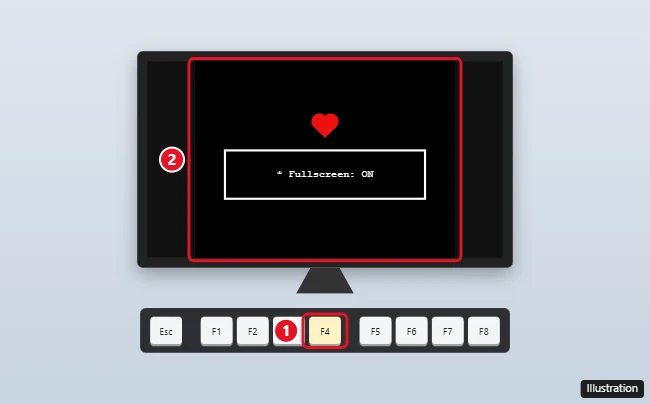
The illustration is a drawing, not a capture of the game. The developer doesn’t state the game’s screen shape, so treat the bars in it as an example of what you might see rather than a specification.
The developer doesn’t say how to leave full screen. Pressing F4 again is worth trying; if nothing changes, saving and closing the game returns you to the desktop.
When F4 does nothing
These checks are general Windows and keyboard tips, not steps from the developer:
- Laptop function keys. On many laptops the top row controls volume or brightness by default. Hold Fn and press F4, or use your laptop’s function-lock setting if it has one. The exact key differs by laptop maker.
- Focus. If you clicked on another window, such as a chat app or your browser, click back inside the Undertale window before pressing the key.
If you want a full-screen key for other games and apps, going full screen on Windows covers what works where, and making apps full screen on Windows 11 lists more shortcuts for Windows 11 programs.
Windows display settings that change the picture
Once Undertale fills the screen, Windows still decides the resolution and scale everything is drawn at. Microsoft explains both on its screen resolution and layout page.
On Windows 11:
- Select Start > Settings > System > Display.
- In the Scale & layout section, check Display resolution. Microsoft says it’s usually best to stick with the option marked (Recommended).
- Check Scale in the same section; the recommended value is marked there too.
On Windows 10 the path is the same, Start > Settings > System > Display, with the options under Scale and layout.
Microsoft warns that choosing a lower resolution than recommended can make the screen look less sharp, and the picture may appear small, centered, edged with black or stretched. If Undertale looks oddly framed or blurry in full screen, put the desktop back on the recommended resolution before anything else. For more on the scale setting, see changing display scaling in Windows 11.
If the game will not open or runs slowly
The developer’s FAQ covers one Windows error directly: a message that the game failed to launch, sometimes mentioning that it “could not initialize” graphics surfaces. Its explanation is that “either there aren’t enough graphic resources, or your video card has some sort of compatibility issue.” Its suggested fixes are:
- Close everything else that is running.
- Shrink the resolution.
- Make sure your video card drivers are up to date and that you have the latest version of DirectX.
Microsoft’s display page adds that on Windows 11 you can check for graphics driver updates in Settings > Windows Update > Check for updates.
The same FAQ’s patch notes say version 1.08 “Fixed an issue where the game would slow down on some Windows 10 PCs,” so an up-to-date copy matters if you play on an older PC. Keep in mind that Microsoft states “Windows 10 has reached the end of support on October 14, 2025,” as its Windows 10 end of support notice puts it.
Undertale display questions
Does Deltarune use the same key?
Deltarune’s own help page answers this for that game: press Alt+Enter or F4, “But not Alt+F4.” Alt+F4 closes the program instead. That answer is written for Deltarune, so don’t assume Alt+Enter works in Undertale.
Does Undertale support Windows 11?
The store page doesn’t name it: its minimum requirements list Windows XP, Vista, 7, 8 or 10, with 2 GB of RAM and 128 MB of graphics memory. The same page notes that the Steam client itself only supports Windows 10 and later versions since January 1, 2024.
Where does the game keep its save files?
The developer’s FAQ says to type %localappdata% into the folder navigation bar in File Explorer and open the Undertale folder.
If the frog’s F4 tip works on your keyboard, that’s all you need; if it doesn’t, start with the Fn key on a laptop, then the recommended Windows resolution. Minecraft handles full screen differently because it comes in two editions, as making Minecraft full screen on Windows explains.

Kermit Matthews runs Live2Tech from just outside Philadelphia. He is an IT specialist with over 20 years of experience, from a university help desk to small-business IT, IT management and his own consulting practice, and has written tech guides full time since 2020. Steps are checked against the current software on a real device or the maker’s official documentation. More about Kermit.