Microsoft Word can create professional-looking brochures, whether you start from a ready-made template or build a trifold layout yourself. The fastest way is a template: go to File > New, search for brochure, pick a design, and replace the placeholder text and images. To build your own trifold, set Layout > Orientation to Landscape, set Columns to Three, use narrow margins, and create two pages (outside and inside). Print double-sided, flipping on the short edge.
Method 1: Use a Brochure Template
- Open Word and click File > New.
- Type brochure in the search box and press Enter.
- Browse the designs (trifold, bifold, and others) and click Create.
- Click placeholder text to replace it with your own.
- Right-click placeholder images and choose Change Picture to use your photos.
- Change colors and fonts for the whole brochure on the Design tab.
Templates already have the panels arranged in the correct order for folding, which saves a lot of trial and error.
If you want several folded pages instead of one sheet with panels, printing a booklet in Word with Book fold handles the page order for you.
Method 2: Create a Trifold Brochure From Scratch
- Open a blank document.
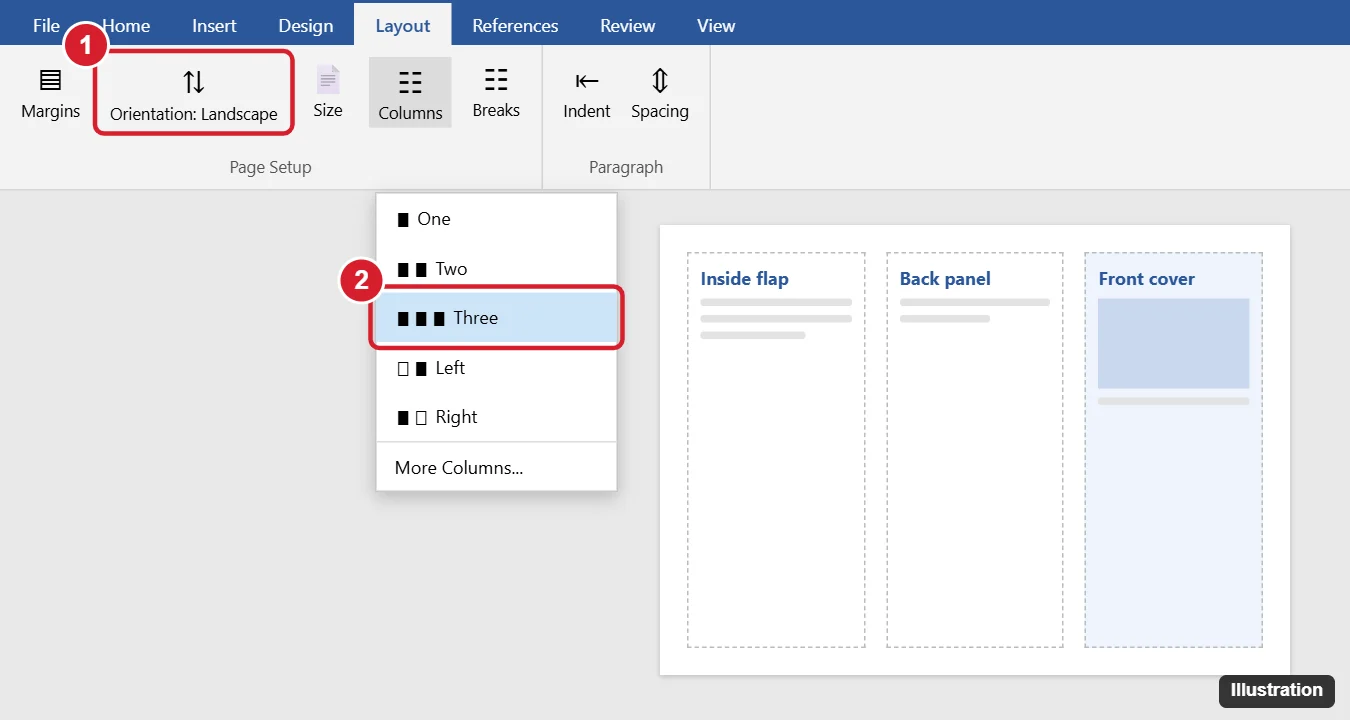
- Go to Layout > Orientation > Landscape.
- Go to Layout > Margins > Narrow (0.5 inch) so content fits well on each panel.
- Go to Layout > Columns > Three. For even spacing, choose More Columns and set spacing to about 1 inch so text does not land on the folds.
- Insert a second page with Layout > Breaks > Page. Page 1 is the outside, page 2 is the inside.
- Use Layout > Breaks > Column to move to the next panel.
Trifold Panel Map
| Page | Left column | Middle column | Right column |
|---|---|---|---|
| Page 1 (outside) | Inside flap (seen first when opened) | Back panel | Front cover |
| Page 2 (inside) | Inside left | Inside center | Inside right |
Put your title, logo, and main image on the front cover (page 1, right column), and contact details on the back panel (page 1, middle).
Design Tips
- Use two fonts at most, one for headings and one for body text.
- Keep text short: headings, bullet points, and short paragraphs work best on narrow panels.
- Use high-resolution images and set their layout to In front of text or Square for easier positioning (Picture Format > Wrap Text).
- Add a background color with shapes placed behind text, or Design > Page Color (note that many printers leave a white border).
- Leave space around folds so important content is not creased.
Print Your Brochure
- Print one test copy on plain paper.
- Go to File > Print.
- Choose Print on Both Sides > Flip pages on short edge. If your printer does not support duplex printing, choose Manually Print on Both Sides and follow the prompts.
- Fold the test copy to check the order and alignment, then print on brochure or heavier paper.
When the Folded Brochure Comes Out Wrong
The inside prints upside down
Switch between Flip on long edge and Flip on short edge.
Text jumps between columns
Insert column breaks to control where each panel starts, and avoid pressing Enter many times to push text.
Images move around
Change their wrap setting to In front of text and check Fix position on page in Wrap Text options.
Other Things People Ask About Word Brochures
Does Word have brochure templates?
Yes. Search for brochure in File > New. More templates are available at Microsoft's template site.
Can I make a bifold brochure?
Yes. Use Landscape orientation with two columns, or a bifold template.
Can I save my brochure as a PDF?
Yes. Use File > Save As and choose PDF, which is ideal for sending to a print shop.

Kermit Matthews runs Live2Tech from just outside Philadelphia. He is an IT specialist with over 20 years of experience, from a university help desk to small-business IT, IT management and his own consulting practice, and has written tech guides full time since 2020. Steps are checked against the current software on a real device or the maker’s official documentation. More about Kermit.