Start with Dell’s own recovery: on supported Dell laptops, SupportAssist OS Recovery reinstalls Windows without a USB drive, either on its own after repeated failed boots or from the F12 menu. If your model lacks it, or you want a clean install, make installation media with Dell’s OS Recovery Tool or Microsoft’s Media Creation Tool and start the laptop from that USB drive. Every route here erases the drive, so back up first.
The steps cover current versions of Windows 11, with a note for Windows 10.
Before you wipe anything
Do these on the Dell while Windows still starts, if it does:
- Back up your files. Dell says both of its reset options permanently delete all data on the drive and remove the programs and drivers you installed. Settings and installed programs aren’t backed up, and paid software such as Microsoft Office needs its key again.
- Save the BitLocker recovery key. If BitLocker or device encryption is on, Dell warns that changing Secure Boot, TPM or boot settings can make the laptop ask for its 48-digit recovery key. Microsoft’s BitLocker recovery key page lists where it may be stored, such as your Microsoft account. If you can’t find it, see where to look for a missing BitLocker key.
- Write down the Service Tag. It’s printed on the label on the bottom of the laptop. Dell uses it to pick the right recovery image and drivers for your exact model.
Which Dell route fits your laptop
| Situation | Best route | What you need |
|---|---|---|
| The laptop still has its Dell recovery environment | SupportAssist OS Recovery | Nothing extra; an internet connection for Cloud Restore |
| Recovery environment missing or broken, and you want Dell’s factory Windows with Dell drivers | Dell OS Recovery Tool USB | Another Windows PC, a blank USB drive of at least 16 GB, the Service Tag |
| You want a plain Microsoft install, or a new Windows 11 version | Microsoft installation media | Another Windows PC, a blank USB drive of at least 8 GB |
Dell recommends SupportAssist OS Recovery where it’s supported. If Windows still runs, Reset this PC may be enough (factory resetting Windows 11 and 10 compares the options), though Dell notes it is not a Dell factory image reset.
Route 1: SupportAssist OS Recovery (no USB drive)
Dell’s SupportAssist OS Recovery article says it’s available only on certain Dell models that came with Windows 10 or Windows 11 installed at the factory, and lists them in a support matrix. Dell computers with Qualcomm processors aren’t supported. When Windows fails to start after repeated attempts, it opens by itself.
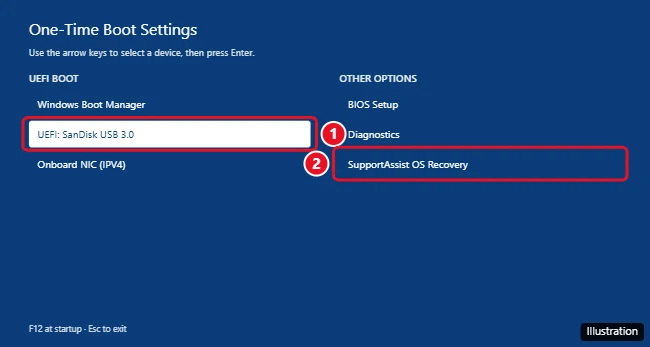
- Turn the laptop on and repeatedly tap F12 at the Dell logo to open the One Time Boot Menu. If Windows loads instead, restart and try again.
- Select SupportAssist OS Recovery.
- Optional: Scan Hardware checks for failing parts, Back up Files/ Disk Cloning copies files to an external drive (it asks for the BitLocker key if encryption is on), and Repair software tries a fix without erasing anything.
- To reinstall, select Start Reset and choose Reset to factory settings or Reset and update. The factory option appears only when the factory-installed Windows is still detected.
- Pick the restore method offered. Dell lists SupportAssist OS Recovery Cloud Restore (Recommended), which needs internet access and a 16 GB USB drive, and Local Restore on Dell, Inspiron, Vostro, XPS and Alienware models.
One warning before you try other routes: Dell says manually formatting the drive deletes the SupportAssist OS Recovery environment, so a clean install from USB can remove this option for good. More no-USB choices are in installing Windows without a USB drive, and a locked Dell has its own path in factory resetting a Dell laptop without the password.
Route 2: A Dell recovery USB from the Dell OS Recovery Tool
The Dell OS Recovery Tool builds a bootable USB drive holding the Windows version your Dell shipped with, plus Dell’s drivers for that model. Dell says the image should only be used on Dell computers.
- On a working Windows 10 or Windows 11 PC with administrator rights, download and install the Dell OS Recovery Tool (it needs .NET Framework 4.8.1 or later).
- Insert a USB drive with at least 16 GB of space. The tool erases it.
- Enter the Service Tag or Express Service Code of the Dell you’re reinstalling. On the same Dell, the tool can detect it automatically.
- Follow the prompts to download the image and write it to the USB drive.
For a laptop that shipped with Windows 11, Dell says the tool offers only its Automated by SupportAssist option. Dell notes the image may not include the newest drivers, so plan on updating afterward.
Route 3: Microsoft’s installation media
Use this for a standard Microsoft install. On a working PC, open Microsoft’s Download Windows 11 page, find Create Windows 11 Installation Media and select Download Now. Run the Media Creation Tool, accept the license terms and choose a blank USB drive of at least 8 GB; Microsoft’s installation media help warns that any content on the drive is deleted.
Check the laptop against Microsoft’s Windows 11 requirements first (TPM 2.0, Secure Boot, 4 GB of RAM and 64 GB of storage among them); Microsoft advises against installing on a PC that doesn’t meet them. More detail is in reinstalling Windows from a USB drive.
Start the Dell from the USB drive
- Plug the USB drive into the Dell and turn it on.
- Tap F12 at the Dell logo to open the One Time Boot Menu. Dell’s BIOS and boot menu article explains that this starts a device once without changing the saved boot order.
- Under the UEFI boot options, select the USB drive (Dell’s pages call it USB Storage Device) and press Enter.
The drive must start in UEFI mode. If it’s missing from the list, see the troubleshooting section below or open the Dell BIOS with F2 to check the boot settings.
Setup screens that erase data
On a Dell recovery USB, Dell’s steps are to choose Troubleshoot, then Recover from a drive, pick either recovery option for a clean install and select Recover; Dell notes that fully cleaning the drive may take several hours. In Microsoft’s Windows Setup, these choices matter:
- Pick your language and keyboard, then start the install.
- If asked for a product key and the laptop was activated before, choose I don’t have a product key. Microsoft says many PCs store the key in firmware and apply it automatically when the version and edition match.
- Pick the edition the laptop came with, usually Home or Pro.
- Choose the custom install (Dell’s pages show it as Custom (advanced); newer Setup screens may word it differently).
- Warning: deleting partitions on the next screen erases everything on them, including Dell’s recovery environment. Select the drive or unallocated space and continue.
After Windows is installed
- Run Settings > Windows Update until no more updates appear.
- Get Dell’s drivers. Following Dell’s driver download article, enter the Service Tag on Dell’s support site, download the drivers listed, run each one and restart when asked. The SupportAssist app can do this check instead.
- Check activation in Settings > System > Activation. Details are in how to activate Windows.
If the USB, the drive or activation gives trouble
- USB drive not in the F12 menu: try another port, remake the drive with the official tool, and confirm the BIOS is in UEFI mode. Dell’s recovery media doesn’t support Legacy mode.
- Setup finds no drives: on some Dell laptops with Intel Rapid Storage Technology, Dell’s Intel Optane install article says to download the Intel Rapid Storage Technology driver for your Service Tag, copy it to removable media and select Load Driver in Setup. Leave the storage mode in the BIOS as Dell set it; changing it can stop Windows from starting.
- Windows won’t activate: confirm you installed the same edition, connect to the internet and wait a while before checking again.
For other brands or generic options, see installing Windows on an HP laptop from USB and the ways to reinstall Windows 11.
Dell reinstall questions
Can I still install Windows 10 on a Dell?
The Dell OS Recovery Tool offers only the Windows version your laptop shipped with. Keep in mind Microsoft’s end of support notice: “On October 14, 2025, Windows 10 support ended,” and Microsoft no longer provides security fixes for it. Install Windows 11 if the laptop qualifies.
Can I use a Dell recovery USB on another computer?
No. Dell builds the image for the Service Tag you enter and says it is for Dell computers only.
Next step: check the Service Tag label and press F12 at the next restart to see whether SupportAssist OS Recovery appears on your laptop.

Kermit Matthews runs Live2Tech from just outside Philadelphia. He is an IT specialist with over 20 years of experience, from a university help desk to small-business IT, IT management and his own consulting practice, and has written tech guides full time since 2020. Steps are checked against the current software on a real device or the maker’s official documentation. More about Kermit.