Forgot the password to your Dell laptop, or bought a used one that’s still locked to someone else’s account? You can factory reset a Windows 11 Dell laptop without signing in, using Windows Recovery from the lock screen or Dell’s own SupportAssist OS Recovery. A reset erases your files and apps, so this is a last resort after trying password recovery. This guide covers every option.
Only reset devices you own or are authorized to manage. A reset won’t remove BIOS passwords, and some laptops will ask for a BitLocker recovery key.
Quick Answer
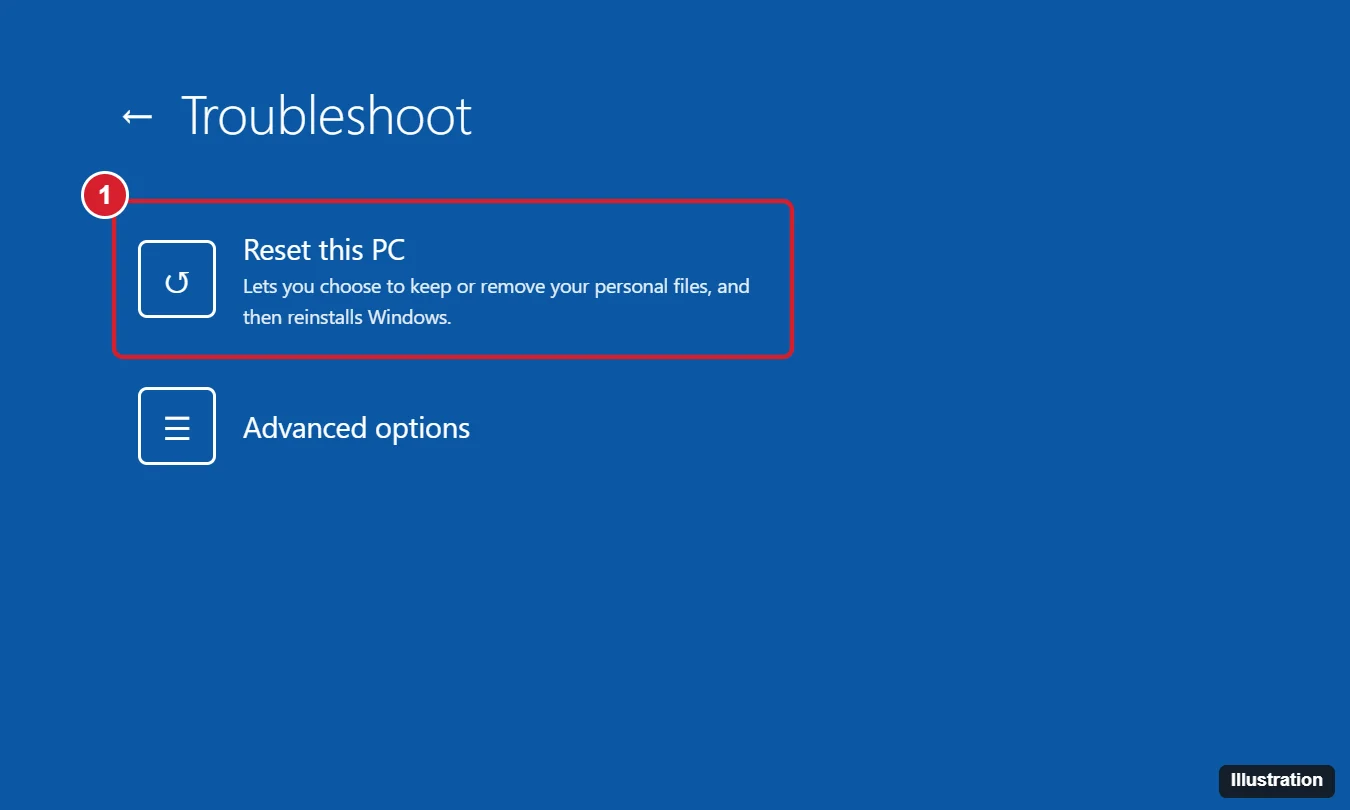
On the sign-in screen, hold Shift, click the Power icon, and choose Restart. When the blue menu appears, choose Troubleshoot > Reset this PC > Remove everything, pick Cloud download or Local reinstall, and click Reset.
Before You Reset: Try Recovering the Password
- Microsoft account: click I forgot my password on the sign-in screen, or reset it at account.live.com from another device, then sign in with the new password.
- PIN: click I forgot my PIN to reset it with your Microsoft account.
- Local account: answer your security questions if you set them up.
If none of these work, continue with a reset.
Method 1: Reset from the Sign-In Screen (Windows Recovery)
- On the lock or sign-in screen, click the Power icon in the lower-right corner.
- Hold Shift and click Restart. Keep holding until the blue Choose an option screen appears.
- Select Troubleshoot > Reset this PC.
- Choose Remove everything (keeping files isn’t possible without an account you can access).
- Pick Cloud download (downloads fresh Windows) or Local reinstall.
- If asked, enter the BitLocker recovery key. You can find it at aka.ms/myrecoverykey when signed in to the Microsoft account linked to the laptop.
- Choose whether to clean the drive (Fully clean the drive is slower but more secure), then click Reset.
The laptop restarts several times. When it finishes, you’ll see Windows setup.
Method 2: Dell SupportAssist OS Recovery
Many Dell laptops include a recovery environment that can restore Windows with Dell drivers.
- Turn the laptop off, then turn it on and tap F12 to open the one-time boot menu.
- Choose SupportAssist OS Recovery. (On some models it launches automatically after repeated boot failures.)
- Select Reset PC or Restore System and choose Reset to factory settings.
- Follow the prompts; you may be offered to back up files first.
Method 3: Dell OS Recovery USB
If Windows Recovery won’t start, create recovery media on another PC with the Dell OS Recovery Tool from Dell’s support site using your laptop’s Service Tag. Boot the Dell from the USB (F12), and follow the steps to reinstall Windows.
If Windows Won’t Load at All
Turn the laptop on and hold the power button to shut it off as soon as the Dell logo appears. Repeat twice. On the third start, Windows opens Automatic Repair; choose Advanced options to reach the Troubleshoot menu.
After the Reset
- Set up Windows with your own Microsoft account or a local account.
- Run Windows Update and Dell SupportAssist or Dell Command | Update for drivers.
- Windows reactivates automatically using the laptop’s digital license.
Troubleshooting
- Asked for a BitLocker key you don’t have: without it, the encrypted data can’t be accessed. You can still wipe the drive and reinstall Windows from recovery media, but the data is gone.
- BIOS or setup password prompt: a reset doesn’t clear it. Contact Dell support with proof of ownership.
- “There was a problem resetting your PC”: try Cloud download, SupportAssist OS Recovery, or recovery USB media.
Frequently Asked Questions
Will a reset remove the old owner’s account?
Yes. Remove everything deletes all accounts and data. On Windows 11, activation lock isn’t used, but some business laptops may be managed by an organization (Autopilot) and re-enroll during setup.
How long does it take?
Usually 30 minutes to 2 hours, longer with full drive cleaning.
Summary
- Try password or PIN recovery first.
- Hold Shift and click Restart on the sign-in screen.
- Choose Troubleshoot > Reset this PC > Remove everything.
- Use Dell SupportAssist OS Recovery or a recovery USB if needed.

Kermit Matthews is a freelance writer based in Philadelphia, Pennsylvania with more than a decade of experience writing technology guides. He has a Bachelor’s and Master’s degree in Computer Science and has spent much of his professional career in IT management.
He specializes in writing content about iPhones, Android devices, Microsoft Office, and many other popular applications and devices.