Here is the short version: Microsoft ended support for Office 2007 on October 10, 2017, so it receives no security updates, and Microsoft no longer offers it for download. If you own the original disc or installer and its 25-character product key, you can still try setup on a Windows 10 PC, but Microsoft doesn’t say it works there, and you take on the security risk yourself, on an operating system that is also out of support.
What Microsoft says about Office 2007 and Windows 10
| Product | Status in Microsoft’s words | What it means for you |
|---|---|---|
| Office 2007 | “Support for Office 2007 ended on October 10, 2017. All of your Office 2007 apps will continue to function. However, you could expose yourself to serious and potentially harmful security risks.” | The apps open and work, but nothing gets fixed or patched. |
| Office 2007 download | “You’ll no longer be able to download Office 2007 from the Microsoft web site.” | You need your own disc or installer files. |
| Windows 10 | “Windows 10 has reached the end of support on October 14, 2025.” After that date, PCs running Windows 10 “will still function,” but Microsoft no longer provides technical support, software updates, or security updates or fixes. | The operating system under Office 2007 is unpatched too, unless the PC is enrolled in Extended Security Updates. |
| Office 2007 on Windows 10 | Microsoft’s end-of-support and lifecycle pages make no statement either way. | There is no Microsoft promise that it works, and no help if it doesn’t. |
Sources: Microsoft’s end of support for Office 2007 page and its Office 2007 lifecycle listing, and its Windows 10 end of support page. The lifecycle listing gives the extended support end as October 11, 2017 and marks the product as retired. Service Pack 3 was the last service pack.
Is it safe to keep using Office 2007?
Microsoft lists what end of support means:
- No more Office 2007 software updates from Microsoft Update.
- No security updates, so any flaw found since 2017 stays open.
- No phone or chat technical support.
- No further updates to support content, and most online help for it has been retired.
- No download from Microsoft’s website.
Microsoft notes that security updates are what help protect your PC from harmful viruses, spyware, and other malicious software, so any file you open in Office 2007 is handled by a program that no longer gets those fixes. Office 2007 is a reasonable choice only for limited jobs, such as opening your own old files on a PC you rarely use online. For anything you receive from other people, a supported version is the safer tool.
If the Windows 10 PC itself is still in daily use, setting up Windows 10 after end of support explains the Extended Security Updates option, and checking for Windows 10 updates shows how to confirm the PC is current.
Installing an Office 2007 copy you own
Have four things ready first. You need your own installation media: the original Office 2007 disc or the installer files you received when you bought it, not copies from download sites, file-sharing services or “free key” pages, because Microsoft doesn’t distribute Office 2007 anymore and those copies are not from Microsoft and may be altered. You need the 25-character product key; Microsoft’s activation page links to its help on finding your Office 2007 product key; check the disc case and any card that came with it. You need an administrator account on the PC, because setup asks for administrator permission. And you need a way to undo it: a Windows restore point lets you roll back if setup goes wrong, and creating a restore point in Windows 10 shows how. If the PC came with a trial of a newer Office, it is generally wise to remove it in Settings > Apps first, so two versions don’t compete for the same file types.
Microsoft no longer documents the Office 2007 setup screens, so the labels below are the general ones you’ll see; your edition may differ slightly.
- Insert the Office 2007 disc, or open the folder that holds your original installer files.
- Open the disc or folder in File Explorer and double-click setup.exe. Select Yes if User Account Control asks for permission.
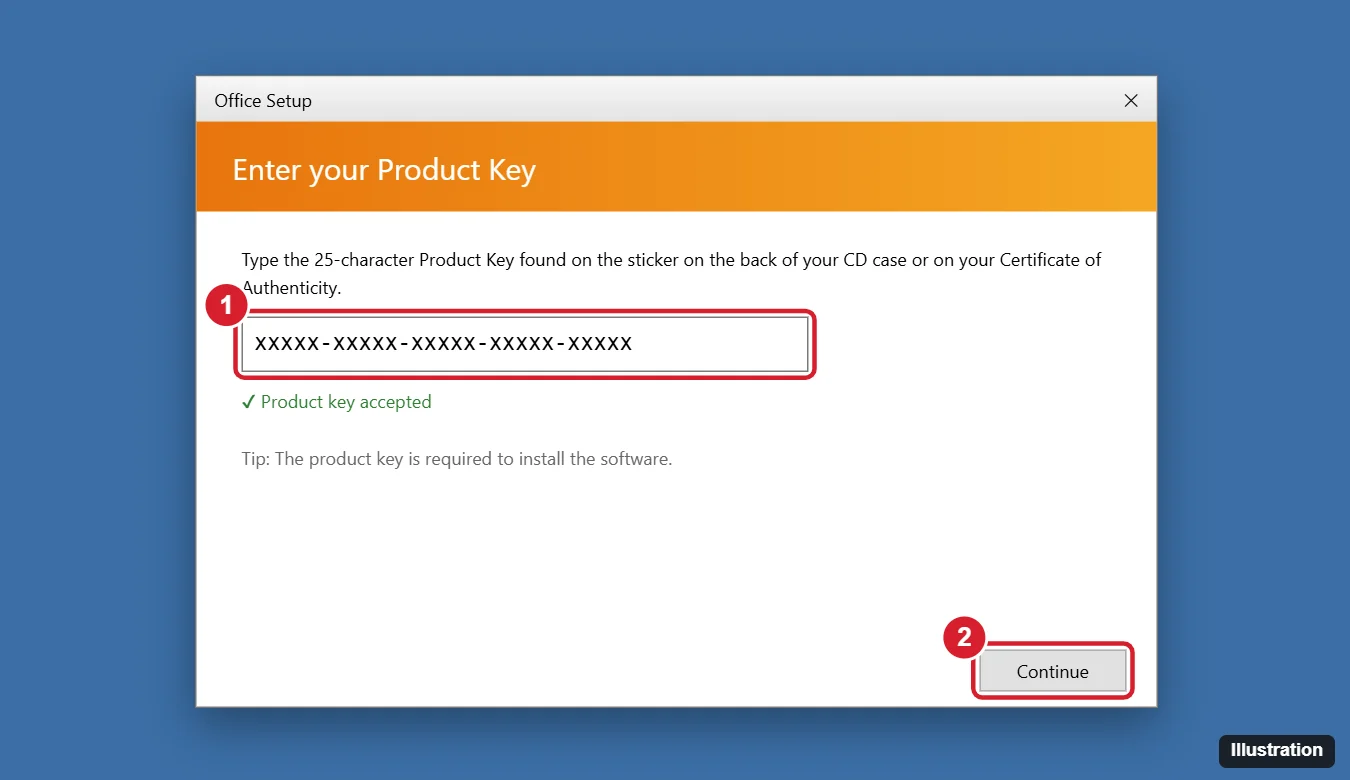
- Enter the 25-character product key and click Continue.
- Read and accept the license terms.
- Choose the standard installation, or the custom option if you want to pick which programs are installed and where.
- Wait for setup to finish, close it, and restart the PC if asked.
The illustration shows a generic setup window for an older Office version, not a screenshot of every edition.
If setup won’t start or stops early, restart the PC, sign in with an administrator account, remove any other Office version, and run setup.exe again.
Activating it after installation
Microsoft still publishes a page on how to activate Office 2007. According to it:
- If you didn’t enter the key during setup, you are prompted for it the first time you start an Office 2007 program.
- The Activation Wizard starts automatically and offers two choices: activate by using the Internet, or by using the telephone.
- Telephone activation may fail with the message “Telephone activation is no longer supported for your product.” It is also not available for trial and subscription versions.
- Until it is activated, an Office 2007 program can be started 25 times. After that it switches to Reduced Functionality mode: you can open and view files but can’t save changes or create new documents. Your existing files are not harmed.
If you don’t activate during setup, Microsoft says you can activate later: in Word, Excel or PowerPoint 2007, open the Office Button menu, select the program’s Options, then Resources > Activate; in Outlook, select Help > Activate Product. If neither Internet nor telephone activation succeeds, there is no supported way around it; that is the point to move to a current version.
Living with an unsupported Office
- A program crashes or won’t open: Microsoft’s tool for older software is the Program Compatibility Troubleshooter. Select Start > Settings > System > Troubleshoot > Other troubleshooters, find Program Compatibility Troubleshooter, and select Run, as described on Microsoft’s page about making older programs compatible with Windows. It can suggest settings; it can’t make Office 2007 supported.
- Newer files look different: Office 2007 opens .docx, .xlsx and .pptx files, but features added in later versions may not display or may be lost if you save. When a file comes back to a newer Word, getting out of compatibility mode in Word restores the newer features.
- Updates: Microsoft Update no longer delivers Office 2007 updates. Whatever your disc included is the version you’ll have.
Supported options, in Microsoft’s names
| Option | What Microsoft says it includes | Good fit for |
|---|---|---|
| Free web apps | Free web versions of Word, Excel and PowerPoint when you sign in to Microsoft365.com with a Microsoft account, plus 5 GB of OneDrive storage | Opening and editing everyday documents at no cost |
| Microsoft 365 subscription (Personal, Family and others) | Desktop apps such as Word, Excel, PowerPoint and Outlook, kept up to date | Regular use with ongoing updates |
| Office 2024 (one-time purchase) | “Classic versions of apps like Word, Excel, and PowerPoint for one PC or Mac,” without Microsoft 365 services | People who prefer to pay once, like they did for Office 2007 |
Microsoft explains the free and paid tiers on its page about the difference between a Microsoft 365 subscription and free web apps. Its Office 2024 FAQ says Office 2024 requires Windows 10 and later, while noting that Windows 10 support has ended, so a Windows 11 PC is the long-term home for it. To set up a current version, see installing Microsoft Word on Windows and Mac.
Office 2007 on Windows 10 questions
Can I still download Office 2007 from Microsoft if I lost the disc?
No. Microsoft states you can no longer download Office 2007 from its website. Without your original media, a supported version is the only legitimate route.
Why does activation say telephone activation is no longer supported?
Microsoft’s activation page lists that exact message as a possible result for Office 2007. Try Internet activation instead; if both fail, the product can’t be activated through a supported route.
Does the same advice apply to Office 2016?
Office 2016 is a newer version with its own end-of-support date. Installing Office 2016 on Windows 11 walks through that case.
What about Office 2007 on Windows 11?
Microsoft makes no support statement for that combination either. The same risk applies: no security updates for Office 2007, whatever Windows it runs on.
Next step: if you only need to open a few old documents, try the free web apps first. Install Office 2007 only when you own it, need it offline, and keep it away from files you didn’t create.

Kermit Matthews runs Live2Tech from just outside Philadelphia. He is an IT specialist with over 20 years of experience, from a university help desk to small-business IT, IT management and his own consulting practice, and has written tech guides full time since 2020. Steps are checked against the current software on a real device or the maker’s official documentation. More about Kermit.