Before you click anything, decide one thing: does anyone still need this file in its old format? If they do, use File > Save As and save a Word Document (*.docx) copy, which leaves the original untouched. If nobody does, File > Info > Convert upgrades the open document in place. Either route removes the [Compatibility Mode] tag from the title bar. These steps are for Word for Microsoft 365 on Windows and match Word 2024, 2021, 2019 and 2016.
What the label is telling you about the file
Compatibility Mode is not an error. Word switches it on when a file was last saved by an older version of Word, so the layout stays identical for anyone still using that version. To keep that promise, Word turns off the newer features the older version could not display. Old binary .doc files and .docx files saved by Word 2007 or Word 2010 are the usual cases.
The exact mode matters, because it tells you how old the “target” version is. Word uses these modes:
| Mode name | What it means | Do you see [Compatibility Mode]? |
|---|---|---|
| Word 2013-2016 mode | The current layout rules. This is what a converted file uses. | No |
| Word 2013 mode | Saved by Word 2013. Opened in Word 2016 or later, such a file does not show the label. Converting it is optional, because the layout differences are small. | Usually no |
| Word 2010 Compatibility Mode | Saved for Word 2010; newer features are limited. | Yes |
| Word 2007 Compatibility Mode | Saved for Word 2007; more features are limited. | Yes |
Check which mode a document is in
- Open the document and select File > Info.
- In the Inspect Document area, select Check for Issues > Check Compatibility.
- In the Compatibility Checker box, open Select versions to show. The mode with a check mark beside it is the one the file is using.
- Read the list in the box. It names any content that would change if someone opened the file in the older version, which is a good preview of who could be affected by converting.
If the label is in the title bar but you never use an old version of Word, the file almost certainly came from someone else, an old archive, or a template made years ago. That clue becomes important if new documents keep showing the label (covered further down).
Who else opens this file? Pick your route
The two routes end the same way for you, but they treat the original file differently. Use this table to choose:
| Your situation | Best route |
|---|---|
| Everyone who opens the file uses Microsoft 365 or Word 2016 or later | Convert in place |
| A colleague, client or school system still uses an old Word or asks for .doc | Save a converted copy and keep the original |
| The file is important (a contract, a thesis, a signed form) and you are not sure | Save a converted copy first |
| The document contains macros you rely on | Save a copy as a macro-enabled .docm file |
| You only need to read or print it | Leave it alone; Compatibility Mode does no harm |
When in doubt, the copy route is the safer default: it costs one extra file and leaves you a way back.
Route 1: save a converted copy and keep the original
- Open the document. If a yellow Protected View bar appears, select Enable Editing first. If Word still refuses to let you type, the cause may be a different mode; see how to get out of editing and other modes in Word.
- Select File > Save As. For a file stored in OneDrive or SharePoint, the command may be Save a Copy instead.
- Pick a folder and type a new file name, for example Quarterly report (converted), so you can tell the two files apart later.
- Set Save as type to Word Document (*.docx). If the document has macros you need, choose the macro-enabled Word format (.docm) instead, because a .docx file cannot store macros.
- If a Maintain compatibility with previous versions of Word check box appears, clear it. Leaving it checked saves a new file that is still in Compatibility Mode.
- Select Save. If Word warns that the document will be upgraded to the newest file format, select OK.
What to expect: the window now shows the new copy, and the title bar no longer says Compatibility Mode. Any edits from this point go into the copy. The original stays in its folder, unchanged, for anyone who still needs it.
Route 2: convert the open file in place
Use this route only when nobody needs the old format. Save a backup first if the file matters.
- Open the document and select File > Info.
- In the Compatibility Mode section, select Convert.
- If Word shows a message that the document will be upgraded and its layout may change, select OK.
- Press Ctrl + S to save.
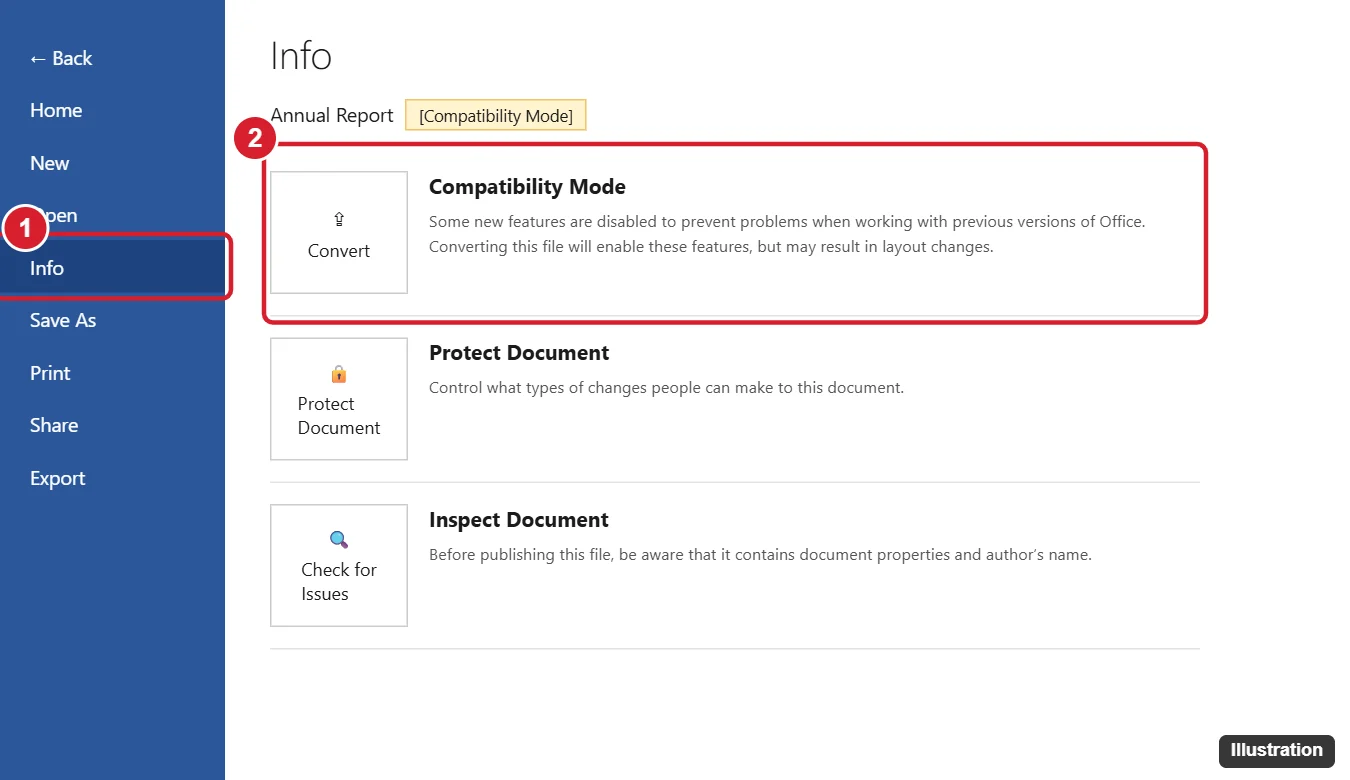
With an old .doc file, Microsoft documents Save As as the way to create the modern .docx version. After converting a .doc in place, check the file name and type when you save; if you want certainty about which file ends up on disk, use Route 1.
What changes in the document after converting
Converting removes the compatibility options that made Word imitate the older version. The document is then laid out by current Word rules, as if it had been created in the current version. In practice that means:
- Layout can shift. Line breaks, page breaks, spacing and table widths may move slightly, so a document can gain or lose a page.
- Newer features become available. Tools that were limited or grayed out in the older mode work normally.
- Older Word users may struggle. Microsoft warns that people on earlier versions may not be able to edit parts of the document that use new features.
- The format changes. A .docx file is the modern Open XML format; the “x” means it holds no macros.
A quick review after converting catches most surprises. As an example, a 12-page report that becomes 13 pages usually has one table or image that was pushed down. Check these items in order:
- Compare the page count with the original.
- Scroll through tables, especially wide ones, and any images placed beside text.
- Look at headers, footers and page numbers.
- If the file has a table of contents, update it from References > Update Table.
- Check numbered and bulleted lists for restarted or jumped numbering.
Undo a conversion you don’t like
If you have not saved yet, close the document and choose Don’t Save; the file stays in its old mode. If you used Route 1, simply go back to the original file. If you already saved an in-place conversion, a file stored in OneDrive or SharePoint may still have an earlier version; the methods in recovering earlier text from a Word document cover Version History and Windows Previous Versions.
When Convert is missing or grayed out
- No Convert button and no label: the file is already in a current format, such as Word 2013-2016 mode. There is nothing to convert.
- Protected View: files from email or the internet open read-only. Select Enable Editing, then return to File > Info.
- Restricted editing: if the author protected the document, open Review > Restrict Editing and stop the protection (it may ask for a password you need from the author).
- Read-only file or location: a file opened straight from a ZIP folder, a CD, or a shared folder you can only read cannot be changed in place. Use Route 1 and save the copy to a folder you control, such as Documents.
- Someone else has it open: on a shared drive, Word may open your copy as read-only. Save a converted copy, or wait until the other person closes it.
- Save As or Convert stops working: an add-in can interfere. Start Word without add-ins using the steps in opening Word in Safe Mode; if the commands work there, turn off add-ins one at a time to find the culprit.
Why new documents keep opening in Compatibility Mode
If brand-new blank documents show the label, the problem is not the file you are working on but what Word builds new files from. Work through these causes:
- An old Normal template. Blank documents are based on Normal.dotm. If that template came from an older Word, new files can inherit its mode. Close Word, open File Explorer, paste %appdata%\Microsoft\Templates into the address bar, and rename Normal.dotm to Normal.old. Microsoft explains in its page on the Normal template that Word creates a fresh Normal.dotm with the default settings the next time it starts. Custom styles, AutoText or macros saved in the old template are not carried over, which is why renaming beats deleting.
- The default save format. Open File > Options > Save and check that the default file format is Word Document (*.docx), not Word 97-2003 Document.
- An old custom template. If you start reports from a company .dot or old .dotx template, open that template, convert it with Route 2, and save it.
- Collaborators saving in the old format. If a converted file returns to Compatibility Mode, someone in the chain is saving it as .doc. Ask them to save as .docx, or agree on one shared copy in OneDrive.
When it’s smarter to stay in Compatibility Mode
You can keep working in Compatibility Mode; you just won’t get the newer features. Staying put makes sense when a client, publisher or submission portal requires the older format, when a form or template is filled in by other people’s older software, or when the file is a finished record you don’t plan to edit. If the other person only needs to read the document, sending a PDF (File > Save As, then choose PDF) avoids the format question entirely.
One more source of confusion: Windows has its own “compatibility mode” for running old programs, which has nothing to do with Word documents. If that is what you were looking for, see running a program in compatibility mode in Windows 11.
Compatibility Mode questions
Can someone with an older Word open the converted .docx file?
Current Word for Windows and Mac, and Word for the web, open .docx files normally. People on old versions may be able to open the file but have trouble editing sections that use newer features, which is the reason to keep the original or send them a PDF.
What is the difference between .docx and .docm?
Both are the modern Open XML format. A .docx file cannot contain macros, while a .docm file is macro-enabled. If an old .doc relied on macros, save the copy as .docm so they are kept.
Next step: open the document, run Check Compatibility to see its mode, and save a converted copy if anyone else depends on the original. For the official reference on modes and conversion, see Microsoft’s page on opening documents from older versions of Word and its explanation of Open XML formats and file name extensions.

Kermit Matthews runs Live2Tech from just outside Philadelphia. He is an IT specialist with over 20 years of experience, from a university help desk to small-business IT, IT management and his own consulting practice, and has written tech guides full time since 2020. Steps are checked against the current software on a real device or the maker’s official documentation. More about Kermit.