By default, Google Chrome opens PDF files in its built-in viewer instead of saving them to your computer. That’s handy for a quick look, but annoying if you want the file in your Downloads folder, need to open it in Adobe Acrobat or another PDF app, or want to fill out and keep a form. One setting changes this so every PDF downloads automatically. This guide covers that setting, one-off ways to save a single PDF, and the equivalent settings in Microsoft Edge and Firefox.
Quick Answer
In Chrome, go to Settings > Privacy and security > Site settings > Additional content settings > PDF documents and select Download PDFs. You can also paste chrome://settings/content/pdfDocuments into the address bar to jump straight there.
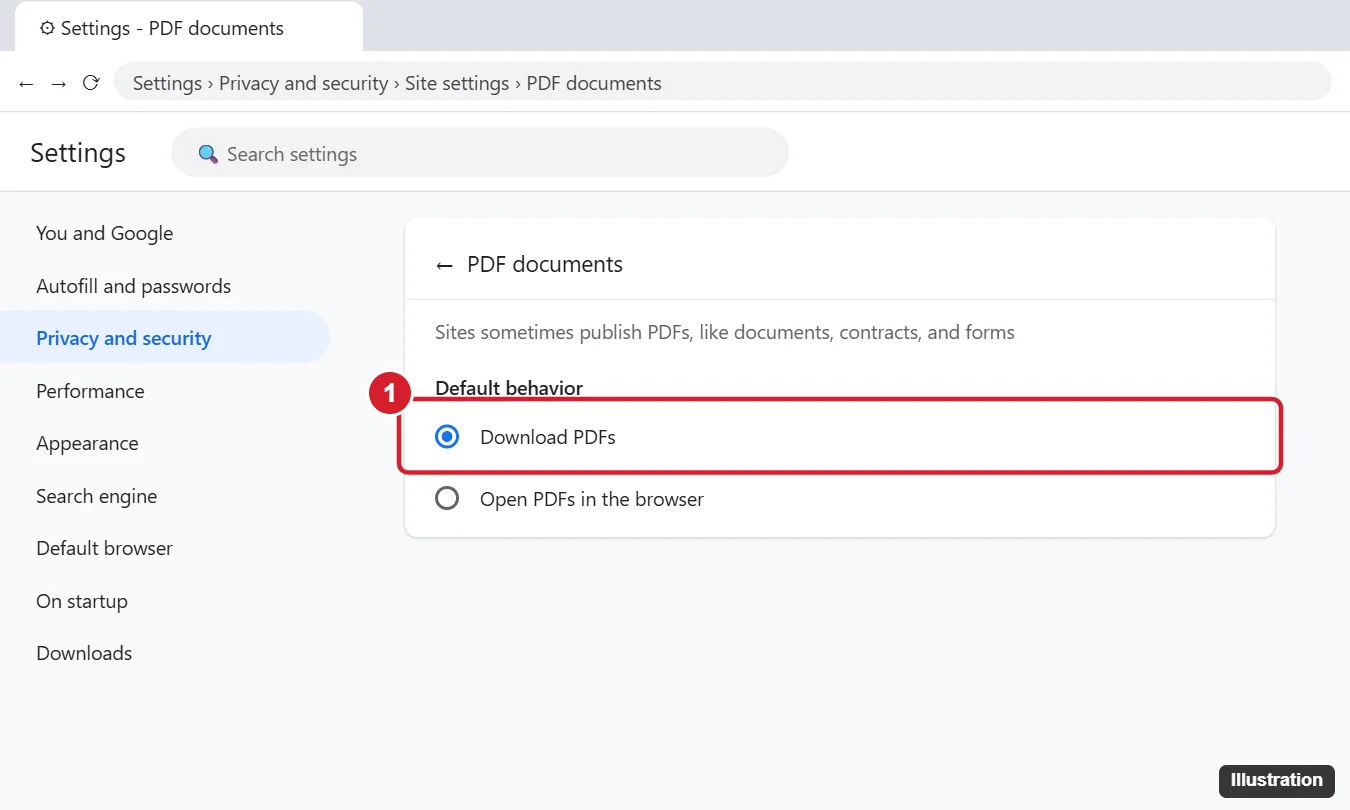
How to Make Chrome Download PDFs Automatically (Windows, Mac, ChromeOS, Linux)
- Open Chrome and click the three-dot menu in the top-right corner.
- Click Settings.
- Choose Privacy and security in the left sidebar.
- Click Site settings.
- Scroll down and expand Additional content settings.
- Click PDF documents.
- Under Default behavior, select Download PDFs.
The change saves instantly. The next PDF link you click will download to your default download folder instead of opening in a tab. If the file still opens in a tab, reload the page or restart Chrome.
Allow some sites to open PDFs in Chrome
Newer Chrome versions let you set exceptions on the same PDF documents page. If you want most PDFs to download but a particular site (like your bank’s statements page) to open in the viewer, add it under the section for sites allowed to open PDFs. The exact labels vary slightly between Chrome versions.
Choose Where PDFs Are Saved
Downloaded PDFs go to your Downloads folder by default. To change that:
- Go to Settings > Downloads.
- Click Change next to Location and pick a folder.
- Or turn on Ask where to save each file before downloading to choose a location and filename every time.
Open Downloaded PDFs in Your Default PDF App
Once PDFs download, you can open them straight from Chrome’s downloads bubble (the download icon in the toolbar) or with Ctrl + J (Command + Shift + J on a Mac). They open in whatever app your computer uses for PDFs. If they still open in Chrome, Chrome is your system’s default PDF app. Change it in Windows Settings > Apps > Default apps (search for “.pdf”), or on a Mac, right-click a PDF in Finder, choose Get Info, pick an app under Open with, and click Change All.
Save a Single PDF Without Changing Settings
If you only want to save one file now and then, you don’t need to change the default:
- Download button: With the PDF open in Chrome’s viewer, click the download icon in the top-right of the PDF toolbar.
- Keyboard: Press Ctrl + S (Command + S on Mac) while viewing the PDF.
- Right-click the link: Choose Save link as before opening the file.
- Alt-click: Holding Alt (Option on Mac) while clicking a link downloads it on Windows and Mac.
If you filled in a form in the viewer, use the download button and choose to save it with your changes so your entries are kept.
Microsoft Edge: Always Download PDFs
- Open Edge and go to Settings.
- Select Privacy, search, and services or Cookies and site permissions (the name depends on your Edge version), then find Site permissions.
- Click PDF documents.
- Turn on Always download PDF files.
You can also search “PDF” in the Settings search box to find it quickly, or paste edge://settings/content/pdfDocuments into the address bar.
Firefox: Save PDFs Instead of Previewing Them
- Open the menu and choose Settings.
- On the General panel, scroll to Applications.
- Find Portable Document Format (PDF).
- Change the action from Open in Firefox to Save File (or pick a specific PDF app).
Chrome on Android and iPhone
There’s no PDF documents setting in the mobile apps. On Android, Chrome may download a PDF or show it in a viewer depending on your Chrome version. If it opens in a viewer, use the menu to Download it. On iPhone and iPad, tap the Share button while viewing a PDF and choose Save to Files.
Troubleshooting
- Setting is grayed out or missing: A work or school computer may be managed by an administrator. Look for “Your browser is managed by your organization” at the bottom of the Chrome menu, and ask your IT team.
- PDF still opens in a tab: Some sites display PDFs inside their own web viewer (not a real PDF link). Look for a download button on the site, or use Ctrl + S.
- Download is blocked: Chrome may block files it considers dangerous or from insecure (HTTP) sites. Only keep files from sources you trust.
- Want the viewer back: Return to the PDF documents page and select Open PDFs in Chrome.
Frequently Asked Questions
Why does Chrome open PDFs instead of downloading them?
Chrome has a built-in PDF viewer, and “Open PDFs in Chrome” is the default setting so you can read files without extra software.
Does downloading PDFs change anything else?
No. It only affects PDF links. Other files, like images and web pages, behave the same.
Is it safer to download or view PDFs in Chrome?
Chrome’s viewer runs in a sandbox, which is a good security layer. If you download PDFs, keep your PDF app updated and don’t open unexpected attachments.
Summary
- Open Chrome Settings > Privacy and security > Site settings.
- Expand Additional content settings and click PDF documents.
- Select Download PDFs.
- Optionally change the download location under Settings > Downloads.

Kermit Matthews is a freelance writer based in Philadelphia, Pennsylvania with more than a decade of experience writing technology guides. He has a Bachelor’s and Master’s degree in Computer Science and has spent much of his professional career in IT management.
He specializes in writing content about iPhones, Android devices, Microsoft Office, and many other popular applications and devices.