By default, a MacBook Air uses natural scrolling: swipe two fingers up on the trackpad and the page moves up, like on a phone. If you’re coming from Windows or just find it backward, you can switch it off in seconds. You can also change how fast the page scrolls, whether scroll bars are always visible, and how a mouse wheel behaves. This guide covers all of it on current and older versions of macOS.
Quick Answer
Open the Apple menu > System Settings > Trackpad, click the Scroll & Zoom tab, and turn off Natural scrolling. On older macOS versions, it’s in System Preferences > Trackpad > Scroll & Zoom as the Scroll direction: Natural checkbox.
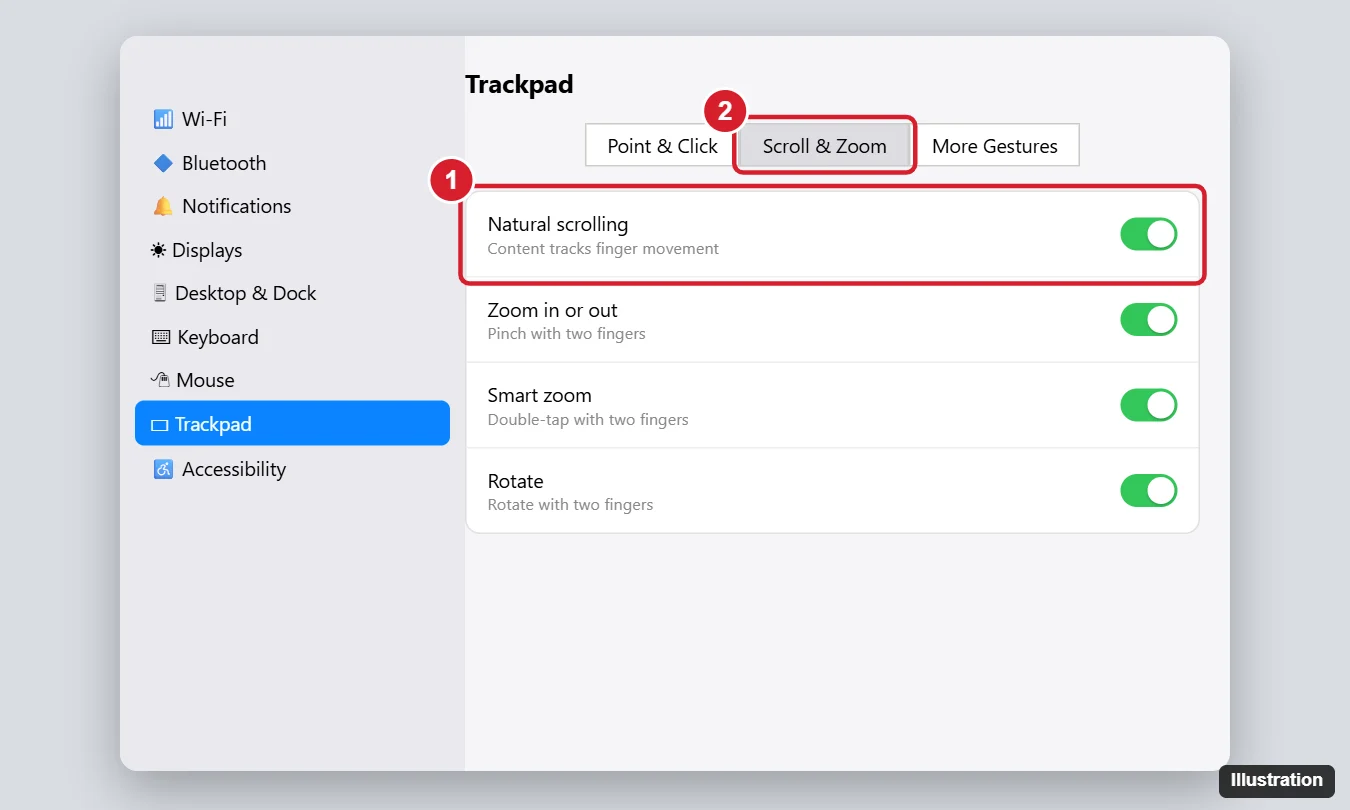
Change the Scroll Direction
macOS Ventura and later (System Settings)
- Click the Apple menu in the top-left corner and choose System Settings.
- Click Trackpad in the sidebar.
- Open the Scroll & Zoom tab.
- Turn Natural scrolling off for traditional scrolling (swipe up to move down the page), or on for phone-style scrolling.
macOS Monterey and earlier (System Preferences)
- Choose Apple menu > System Preferences > Trackpad.
- Click Scroll & Zoom.
- Uncheck Scroll direction: Natural.
Using a mouse too?
The same Natural scrolling setting appears under System Settings > Mouse. On many macOS versions, the trackpad and mouse share one setting, so changing it in one place changes both. If you want different directions for each, a free utility such as Scroll Reverser can separate them.
Change Scrolling Speed
- Open System Settings > Accessibility > Pointer Control.
- Click Trackpad Options.
- Adjust the Scrolling speed slider, and choose whether scrolling has inertia (continues briefly after you lift your fingers).
For a mouse, use System Settings > Mouse > Scrolling speed.
Always Show Scroll Bars
- Go to System Settings > Appearance.
- Under Show scroll bars, choose Always (or When scrolling, or Automatically based on mouse or trackpad).
Under Click in the scroll bar to, you can choose to jump one page or jump to the spot you click.
Two-Finger Scrolling Not Working?
- Make sure you’re using two fingers, slightly apart, and not resting your palm on the trackpad.
- Restart the Mac.
- Check System Settings > Accessibility > Pointer Control for options that change trackpad behavior.
- Clean the trackpad surface; moisture and dirt can confuse it.
- Update macOS in System Settings > General > Software Update.
Summary
- Open System Settings > Trackpad > Scroll & Zoom.
- Turn Natural scrolling off or on.
- Adjust speed in Accessibility > Pointer Control > Trackpad Options.
- Choose when scroll bars appear in Appearance.

Kermit Matthews is a freelance writer based in Philadelphia, Pennsylvania with more than a decade of experience writing technology guides. He has a Bachelor’s and Master’s degree in Computer Science and has spent much of his professional career in IT management.
He specializes in writing content about iPhones, Android devices, Microsoft Office, and many other popular applications and devices.