This article contains affiliate links. If you buy through one of them, Live2Tech may earn a commission at no extra cost to you. As an Amazon Associate, Live2Tech earns from qualifying purchases. Details are in our disclaimer.
The dock in Mac OS X provides convenient access to the programs and menus that you most commonly need to access. The default configuration will have the dock displayed at the bottom of the screen, but you can elect to move it to a different position. This decision is based largely on personal preference, so you should experiment with the different dock location options available to you in Mac OS X 10.8. So continue reading below to learn how to change the position of the dock on your computer screen.
Have you been looking for a powerful, capable Mac computer that won’t break the bank? The Mac Mini is an excellent choice as a primary computer in your home.
Move the Dock in Mac OS X 10.8
The menu that we will be accessing to move the dock contains some other options that can control the various settings for your dock. For example, you can set the size and magnification of the dock in addition to its’ location. So continue reading below to learn how to specify your dock location inn Mac OS X 10.8 Mountain Lion.
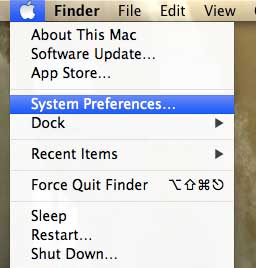
Step 1: Click the Apple icon at the top of the screen, then click the System Preferences option. Note that you could also click the System Preferences icon in your dock if you are still displaying that icon in the dock.
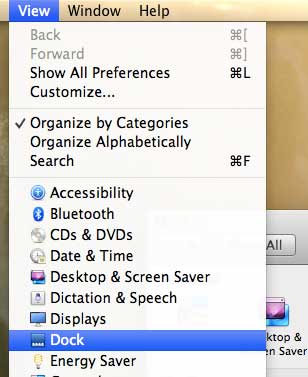
Step 2: Click View at the top of the screen, then click the Dock option. Note that you can also click the Dock option in the Personal section of the System Preferences window.
Step 3: Click the option to the right of Position on screen that indicates your preferred dock location.

The trackpad on the MacBook Air is commonly considered one of the best laptop trackpads available, but you can adjust certain elements of it, such as the scrolling behavior. This is helpful if you are more familiar with Windows computers and the scrolling behavior feels foreign.

Kermit Matthews runs Live2Tech from just outside Philadelphia. He started on a university help desk, spent years as the IT person for small businesses, and has been writing tech guides full time since 2020. Each guide is checked on a device he owns, and re-checked when a menu moves. More about Kermit.