The Mac firewall blocks unwanted incoming network connections. Sometimes you need to turn it off for a while, for example to test a local server, troubleshoot a game or file-sharing app, or check whether the firewall is causing a connection problem. This guide shows how to turn the firewall off (and back on) in current macOS versions, in older versions such as macOS High Sierra, and from Terminal. It also covers a safer option: allowing just one app instead of turning the firewall off completely.
Quick Answer
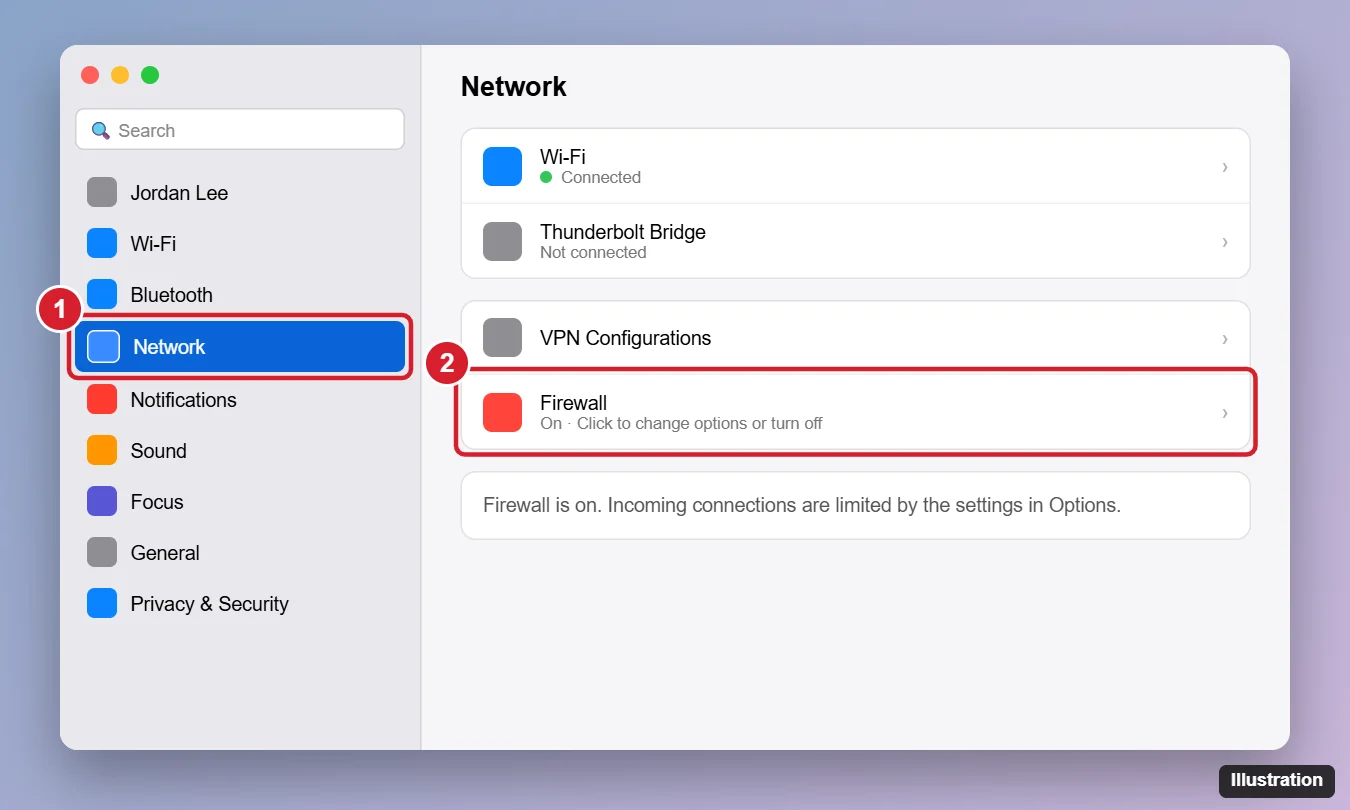
macOS Ventura and later: open System Settings > Network > Firewall and turn the Firewall switch off.
macOS Monterey and earlier (including High Sierra): open System Preferences > Security & Privacy > Firewall, click the lock and enter your password, then click Turn Off Firewall.
Before You Turn It Off
- You need an administrator account, or an admin’s name and password.
- The firewall only filters incoming connections. Turning it off does not affect browsing, downloads, or outgoing traffic.
- Your router usually protects you at home, but on public Wi-Fi the Mac firewall matters more. Turn it back on when you finish testing.
- Work Macs may be managed. If the setting is greyed out, your organization controls it through a configuration profile. Contact your IT team.
Turn Off the Firewall in macOS Ventura, Sonoma, Sequoia, and Later
- Click the Apple menu and choose System Settings.
- Click Network in the sidebar.
- Click Firewall.
- Turn off the Firewall switch. Enter your password or use Touch ID if asked.
To turn it back on, return to the same screen and switch it on again.
Turn Off the Firewall in macOS High Sierra, Mojave, Catalina, Big Sur, and Monterey
- Click the Apple menu and choose System Preferences.
- Open Security & Privacy.
- Click the Firewall tab.
- Click the lock icon in the lower-left corner and enter an administrator password.
- Click Turn Off Firewall.
- Click the lock again to prevent further changes.
The tab should now say Firewall: Off. Click Turn On Firewall when you are done.
Turn the Firewall Off or On with Terminal
This works in High Sierra and newer versions and is useful for remote or scripted changes. Open Terminal from Applications > Utilities, then run:
| Task | Command |
|---|---|
| Check status | /usr/libexec/ApplicationFirewall/socketfilterfw --getglobalstate |
| Turn off | sudo /usr/libexec/ApplicationFirewall/socketfilterfw --setglobalstate off |
| Turn on | sudo /usr/libexec/ApplicationFirewall/socketfilterfw --setglobalstate on |
| Allow a specific app | sudo /usr/libexec/ApplicationFirewall/socketfilterfw --add /Applications/AppName.app |
Enter your administrator password when prompted. Nothing appears while you type it.
Safer Option: Allow One App Instead
If a single app can’t accept connections, give it permission instead of turning off the whole firewall:
- Open the Firewall settings (see above) and click Options (Firewall Options in older versions).
- Click +, choose the app, and set it to Allow incoming connections.
- Make sure Block all incoming connections is not turned on. That setting overrides the app list.
- Click OK.
macOS may also ask “Do you want the application to accept incoming network connections?” the first time an app needs it. Click Allow for apps you trust.
Firewall Options Explained
| Option | What it does |
|---|---|
| Block all incoming connections | Blocks everything except basic services. Sharing features such as screen sharing and file sharing stop working. |
| Automatically allow built-in software | Lets Apple’s own apps and services receive connections |
| Automatically allow downloaded signed software | Lets apps signed by a valid developer receive connections without asking |
| Enable stealth mode | Your Mac does not respond to probing requests such as ping |
Troubleshooting
The Firewall setting is greyed out
Click the lock and authenticate as an administrator. If it is still locked, a device management profile controls it. Check System Settings > General > Device Management (or Profiles in older versions).
Turning off the firewall did not fix my connection
The Mac firewall probably is not the cause. Check third-party security software, VPN apps, your router’s firewall, and the app’s own network settings.
I cannot find Firewall in Network settings
Use the search field at the top of System Settings and type Firewall.
Frequently Asked Questions
Is the Mac firewall on by default?
On many Macs the built-in firewall is off by default, so check its status before assuming it is blocking something.
Is it safe to turn off the Mac firewall?
For a short test on a trusted home network, usually yes. On public Wi-Fi, keep it on and allow specific apps instead.
Does turning off the firewall affect Wi-Fi speed?
No. The firewall filters incoming connections and has no noticeable effect on speed.
Will turning off the firewall let apps through that were blocked?
Yes. All incoming connections are allowed while it is off, which is why it works as a quick test.
Summary
- Newer macOS: System Settings > Network > Firewall, then switch it off.
- High Sierra through Monterey: System Preferences > Security & Privacy > Firewall, unlock, then Turn Off Firewall.
- Terminal:
socketfilterfw --setglobalstate offwith sudo. - Prefer allowing a single app, and turn the firewall back on afterward.

Kermit Matthews is a freelance writer based in Philadelphia, Pennsylvania with more than a decade of experience writing technology guides. He has a Bachelor’s and Master’s degree in Computer Science and has spent much of his professional career in IT management.
He specializes in writing content about iPhones, Android devices, Microsoft Office, and many other popular applications and devices.