The simplest way to block a website on every browser in Windows 10 or 11 is to add it to the hosts file, which tells Windows to send that address nowhere. To block sites for a child’s account, use Microsoft Family Safety instead, but its web filter only works in Microsoft Edge.
You need an administrator account to edit the hosts file.
Block a Website With the Hosts File
- Click Start, type Notepad, right-click Notepad and choose Run as administrator.
- In Notepad, choose File, Open, and go to C:\Windows\System32\drivers\etc.
- Change the file type filter from Text Documents to All Files, then open hosts.
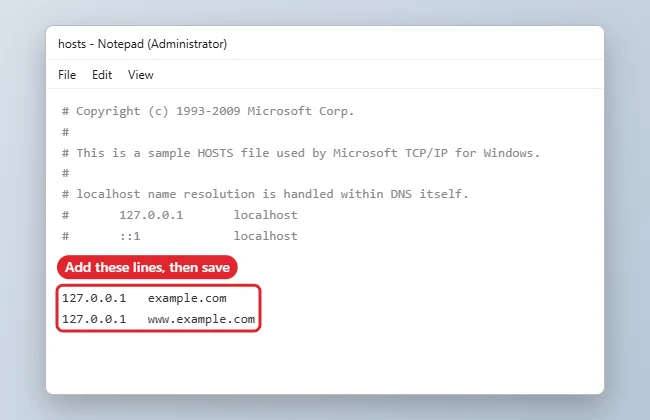
- On a new line at the bottom, type 127.0.0.1, a space, and the site name, for example 127.0.0.1 example.com.
- Add a second line for the www version: 127.0.0.1 www.example.com.
- Save the file (Ctrl+S) and close Notepad.
- Open Command Prompt and run ipconfig /flushdns, then restart your browser.
To unblock the site later, delete those lines, save, and flush DNS again.
Other Ways to Block Websites
| Method | Best for | Limits |
|---|---|---|
| Hosts file | Blocking a few sites on one PC, all browsers | A browser’s secure DNS setting may bypass it; any admin can undo it |
| Microsoft Family Safety | Children’s Microsoft accounts | Web filtering works only in Edge; other browsers are blocked by default when filtering is on |
| Browser extension | One browser only | Easy to remove |
| Router or DNS filtering | Every device on your network | Setup depends on your router |
Block Sites With Microsoft Family Safety
- Add the child as a family member at family.microsoft.com and have them sign in to Windows with that account.
- Open the family member’s profile and choose Content filters.
- Turn on Filter inappropriate websites and searches.
- Add sites under Blocked sites, or switch to Only use allowed websites for tighter control.
Troubleshooting
- Site still opens: flush DNS, close every browser window, and check both the www and non-www lines.
- Hosts file will not save: Notepad was not opened as administrator, or security software is protecting the file.
Microsoft’s Family Safety guide is at Filter websites and searches using Microsoft Family Safety. Related: changing your DNS server and blocking an IP address in Windows.

Kermit Matthews is a freelance writer based in Philadelphia, Pennsylvania with more than a decade of experience writing technology guides. He has a Bachelor’s and Master’s degree in Computer Science and has spent much of his professional career in IT management.
He specializes in writing content about iPhones, Android devices, Microsoft Office, and many other popular applications and devices.