Firewall rules in the Windows Firewall with Advanced Security console block an IP address in one direction at a time, so most blocks need an outbound rule and some need an inbound one too. You need an administrator account to create the rule; select Start, type wf.msc and press Enter to open the console, or use the PowerShell command further down.
What are you trying to stop?
Pick the direction before you open anything. Microsoft describes the firewall’s default behavior as blocking all incoming traffic “unless solicited or matching a rule” and allowing all outgoing traffic “unless matching a rule” (from the Windows Firewall overview). That is why the outbound rule is the one that changes what this PC can reach.
| Your situation | Rule to create |
|---|---|
| This PC should never connect to a certain address (a server an app keeps calling, a device you no longer trust) | Outbound block rule |
| Another computer keeps trying to connect to this PC, and something on this PC allows it in | Inbound block rule |
| You want no traffic either way with that address | One outbound and one inbound rule |
| Only one program should be stopped from going online | A program rule instead (see blocking an app from the internet in Windows 10) |
| You want to stop a website by its name | A different job: see how to block websites on Windows 10 and Windows 11 |
A website is a poor fit for an IP rule. Large sites can answer from several addresses that change over time, so a rule for one address may block nothing you notice.
Before you add a block rule
- Administrator rights. Microsoft’s rule instructions say that if you are configuring a single device, you must have administrative rights on it. On a work or school PC, firewall rules may be set by IT through policy, so ask them instead of fighting the setting.
- Know the exact address. If the address belongs to a device on your own network, listing the IP addresses on your network helps you find it. To see this PC’s own address, check your IP address in Windows 10.
- Don’t block something the PC needs. A rule that covers your router’s address, your DNS server or a whole subnet you also use can cut the PC off from the internet or from shared printers and drives. Start with a single address and widen it only if you need to.
- Example addresses. The addresses used here (203.0.113.25, 198.51.100.0/24 and 2001:db8::/32) are documentation ranges set aside for examples. Swap in the real address you want to block.
- Windows 10 support. In Microsoft’s words, “Windows 10 has reached the end of support on October 14, 2025,” so a Windows 10 PC no longer gets security updates (see Microsoft’s end of support page). A firewall rule still works, but it is not a substitute for those updates.
Block an address in the firewall console
These steps build the outbound rule. Microsoft walks through the same wizard pages in its firewall rule instructions.
- Select Start, type
wf.mscand press Enter. Approve the administrator prompt if one appears. You can also reach the console from the Windows Security app: Firewall & network protection > Advanced settings. - In the left pane, select Outbound Rules.
- Open the Action menu and select New Rule.
- On the Rule Type page, select Custom and then Next. Custom is the rule type that shows every page of the wizard, including Scope.
- On the Program page, keep All programs so the block covers every app, then select Next.
- On the Protocol and Ports page, select the protocol type to block (choose Any to cover all traffic to the address), then select Next.
- On the Scope page, go to the remote IP address section, choose the option to list specific addresses, select Add and type the address, range or subnet. Add more entries the same way, then select Next.
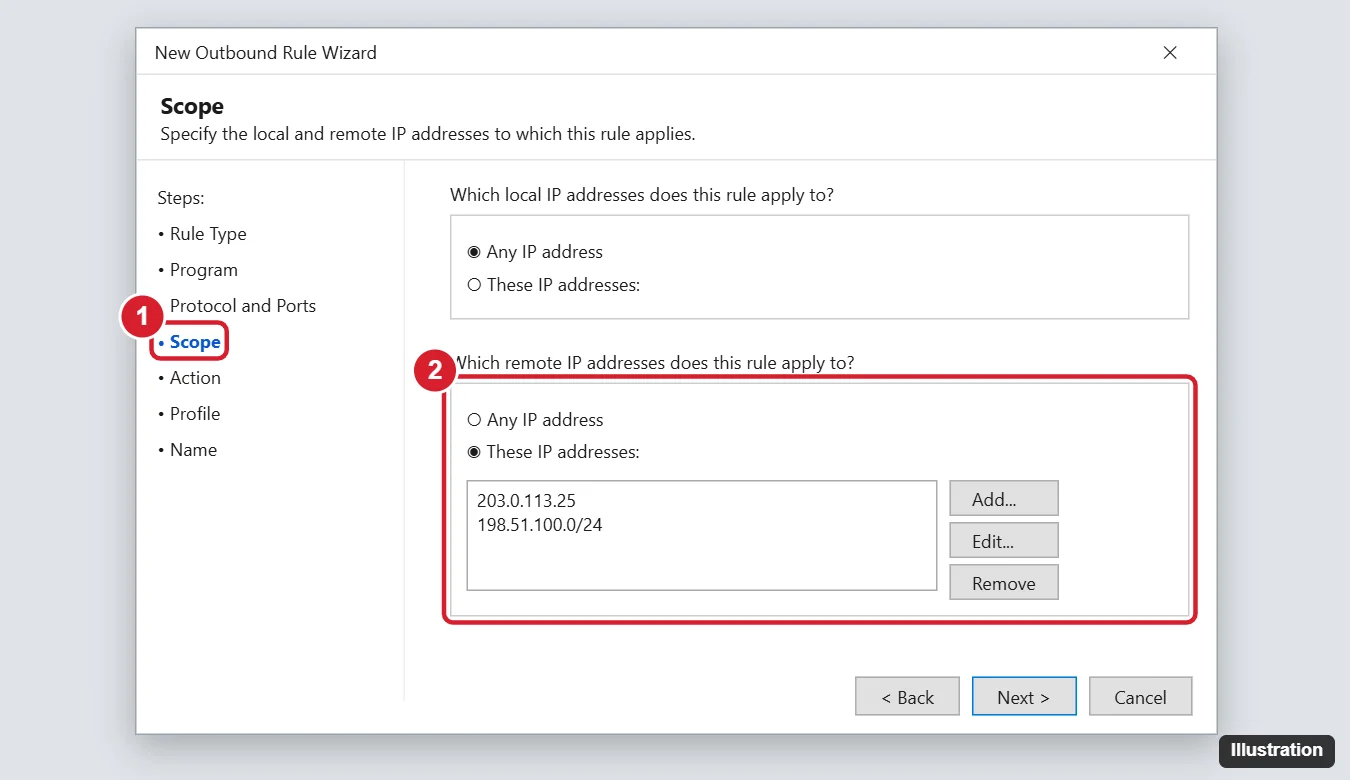
- On the Action page, select Block the connection, then Next.
- On the Profile page, select the network location types the rule should apply to. Leave them all selected if the block should hold on every network, then select Next.
- On the Name page, type a name you will recognize later, such as Block 203.0.113.25 out, add a description if you like, and select Finish.
For the inbound half, select Inbound Rules and repeat the same pages. Give it a different name (Block 203.0.113.25 in) so you can tell the two apart.
Block an address with PowerShell
PowerShell creates the same rules in one line each, which is handy for several addresses or for repeating the block on another PC. Right-click Start, open PowerShell as administrator and run:
New-NetFirewallRule -DisplayName "Block 203.0.113.25 out" -Direction Outbound -RemoteAddress 203.0.113.25 -Action Block
New-NetFirewallRule -DisplayName "Block 203.0.113.25 in" -Direction Inbound -RemoteAddress 203.0.113.25 -Action Block
Three details from Microsoft’s New-NetFirewallRule reference are worth knowing:
-DisplayNameis required, and it is how you will find, pause or remove the rule later.-Directiondefaults to Inbound, so leave it out and you get an inbound rule even if you meant outbound.-Profiledefaults to Any, which applies the rule on every network type. Add-Profile Public(or Domain or Private) to narrow it.
To cover several addresses in one rule, list them with commas: -RemoteAddress 203.0.113.25,198.51.100.0/24.
Command Prompt alternative with netsh
If you already work in Command Prompt, the netsh advfirewall firewall add rule command does the same job. Run Command Prompt as administrator. This line follows the pattern of Microsoft’s own example on its netsh advfirewall page:
netsh advfirewall firewall add rule name="Block 203.0.113.25 out" protocol=TCP dir=out remoteip=203.0.113.25 action=blockBecause Microsoft’s example includes protocol=TCP, this rule applies to TCP connections as written. Microsoft also notes that a rule name should be unique and can’t be “all”. To remove it, run netsh advfirewall firewall delete rule name="Block 203.0.113.25 out".
Ways to write an address, range or subnet
Microsoft’s New-NetFirewallRule reference lists these formats for -RemoteAddress; you type the same kinds of entries on the Scope page. The examples use documentation addresses.
| What you want to block | How to write it |
|---|---|
| One IPv4 address | 203.0.113.25 |
| A subnet by bit count | 198.51.100.0/24 (198.51.100.0 through 198.51.100.255) |
| The same subnet by mask | 198.51.100.0/255.255.255.0 |
| A range | 198.51.100.10-198.51.100.50 |
| One IPv6 address | 2001:db8::1 |
| An IPv6 subnet | 2001:db8::/32 |
PowerShell also accepts keywords such as LocalSubnet, DefaultGateway and Internet. Be careful with them: blocking DefaultGateway, for example, cuts the PC off from your router. If the service you are blocking also has an IPv6 address, a rule that lists only its IPv4 address does not cover the IPv6 one, so add both.
Check that the rule is in place
- In the console, select Outbound Rules (or Inbound Rules) and look for your rule by name.
- In PowerShell, run
Get-NetFirewallRule -DisplayName "Block 203.0.113.25 out". Microsoft’s Get-NetFirewallRule page notes that the display name accepts wildcards, soGet-NetFirewallRule -DisplayName "Block 203*"lists every rule that starts that way. - Try whatever used to reach that address, such as the app or the network share. With an outbound block in place, the connection should fail.
Turn off or remove a block rule
Pausing a rule keeps it for later; deleting it is permanent.
- In the console: select Outbound Rules or Inbound Rules, right-click your rule and choose to disable it (pause) or delete it.
- Pause in PowerShell:
Disable-NetFirewallRule -DisplayName "Block 203.0.113.25 out"(see Microsoft’s Disable-NetFirewallRule page). Always include the name so you only touch your own rule. - Delete in PowerShell:
Remove-NetFirewallRule -DisplayName "Block 203.0.113.25 out"(from the Remove-NetFirewallRule reference). Repeat it for the inbound rule.
If the block does not seem to work
- Wrong direction. An inbound rule doesn’t stop this PC from connecting out. Add the outbound rule.
- Wrong profile. If you narrowed the Profile page or
-Profile, the rule is skipped on other network types. Open the rule’s properties and widen it. - The firewall isn’t on for this network. Rules only apply while Windows Firewall is on. Check the status in Windows Security under Firewall & network protection.
- The address changed. Services that use several addresses, or a device that got a new address from the router, slip past a rule for one address.
- Your router handles it instead. Many routers have their own block list that covers every device on the network; the router’s manual explains it.
IP blocking answers
Can I block a whole range with one rule?
Yes. Type a range such as 198.51.100.10-198.51.100.50 or a subnet such as 198.51.100.0/24 on the Scope page, or pass it to -RemoteAddress. One rule can hold several entries.
Can one rule block both directions?
No. Each rule has a single direction, which is why the steps create an outbound and an inbound rule with matching names.
Does blocking an address on this PC protect my other computers?
No. Windows Firewall rules only affect the PC they are created on. Repeat the rule on each PC, or use a block list on the router.
Is this the same as looking for a hidden remote connection?
Not quite. A block rule stops traffic you already know about. If you suspect something on the PC is talking to an address it shouldn’t, start with checking Windows 10 for a backdoor.
Blocking another device’s address is a different task from changing your own. If this PC needs a new or fixed address, see how to change your IP address in Windows 10.

Kermit Matthews runs Live2Tech from just outside Philadelphia. He is an IT specialist with over 20 years of experience, from a university help desk to small-business IT, IT management and his own consulting practice, and has written tech guides full time since 2020. Steps are checked against the current software on a real device or the maker’s official documentation. More about Kermit.