Sometimes. Google says it sometimes requires phone verification before you create an account or sign in, and it documents no setting that turns that off. When Google does ask, it offers its own choices: a text or a call to a number you can reach, other verification methods for some features, and the option to remove the number once the account is set up.
Why Google asks for a phone number
Google gives its reasons on its Verify your account help page: before you create an account or sign in, Google sometimes requires phone verification to confirm you are a real person and to deter spammers. On its page about access to certain features, Google adds that verification helps show an account is not created or used by bots for abuse such as spam, and helps protect against fraud.
A phone number on the account also has a second, separate job: account recovery. A recovery phone lets Google send you a code if you forget your password or someone else tries to take over the account. That use is optional, and you control it after setup.
Google does not publish the exact signals behind each decision, so nobody outside Google can promise you a way to skip it.
When the phone step is optional
Google’s Create a Google Account page lists the phone number near the end of sign-up as “Optional: Add and verify a phone number for your account.” When your sign-up shows the step that way:
- Fill in your name, birthday and other details accurately.
- When the phone screen appears, look for an option to skip it or continue without a number.
- Continue, and add a recovery email if Google offers it, so you still have a way back in.
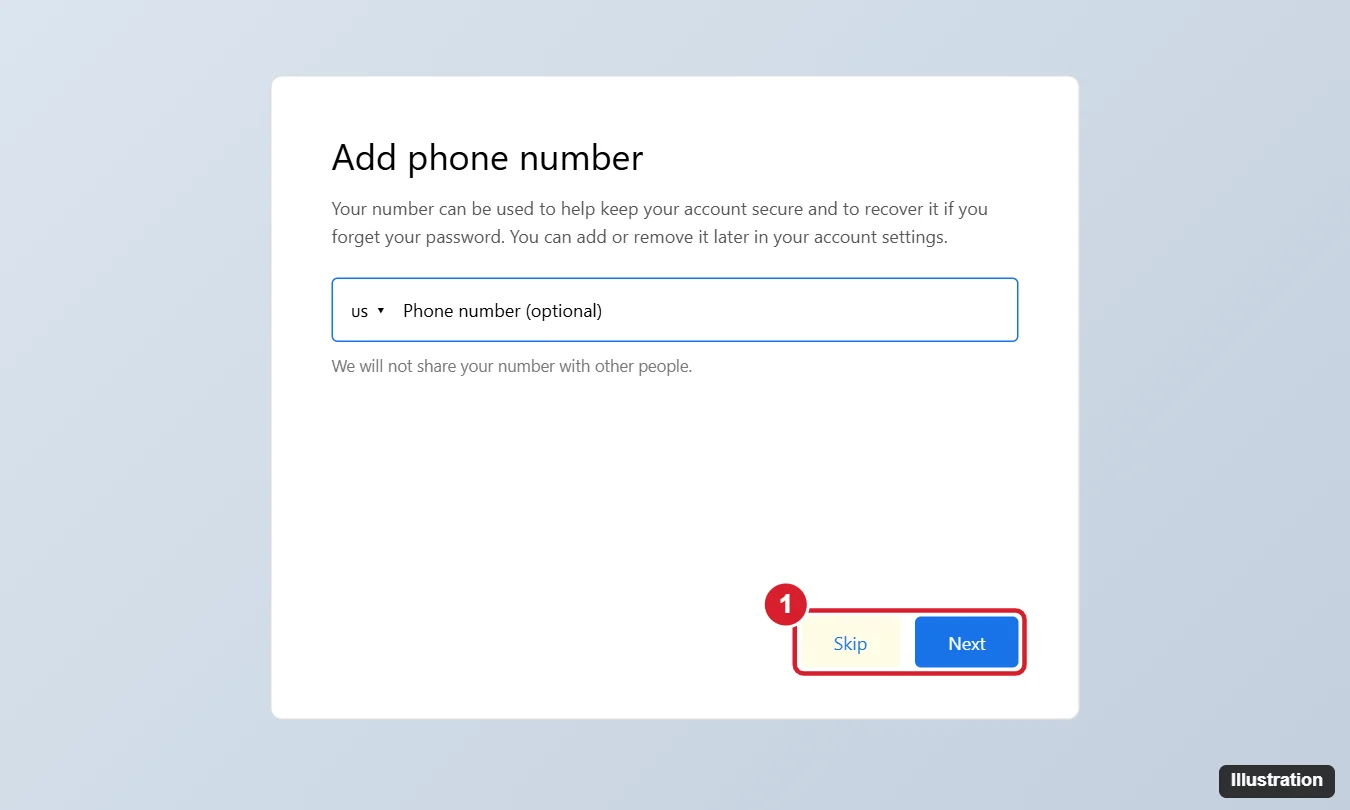
The illustration shows the idea of an optional phone step; Google’s current sign-up screens may look different.
For the full sign-up walkthrough on a computer, iPhone or Android, see how to create a new Gmail account. If no skip option appears, the step is required for this sign-up, which is covered next.
When Google requires verification
If the phone step is required, Google’s Verify your account page sets out how it works:
- You need a mobile device. Google says so directly: to verify your account, you need a mobile device.
- Text or call. You can get the code by text message or by a phone call.
- Home phones work with the call option. If you choose a call, Google says you can use a home phone number.
- Charges depend on your plan. Your carrier may charge its usual rate for the text or call.
- Texts can be slow. If the code does not arrive, wait a few minutes or try the phone call option instead.
The number should belong to you or to someone you trust and can reach. Whoever can read texts on a number can also receive codes sent to it, so a number you do not control is a security risk for the account you are creating.
What Google’s error messages mean
Two messages come up often. Google explains both on the same help page:
| Message | What Google says it means | What Google suggests |
|---|---|---|
| “This phone number has been used too many times for verification” | Google limits the number of times one phone number can be used for verification. | Use a family member’s or friend’s number instead. |
| “This phone number cannot be used for verification” | Google limits the number of accounts each phone number can create. | Use a number from a friend, a family member or a different carrier. |
If you borrow a number, ask first and tell the person a code is coming. Google’s own guidance on avoiding getting locked out says your long-term recovery phone should be one that belongs only to you, so plan to replace a borrowed number with your own once you have one.
Other verification options Google lists
Separate from sign-up, Google may ask for extra verification before you use certain features or services. Its page on taking steps to gain access to certain features and services lists these methods:
| Method | What it involves |
|---|---|
| SMS verification | A code by text. Google notes the number does not have to be associated with your account; standard text rates apply. |
| QR code or device check verification | Available only for phones and tablets. |
| Government ID | A document such as a driver’s license, passport or national ID card. |
| Vouching request | Another Google Account vouches for yours. |
Which methods you see depends on what Google offers for your account. Google also says you can choose not to verify. The trade-off is that the account then stays without the features Google considers likely to be used for abuse, so you can keep using everything else.
Accounts for children, work and school
Children: a parent creates a child’s Google Account, either from the Google sign-up page, the Family Link app or during device setup, and has to give parental consent from their own Google Account. Google’s Create a Google Account for your child page lists a credit card as one consent method: there is no fee, though a temporary authorization may appear on the card. The page does not say whether a phone number is ever requested for the child, so do not count on Family Link as a way around the prompt.
Work or school: these accounts are created and managed by the organization. Google notes that its 2-Step Verification steps might not work for an account through work, school or another group; for any phone prompt on a managed account, the organization’s administrator is the person to ask.
Remove or change the number after setup
If you only added a number because Google required it, you can take it off later. Google’s page on changing the phone number on your account and how it’s used gives this path:
- Go to your Google Account and click Personal info.
- Click Phone, then your number.
- Next to the number, select Delete > Remove number.
The recovery phone is managed in a different place: Security & sign-in, then Recovery phone under “How you sign in to Google.” Google’s recovery options page notes that changes to a recovery phone may take up to 7 days to take effect. The same number can also be used by 2-Step Verification and some other services, which have their own settings.
Before you delete anything, add another way to get back in, such as a recovery email or one of the sign-in methods below. Removing your only recovery method makes a lockout much harder to fix. To swap in a new number rather than removing it, see how to change the phone number on your Google account.
Sign in safely without text messages
A phone number is only one way to protect the account. Google’s Turn on 2-Step Verification page describes second steps that do not depend on texts, and notes that text and call codes can be vulnerable to phone number-based hacks:
- Passkeys: sign in with your device’s fingerprint, face or screen lock. You can create a passkey on a phone, computer or hardware security key.
- Google prompts: approve a sign-in on an Android phone signed in to your account, or an iPhone signed in to a Google app such as Gmail or the Google app.
- Authenticator apps: Google Authenticator or another verification code app. If you change phones, see how to recover Google Authenticator codes.
- Security keys: a physical key that Google says protects the account from phishing attacks.
- Backup codes: Google’s backup codes page says you can get a new set of 10 codes whenever you want, and each code works once. Getting a new set makes the old set inactive. Print or download them and keep them somewhere safe.
It also helps to check which phones and computers are signed in to the account; removing a device from your Google account shows where to see and sign out old ones.
If you get locked out later
During account recovery, if you cannot get a code sent to your recovery email, Google may let you select Try another way to skip that challenge. Google’s tips for account recovery also suggest using a device, browser and location you have used before, and warn that Google never asks for your password or verification codes over email, phone call or message. If the phone you used for codes is gone, see how to recover a Google account without your old phone.
Google phone prompt questions
Can I add a phone number later instead of during sign-up?
Yes, when the step is optional. Google’s Phone page under Personal info has an Add option, and Google suggests a recovery phone to help keep the account secure.
How long until a new number works for security checks?
Google says it may take a week before a new phone number can be used to verify it’s you for sensitive actions such as changing your password. Add the new number before you need it.
Can I have more than one recovery phone?
No. Google says you can only add one recovery phone number to your account, so pick the number you are most likely to keep.
Is there a guaranteed way to avoid the prompt?
No. Google does not document one, and it describes the check as a protection against spam and abuse. The honest options are the ones above: skip it when Google marks it optional, verify with a number you can reach, use another method Google offers, or choose not to verify and go without the gated features.

Kermit Matthews runs Live2Tech from just outside Philadelphia. He is an IT specialist with over 20 years of experience, from a university help desk to small-business IT, IT management and his own consulting practice, and has written tech guides full time since 2020. Steps are checked against the current software on a real device or the maker’s official documentation. More about Kermit.