Blurry close-ups on an iPhone usually come from shooting closer than the lens can focus, so back up a little, or let the Camera app switch to macro on models that support it. For a subject that keeps drifting, touch and hold it on the screen until AE/AF Lock appears, which holds focus and exposure in place. If whole photos are soft, clean the lenses and remove anything covering the camera, then restart and update before you suspect the hardware.
What is out of focus?
Start with the symptom you see. Each row points to the section that deals with it, so you can skip the fixes that don’t apply.
| What you see | Most likely cause | Where to go |
|---|---|---|
| Close-ups of text, food or small objects stay blurry | You are inside the lens’s focus range, or macro switched lenses | Close-ups: back up or let macro take over |
| Every photo looks hazy or soft, near or far | Smudged lens, a case, film or lens accessory | Clean the lenses and take off accessories |
| The camera focuses on the background instead of your subject | The Camera app picked a different focus point | Tap to focus, then lock it |
| Video jumps or blurs for a moment when you move closer | The camera switched lenses while recording | Video: turn on Lock Camera |
| Night shots show smeared motion | Motion blur in low light; Apple links it to a lens converter, metallic case or magnetic lens mount | Clean the lenses and take off accessories |
| Only the front or only the rear camera is blurry, or nothing helps | Possible hardware fault | When it points to the hardware |
Clean the lenses and take off accessories
This is the first fix on Apple’s page If the camera or flash on your iPhone or iPad isn’t working. Start here before changing any settings.
- Take the iPhone out of its case. Apple says to remove any case, film or accessory, such as a polarizer, extender or magnifier, that might block the camera or flash or that places a magnet near the camera.
- Wipe the front and back camera lenses with a microfiber cloth. Apple names a microfiber cloth.
- If you use a clip-on lens, a lens converter, a metallic case or a magnetic mount (a car or bike holder, for example), take it off and try again. Apple’s page says motion blur in low light can come from those accessories.
- Take a test shot of something with fine detail, such as printed text at arm’s length.
If the test shot is sharp, put accessories back one at a time to find the one that causes trouble.
Tap to focus, then lock it with AE/AF Lock
The Camera app chooses a focus point for you, and in a busy scene it can pick the wrong one. Apple’s iPhone User Guide page on using the camera tools describes two controls that fix this.
- Open Camera and tap the screen where you want the focus to go. The focus area moves to that spot.
- To brighten or darken the shot, drag the exposure control that appears beside the focus area. Focus and exposure are separate, so changing one does not change the other.
- To keep focus fixed while you reframe or wait for the right moment, touch and hold the focus area until you see AE/AF Lock.
- Tap the screen when you want to go back to automatic focus. Apple’s wording is “tap the screen to unlock settings.”
AE/AF Lock is useful for product shots, documents and anything you photograph several times from the same spot. If the focus keeps hunting back and forth by itself while you shoot, even after tapping, the separate fixes for an iPhone camera that keeps refocusing go into that pattern in more depth.
The grid can help you hold the subject in the same part of the frame while focus is locked; turning on the camera grid takes one switch in Settings.
Close-ups: back up or let macro take over
Every lens has a closest distance at which it can focus. Move inside it and the picture goes soft no matter how often you tap. Apple doesn’t print a minimum focus distance for the regular lenses, so the practical test is simple: if a close-up is blurry, move the phone back slowly until the subject sharpens.
On supported models, the Camera app can also take macro photos. Apple’s page Take macro photos and videos says you can get as close as 2 centimeters, and that Camera will automatically switch to the Ultra Wide camera when you get close to a subject. That automatic switch can make the preview appear to jump for a moment.
- Turn off automatic switching for one shot: when you get within macro distance, the Auto Macro On button appears. Tap it to turn off automatic macro switching; tap the Auto Macro Off button to turn it back on.
- If the macro shot is blurry: Apple’s advice is to back up or tap .5x.
- Macro Control in Settings: to turn off the manual Macro Control when taking photos and videos, Apple says to go to Settings > Camera, then turn off Macro Control. To keep your Macro Control setting between camera sessions, go to Settings > Camera > Preserve Settings and turn on Macro Control.
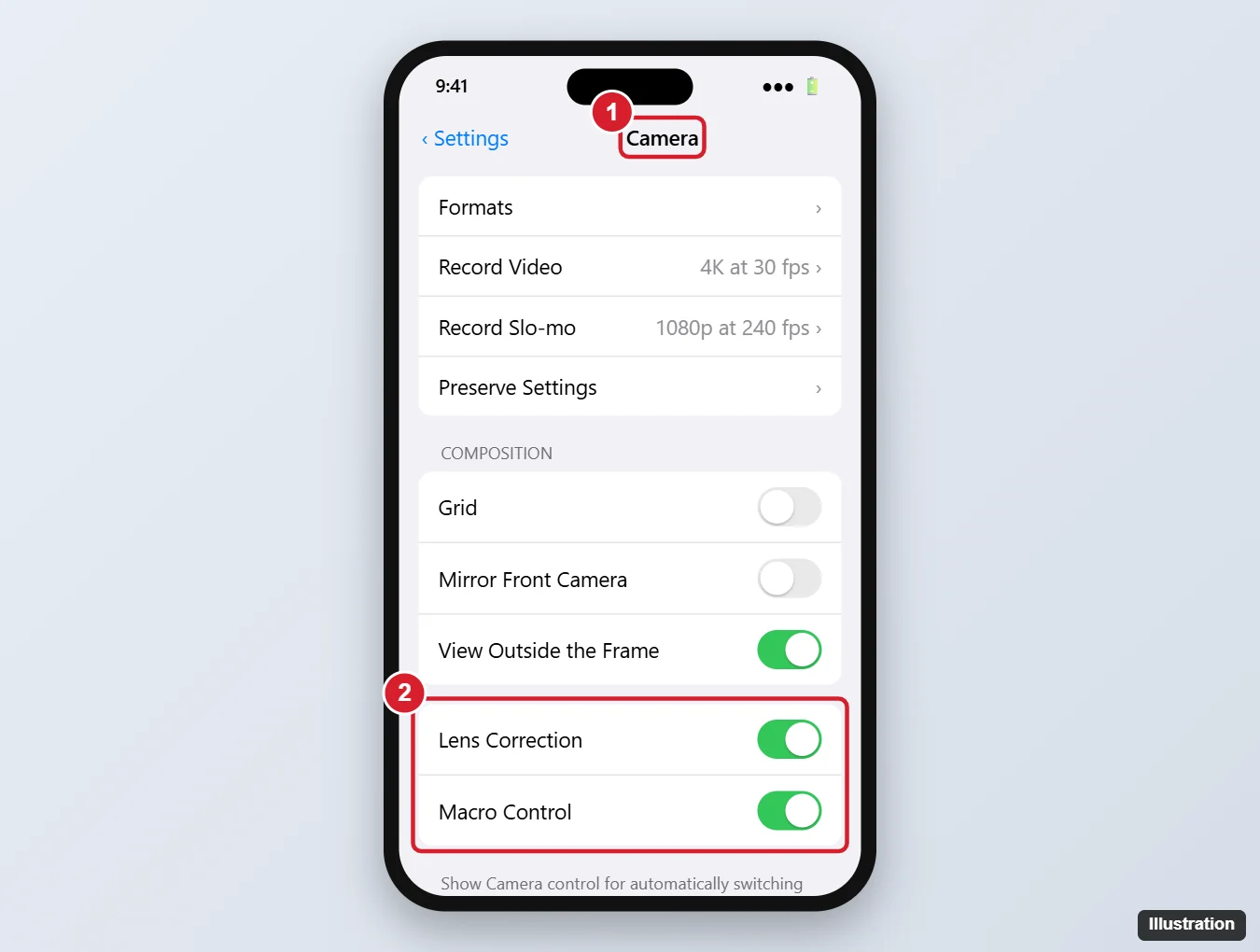
The illustration is based on an older version of the Settings screen, and current screens may look different. The model named in the caption comes from the older version; Apple’s page says only “on supported models.” Apple prints no model list on its macro page and says only “on supported models,” so if you don’t see Macro Control, your iPhone may not have the feature. The Lens Correction switch nearby adjusts photos taken with the front or Ultra Wide camera, according to Apple’s advanced camera settings page; it is on by default and isn’t a focus control.
Video: turn on Lock Camera
When you film and move closer to or farther from a subject, the Camera app can change lenses mid-clip, which shows up as a jump in framing and a brief loss of focus. Apple’s video recording settings page describes a switch that stops it.
- Open Settings and tap Camera.
- Tap Record Video.
- Turn on Lock Camera.
Apple says Lock Camera prevents switching between cameras while recording video, is off by default and is available on supported models. With it on, keep a sensible distance from the subject, because the camera won’t change lenses to rescue a close-up.
Restart, update, then reset settings
If the lens is clean and focus still misbehaves in every situation, work through these in order, from least to most disruptive.
Force restart the iPhone
Closing Camera from the app switcher and opening it again is a quick first try. If that doesn’t help, Apple’s force restart steps clear a stuck camera process:
- Press and quickly release the volume up button.
- Press and quickly release the volume down button.
- Press and hold the side button. When the Apple logo appears, release it.
If the whole phone is frozen rather than just the camera, how to unfreeze an iPhone covers that situation.
Update iOS
Apple’s camera troubleshooting page recommends updating to the latest version of iOS. Per Apple’s Update iPhone page, go to Settings > General > Software Update, then tap Download and Install if an update is listed. You can turn on Automatic Updates on the same screen so camera fixes arrive without you checking.
Reset All Settings
This puts every setting back to its default, which rules out a camera or accessibility setting you changed and forgot. Apple’s page on resetting iPhone settings says all settings, including network settings, the keyboard dictionary, location settings, privacy settings and Apple Pay cards, are removed or reset to their defaults, and that no data or media are deleted. Expect to re-enter Wi-Fi passwords, set up Face ID or Touch ID again and re-add cards to Wallet.
- Open Settings and tap General.
- Tap Transfer or Reset iPhone, then tap Reset.
- Tap Reset All Settings and enter your passcode when asked.
Your photos, apps and messages stay where they are, but a backup before any reset is still a sensible habit.
When it points to the hardware
Settings can’t fix a damaged lens cover or a faulty camera module. These signs suggest the problem is physical:
- Only one camera is affected. Compare the front and rear cameras, and switching between the front and back camera takes one tap. Apple’s troubleshooting page also asks whether one or both cameras aren’t working.
- The blur stays after cleaning, removing every accessory, a force restart, an update and Reset All Settings.
- The glass over the lens is visibly cracked or damaged.
Apple also warns that sustained high-amplitude vibration, such as from high-power motorcycle engines, might degrade the optical image stabilization and closed-loop autofocus systems; it does not recommend attaching an iPhone to motorcycles with high-power or high-volume engines, and recommends a vibration dampening mount for mopeds and scooters (Apple’s vibration page).
Apple’s page ends with this advice: if the camera still isn’t working properly, you might need service, and it links to Apple’s service options. Back up the iPhone before you hand it over. This article doesn’t cover home repairs or camera apps from other developers; Apple’s service route is the one it documents.
Camera focus questions
Does Reset All Settings delete my photos?
No. Apple says no data or media are deleted. Settings such as Wi-Fi networks, privacy and location choices, and Apple Pay cards are reset, so you set those up again afterward.
Why don’t I see a macro button or Macro Control?
Apple describes both as available on supported models only. If your iPhone doesn’t show them, it likely doesn’t have the macro feature, and backing up from the subject is the fix.
What does AE/AF Lock actually lock?
Both auto exposure (AE) and autofocus (AF) at the spot you held. They stay fixed until you tap the screen again, which is why a locked shot won’t refocus if you move much closer.
Work down the table at the top, and in most cases a clean lens, a step back or AE/AF Lock fixes the problem. If none of the steps help and only one camera misbehaves, contact Apple for service.

Kermit Matthews runs Live2Tech from just outside Philadelphia. He is an IT specialist with over 20 years of experience, from a university help desk to small-business IT, IT management and his own consulting practice, and has written tech guides full time since 2020. Steps are checked against the current software on a real device or the maker’s official documentation. More about Kermit.