Serial numbers on HP laptops appear on a label, in HP’s own system tools, and Windows can read the same number too. If the laptop will not start, the label on the bottom of the notebook or on the box it shipped in is the method that still works, because it needs no power at all. When the laptop does start, HP System Information shows the serial number with one shortcut.
Read the label on the laptop or its box
HP says to look for your product name, number and serial number on the computer itself or on the box it shipped in. For a notebook, HP names two places:
- On the bottom of the notebook. Close the lid, turn the laptop over on a soft surface, and look for the printed label.
- On the box that the notebook shipped in. This helps when the laptop is away for repair.
Labels use short forms. HP lists the serial number as Serial NO, S/N or SN, and the product number as Product NO or P/N. HP also notes that the name and number on the front of the product might not be enough to get proper support, so use the label rather than the model badge.
Open HP System Information
If the laptop starts and Windows loads, HP’s own System Information window shows everything in one place.
- Search for HP System Information in Windows and open it, or press fn + esc on the laptop’s built-in keyboard.
- If no window appears, minimize or close other windows. HP notes that the System Information window might open behind other active applications or browser windows.
- Find the product name, product number and serial number in the window.
- Select the copy icon beside a field to paste it into a support form or an email to yourself.
The fn + esc shortcut works only on the notebook’s built-in keyboard; HP says it might not work with external or virtual keyboards. If the laptop sits in a dock with a separate keyboard, search for the app instead. If your fn key behaves differently than you expect, how the fn key works on HP laptops explains the modes.
The window also has an accessibility feature that helps on a phone call with support: select the speaker icon next to the Serial number field and the system reads the serial number aloud.
Check HP Support Assistant
HP Support Assistant shows the same details.
- Search for HP Support Assistant in Windows and open it, or select its icon in the taskbar.
- Go to the My Dashboard tab.
- Read the product name, product number and serial number for the computer.
If the app is not installed, HP’s support page links to the latest version. All of the label and app routes above come from HP’s page on how to find product and serial numbers for HP PCs.
Ask Windows for the BIOS serial number
Windows can read the serial number the manufacturer stored in the firmware, which is handy when HP’s apps are missing. Microsoft documents a SerialNumber property on the Win32_BIOS class, and PowerShell reads it with the Get-CimInstance cmdlet.
- Search for PowerShell in the Start menu and open it.
- Type
Get-CimInstance -ClassName Win32_BIOSand press Enter. - Read the value next to SerialNumber in the results.
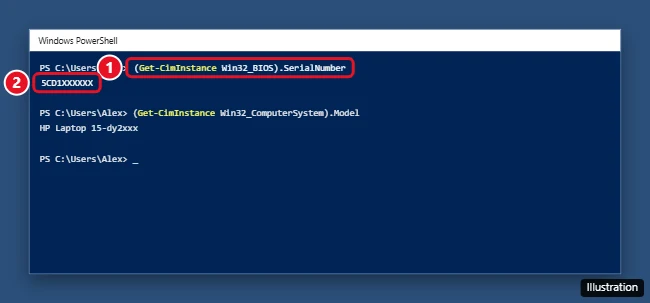
Older instructions often give a wmic command for this. Microsoft has deprecated the WMIC tool, says to use PowerShell for WMI tasks, and states that the WMIC utility has been removed from currently supported versions of Windows 11 (Microsoft’s WMIC removal notice). The PowerShell route works on HP laptops running Windows 11 or Windows 10, but note that Windows 10 has reached the end of support on October 14, 2025. If you are reinstalling Windows on an older HP, installing Windows 10 on an HP laptop from USB covers the drivers step, where the product number matters.
If Windows returns a blank or unexpected value, use the label or HP System Information instead, and give HP support the number shown there.
Serial number or product number: which one does HP want?
HP’s labels and apps show several numbers, and each has its own job:
| Number | What HP says it identifies | Use it for |
|---|---|---|
| Serial number (Serial NO, S/N, SN) | Your specific HP product | Service, warranty status, and HP Customer Support |
| Product name and product number (Product NO, P/N) | Your product within a series | Downloading the correct drivers and apps and finding support documents |
The product details also help with hardware questions, for example finding a PC’s power supply wattage from the maker’s support records. Neither number is your Windows license; that is a separate key covered in finding your Windows product key.
HP label and serial questions
Does the same shortcut work on an HP desktop or Chromebook?
Not the same one. HP says desktops and all-in-ones open System Information by pressing and holding ctrl + alt, then pressing s. On an HP Chromebook, HP says to restart and press Alt + v at the sign-in screen to view computer information, including the serial number.
Once you have the serial number, keep a copy somewhere other than the laptop itself. While you are getting to know your HP’s keys, taking a screenshot on an HP laptop and turning on the keyboard light cover two more shortcuts.

Kermit Matthews runs Live2Tech from just outside Philadelphia. He is an IT specialist with over 20 years of experience, from a university help desk to small-business IT, IT management and his own consulting practice, and has written tech guides full time since 2020. Steps are checked against the current software on a real device or the maker’s official documentation. More about Kermit.