Where your power supply’s wattage is written depends on where the PC came from, and Windows 10 helps with only one part: the model name. Windows does not report a power supply’s rated wattage, so use that model name to look up a prebuilt PC, check the parts records for a desktop you built, or read the output line on a laptop charger. The label on the unit settles any doubt.
Start with the model name Windows 10 does show
Microsoft’s page on finding information about your Windows device lists what Settings reports: right-click Start, choose Settings, select System, then About. “The device name appears on the page, with the model name displayed just below it.” Under Device specifications you also get the processor, installed RAM and whether Windows is 32-bit or 64-bit. There is no line for the power supply.
System Information (msinfo32) goes further. Microsoft describes it as a tool that “gathers information about your computer and displays a comprehensive view of your hardware, system components, and software environment”, and its description of System Information does not mention power supply wattage either. Microsoft documents no Windows tool that reports a power supply’s rated wattage.
Write the model name down, because it is the key to every lookup below. For the full list of components, see checking your computer specs in Windows 10; the BIOS version check in Windows 10 shows the same System Information window, which also helps when a support form asks for firmware details.
Then decide what to do with it:
| Your PC | What to do with the model name | Do you need to open the case? |
|---|---|---|
| A desktop you built, or one where the power supply was replaced | You rarely need it: the parts list, receipt or box names the power supply; then look up its model on the power supply maker’s site | Only if the records are gone |
| A prebuilt desktop from a PC maker | Look it up, or the service tag, on the maker’s support site | Only if the spec page leaves the power supply out |
| A laptop, or a small PC with an external power brick | Use it to find the maker’s listed adapter if you need a replacement | No, the output is printed on the adapter |
Spec sheets describe how a PC shipped, and a previous owner or repair shop may have swapped the unit since, so the label on the power supply itself is the final word.
One more thing about the operating system itself: Microsoft states that “Windows 10 has reached the end of support on October 14, 2025”, so security updates now depend on Microsoft’s Windows 10 end of support options, such as the Consumer Extended Security Updates program or moving to Windows 11. None of that changes how you find the power supply’s rating, which lives on the hardware.
Check the records for your kind of PC
A desktop you built, or one with a replaced power supply
Whoever chose the power supply bought it as a separate part, so there is a paper trail:
- Search your email and the store account you bought parts from for “power supply” or “PSU”. The order line almost always names the brand, the model and the wattage.
- Check the box, the manual or the bag of spare cables if you kept them. The wattage is usually printed on the box and on the cover of the manual.
- If you only have the model name, open the power supply maker’s own website and search for that model. Its product page lists the rated output and the connectors that came with it.
A model name often contains the wattage as a number (for example, a name ending in 650 for a 650 W unit), but makers do not all follow that pattern, so confirm it on the product page or the label rather than guessing from the name.
A prebuilt desktop from a PC maker
PC makers keep a record of how each model shipped. The lookup goes like this:
- Get the model name from Settings > System > About, or read the service tag or serial number from the sticker on the case.
- Open the support section of your PC maker’s website and enter the model, service tag or serial number.
- Look for the product specifications, the original configuration or the user manual for that model. Many makers list the power supply’s wattage there; some list several options because the model shipped with different power supplies.
- If the page lists more than one wattage, the label inside the case tells you which one you have.
On HP laptops and desktops, finding the serial number on an HP laptop covers the keyboard shortcut and label routes. If the maker’s page does not mention the power supply at all, its support team may be able to tell you from the serial number.
A laptop or a small PC with a power brick
A laptop has no internal power supply to look up. The power adapter is the power supply, and its rating is printed on the brick:
- Look for the Output line, not the Input line. Input describes what the adapter takes from the wall.
- Some adapters print the watts directly, such as 65W or 90W.
- Others print volts and amps, such as 20V and 3.25A. Multiply them: 20 × 3.25 = 65 watts.
Mini PCs and all-in-ones that use an external brick work the same way. If you need a replacement, match the maker’s listed adapter for your model rather than just the wattage, because the connector and voltage must match too.
Reading the label inside the case
If the records do not settle it, you will need to see the label. Handle this as you would any work inside a PC:
- Shut down Windows, switch off the power supply with the switch on its back if it has one, and unplug the power cord. NVIDIA’s GeForce RTX 5070 user guide starts its installation the same way: “Turn off your computer, disconnect the power cord.”
- Check your PC maker’s manual for how to remove the side panel on your model, and whether opening it affects your warranty.
- Find the power supply, usually at the bottom or top rear of the case. Many cases show it through a window or vents, so a flashlight and a phone camera may be enough to read the label without removing anything else.
- Read the label on the side. If it faces the case wall, it may be on the top or bottom face instead.
- Replace the panel before you plug the PC back in.
Never open the power supply’s own metal housing. It contains parts that can hold a dangerous charge even when unplugged, and there is nothing inside it that you need to see. Do not poke tools or fingers through vents either.
Desktop power supply labels pack a lot into a small sticker. This is how to read the parts that matter:
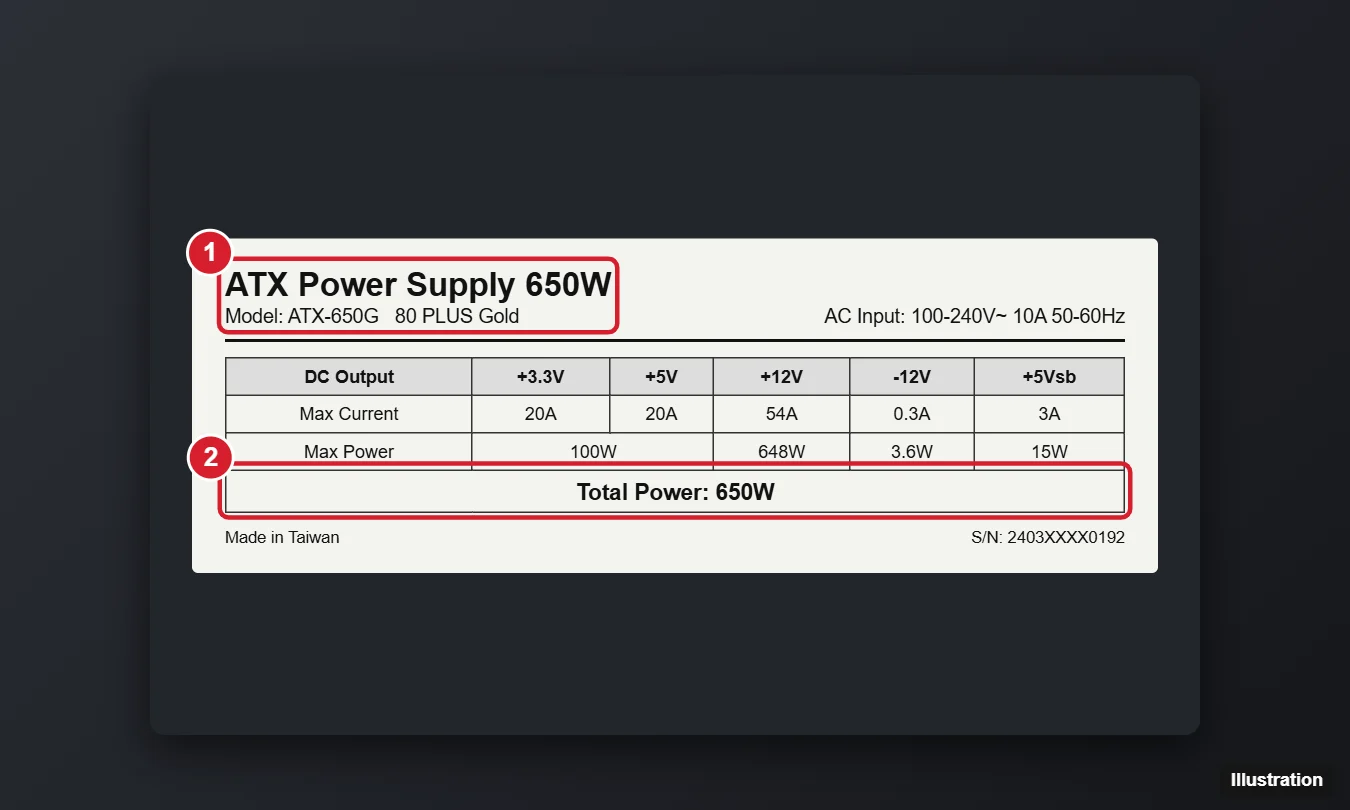
| On the label | What it tells you | Easy to confuse with |
|---|---|---|
| Total power, max output or total output (in W) | The power supply’s rated wattage: the number you are looking for | Individual rail figures in the same table |
| The +12V row in the output table | How much the 12 volt rail can supply | The total wattage |
| Model name | What to search on the maker’s site | The serial number (a long code, often with a barcode) |
| Efficiency badge | An efficiency rating, not a wattage | The rated output |
| AC input (volts, amps, hertz) | What the unit takes from the wall | The output rating |
If you still cannot read it:
- The sticker faces a wall you cannot see: use your phone camera at an angle or in a mirror instead of removing the power supply.
- The sticker is worn or missing: look for a model name stamped on the housing or printed on a cable, then search the maker’s site.
- Prebuilt PCs with a custom unit: the label may show only the PC maker’s part number. Search that part number on the PC maker’s support site or give it to their support team.
- Nothing works: the PC maker’s support may be able to answer from the serial number, and a repair shop can read the label for you.
PSU wattage questions
Will a new graphics card run on my current power supply?
Compare your label with what the graphics card maker states. For example, NVIDIA’s GeForce RTX 5070 user guide asks for a system power supply with a “650 W power rating minimum”, plus either two PCIe 8-pin cables (used with the included adapter) or one PCIe Gen 5 16-pin cable rated for 360 W or more. So check two things: that the total wattage on your label meets the card maker’s minimum, and that your power supply has the connectors the card needs. A unit with enough watts but the wrong cables still will not work without the adapter the card maker supplies.
To see which graphics card you have now, see checking your GPU on Windows 11; Task Manager shows it the same way in Windows 10. Before buying a bigger card, also confirm the slot is free with checking PCI slots in Windows 10. If the PC smells of burning or you see smoke, stop using it and unplug it; a failing power supply is a job for the PC maker’s support or a repair shop.
Does the wattage on the label equal what my PC uses?
No. The label shows the most the power supply is rated to deliver. A PC draws less than that most of the time, and the draw changes with what you are doing, so a light office PC may use only a fraction of its rating while a game pushes the figure up.
What if my PC maker’s spec page does not list the power supply?
Read the label, or contact the maker with the serial number or service tag. Some spec pages leave out internal parts, and some models shipped with more than one power supply.
Checking an older machine? Finding computer specs in Windows 7 covers that system’s tools, and checking your Windows version confirms which instructions apply to the PC in front of you.

Kermit Matthews runs Live2Tech from just outside Philadelphia. He is an IT specialist with over 20 years of experience, from a university help desk to small-business IT, IT management and his own consulting practice, and has written tech guides full time since 2020. Steps are checked against the current software on a real device or the maker’s official documentation. More about Kermit.