A game’s store page, an app’s system requirements or a buyer asking “what’s in it?” all need the same few numbers from your PC. On Windows 10, Settings > System > About gives the processor, installed RAM and 32-bit or 64-bit Windows in one place. For everything else, press Win + R and run msinfo32 (System Information), and use Task Manager’s Performance tab for the graphics card and drive type.
Every tool below is built into Windows 10 and only reads information.
Which tool answers which line of a requirements list
Requirements lists are usually laid out the same way: OS, processor, memory, graphics, DirectX and storage. Work down the list with this table and fill in your own value beside each line.
| Requirement line | Where to read it | What to compare |
|---|---|---|
| OS (64-bit) | Settings > System > About, Device specifications | Most current games and many apps need 64-bit Windows |
| Processor | About, or Task Manager > Performance > CPU | Model name and generation, not just the GHz figure |
| Memory (RAM) | About (Installed RAM), or Task Manager > Performance > Memory | Total in GB |
| Graphics card and video memory | Task Manager > Performance > GPU, or dxdiag > Display tab | Card model and dedicated memory |
| DirectX version | dxdiag > System tab | The version the game lists, such as DirectX 12 |
| Storage | Settings > System > Storage, and Task Manager > Performance > Disk | Free space, and whether the drive is an SSD if the game asks for one |
| TPM and UEFI (Windows 11, some anti-cheat tools) | tpm.msc, and System Information | TPM 2.0, UEFI firmware |
The fastest single stop is About. Open it like this:
- Press Win + I to open Settings and select System.
- Scroll to the bottom of the left pane and select About.
- Read Device specifications for the processor, installed RAM and whether Windows is 32-bit or 64-bit. Windows specifications below it shows the edition and version.
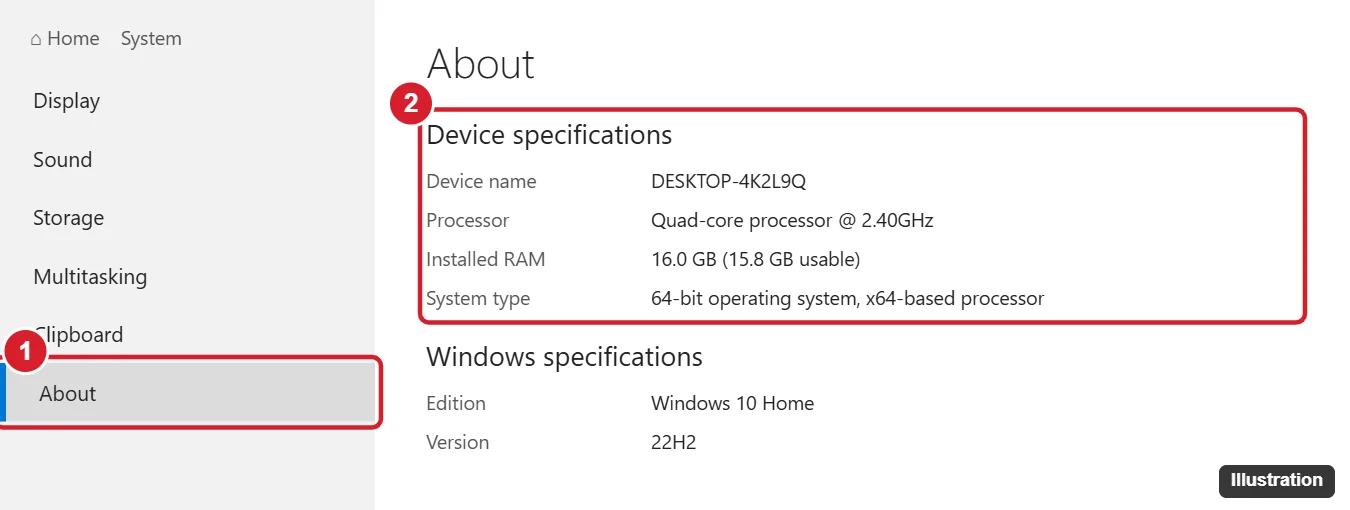
The Device name line is in the same list. For the maker and exact model, which is what a support site asks for, open System Information (msinfo32) and read System Manufacturer and System Model.
Processor and memory: what the numbers mean
About gives you a processor name such as “Intel Core i5-8250U @ 1.60GHz” and a figure such as “8.00 GB” for installed RAM (made-up examples). Those are usually enough for a minimum requirement. For a recommended requirement, or when you are deciding whether to add memory, Task Manager tells you more.
- Press Ctrl + Shift + Esc. If Task Manager opens in its small view, select More details.
- Select the Performance tab, then CPU. The processor model is at the top right; cores and logical processors are listed below the graph.
- Select Memory. The total appears at the top right. Where Windows can read them, the panel also lists the memory speed, how many slots are used and the form factor (for example, SODIMM in many laptops).
How to read the processor line against a requirements list:
- Compare the model, not the clock speed. A newer chip at 1.6 GHz can beat an older one at 3.0 GHz. If a game lists “Core i5-6600 or equivalent,” compare generations and core counts.
- Slots used matters for upgrades. If Task Manager shows “2 of 2” slots used, adding memory means replacing a module rather than adding one.
- Installed and usable RAM can differ. On PCs with integrated graphics, part of the memory may be set aside for the graphics chip.
For live memory use per app, see how to check memory on Windows 10. If you need the brand and part number of the modules, PowerShell can read them; this RAM manufacturer lookup shows the commands.
Graphics card and video memory
The graphics line is the one most likely to decide whether a game runs. You need the card’s exact name and how much dedicated video memory it has.
- In Task Manager, select Performance and then GPU 0 (and GPU 1 if your laptop has both integrated and dedicated graphics).
- Read the card name at the top right.
- Look below the graphs for dedicated GPU memory and shared GPU memory, plus the driver version.
Microsoft’s DirectX team explains the two memory figures this way: dedicated memory is reserved for the graphics chip (the VRAM on a separate card, or a set-aside chunk of system memory on integrated graphics), while shared memory is ordinary system RAM the GPU can borrow, capped at half of physical memory. When a game says “4 GB VRAM,” compare it with dedicated memory, not the total.
No GPU entry in Task Manager? Task Manager only shows GPU information when the graphics driver uses WDDM 2.0 or later. Use dxdiag instead:
- Press Win + R, type dxdiag, and press Enter.
- On the System tab, note the DirectX Version.
- Open the Display tab (there may be Display 1 and Display 2). The card name, its memory and the driver model are listed there.
Device Manager lists the same hardware by category, with the graphics card under Display adapters and the processor cores under Processors; here is how to open Device Manager in Windows 10.
To watch how hard the graphics card works while a game runs, see how to check GPU usage on Windows 10.
Storage: free space, drive type and size
Games often list both a size (“75 GB available space”) and a drive type (“SSD required”). Two places cover both:
- Settings > System > Storage shows used and free space on the system drive. With more than one drive, select View storage usage on other drives under More storage settings to see the rest.
- Task Manager > Performance > Disk 0 (and Disk 1, and so on) shows each drive’s model, capacity and a type line such as SSD or HDD.
Leave some headroom beyond the game’s figure: updates and save files grow over time, and Windows needs free space for its own updates. Drive sizes also look smaller in Windows than on the box because of how capacity is counted; the SSD size check explains why a 500 GB drive shows about 466 GB.
Windows 10 minimums versus what Windows 11 asks for
Windows 10 itself needs very little. Windows 11 adds firmware and security requirements that older PCs often miss, which is why many people check specs before deciding whether to upgrade or replace a PC. The figures below come from Microsoft’s Windows 10 requirements and Windows 11 requirements pages.
| Item | Windows 10 minimum | Windows 11 minimum |
|---|---|---|
| Processor | 1 GHz or faster | 1 GHz or faster, 2 or more cores, on Microsoft’s approved CPU list |
| RAM | 1 GB (32-bit) or 2 GB (64-bit) | 4 GB |
| Storage | 32 GB | 64 GB or larger |
| Graphics | DirectX 9 or later, WDDM 1.0 driver | DirectX 12 or later, WDDM 2.0 driver |
| Firmware | Not specified | UEFI, Secure Boot capable |
| TPM | Not specified | TPM 2.0 |
| Display | 800 x 600 | 720p, larger than 9 inches diagonally, 8 bits per color channel |
To check the two items that are not on the About page:
- TPM: press Win + R, type tpm.msc, and select OK. Under TPM Manufacturer Information, Specification Version should read 2.0. A “Compatible TPM cannot be found” message can mean the TPM is turned off in firmware; see how to enable TPM in the BIOS. You can also go to Settings > Update & Security > Windows Security > Device Security > Security processor details.
- UEFI: in System Information, the BIOS Mode row typically reads UEFI or Legacy.
Microsoft’s PC Health Check app runs the whole Windows 11 check in one click. On a work or school PC, ask your IT department before changing anything. Windows 10 reached end of support on October 14, 2025; PCs enrolled in Extended Security Updates receive security updates through October 12, 2027.
Everything in one go: PowerShell and Command Prompt
Text output is handy when you want every spec on one screen or need to paste it somewhere.
- Command Prompt: run
systeminfofor the OS, processor, total memory, BIOS and network cards. Add/fo listfor one item per line, or/fo csvto paste into a spreadsheet. See Microsoft’s systeminfo reference for the switches. - PowerShell:
Get-ComputerInfolists hundreds of properties. Narrow it with wildcards, for exampleGet-ComputerInfo -Property "Os*"for operating system details orGet-ComputerInfo -Property "CsProcessors","CsTotalPhysicalMemory"for the processor and memory. - One component at a time:
Get-CimInstance Win32_VideoController | Select-Object Name, DriverVersionlists graphics adapters, andGet-CimInstance Win32_BaseBoardshows the motherboard maker and model.
Save a report for support or a seller
When someone else needs your specs, send a file rather than retyping numbers.
- Quick list: on the About page, select Copy under Device specifications and paste the text into an email or listing.
- Graphics-focused report: in dxdiag, select Save All Information and choose where to save the text file. Game support teams often ask for this one.
- Full hardware report: in System Information, select File > Export and save a text file.
- From the command line: run
systeminfo > %USERPROFILE%\Desktop\specs.txtto drop a report on your desktop.
Before sharing a report publicly (for example, in a sales listing), open it and remove the product ID, serial numbers and network details. A buyer only needs the processor, memory, storage, graphics and Windows edition.
What Windows does not tell you
- Screen size: Windows reports the resolution but not the diagonal. Here is how to find your laptop screen size by measuring or from the maker’s sheet.
- Panel type and refresh details: IPS or OLED, and color accuracy, come from the maker’s spec sheet for your model.
- Battery health and port versions: neither appears in About; check the model’s support page.
- An older PC still on Windows 7: the menus are different; see how to find computer specs in Windows 7.
PC spec questions
What is the difference between dedicated and shared GPU memory?
Dedicated memory is reserved for graphics. Shared memory is regular RAM the graphics chip can use when it runs short, up to half of your physical memory. Games that list a VRAM figure mean dedicated memory.
How can I tell whether my drive is an SSD or a hard drive?
Open Task Manager, select Performance, and pick the disk. The type is shown next to the disk name on many PCs. If it is missing, search the drive model listed there on the maker’s site.
Do I need admin rights to see my specs?
Not for About, Task Manager, System Information or dxdiag on a typical home PC. Work PCs can be locked down differently, so if a tool will not open, ask IT.
Why does my GPU show a different name in Task Manager and dxdiag?
Laptops with two graphics chips list both, and each tool may show a different one first. Check GPU 1 in Task Manager and Display 2 in dxdiag before deciding which card you have.
Once your numbers are filled in beside the requirements list, the gaps are obvious: memory and storage are often upgradeable, while the processor and graphics usually decide whether it is time for a different PC.

Kermit Matthews runs Live2Tech from just outside Philadelphia. He is an IT specialist with over 20 years of experience, from a university help desk to small-business IT, IT management and his own consulting practice, and has written tech guides full time since 2020. Steps are checked against the current software on a real device or the maker’s official documentation. More about Kermit.