Shopping for a laptop sleeve, a privacy filter or a replacement panel means you need the screen size in inches, and Windows 11 Settings isn’t much help: Microsoft describes the About and Display pages as covering specs and resolution, with no diagonal. Get the number from your model’s spec sheet or a tape measure across the visible screen. A PowerShell command makes a useful cross-check.
Pick the source that fits what you’re buying
Screen size means the diagonal of the visible panel, in inches, with the frame around it (the bezel) left out. How exact that number has to be depends on the purchase, so start here.
| You’re buying | Use this | Why |
|---|---|---|
| Replacement panel | Spec sheet for your exact model | Panels are model-specific, so the maker’s listing matters more than a measurement |
| Privacy filter or screen protector | Spec sheet, then a tape to confirm | These cover the display, so check the seller’s width and height against your screen as well |
| Sleeve or case | Spec sheet, plus the laptop’s outer dimensions | A sleeve has to fit the whole laptop, and the frame adds to the screen size |
| Just curious, or no model name to hand | Tape measure or the PowerShell command | Either one gets you to the right size class |
Size, resolution, scale and sharpness are separate numbers
Product listings and Settings can blur these together, so here’s what each one tells you.
- Screen size is the physical diagonal in inches. Nothing in Settings changes it.
- Resolution is the pixel count, such as 1920 x 1080. Find it at Settings > System > Display > Display resolution. Microsoft suggests keeping the option marked (Recommended).
- Scale controls how large text and apps look, and sits under Scale & layout on the same page. See how to adjust display scaling in Windows 11 if things look too small.
- Pixel density (PPI) combines size and resolution. Take the square root of (width in pixels squared + height in pixels squared), then divide by the diagonal in inches. A 1920 x 1080 panel at 15.6 inches works out to about 141 PPI.
Refresh rate is another figure that shows up on spec sheets, and you can check your monitor’s refresh rate in Windows.
Run a tape across the visible screen
This takes under a minute and doesn’t depend on Windows at all, which helps when the sticker has worn off.
- Turn the screen on, so the edge of the lit area is easy to see.
- Hold a tape measure or ruler from the bottom-left corner of the visible picture to the top-right corner. Stay on the inner corners and leave the bezel out.
- If your tape reads in centimeters, divide by 2.54. For example, 39.6 cm is 15.6 inches.
- Round to the nearest standard size using the table below.
Your reading may land a little under the size on the box. Treat a soft tape as good for the size class, not for a precise fit, and don’t press the tape into the display.
Round your number to a standard size
Most laptop screens come in a small set of sizes, so a reading of 15.3 or 15.5 usually points to a 15.6-inch screen. Some models use in-between sizes, so confirm on the spec sheet before ordering. The centimeter column is simple conversion, for anyone using a metric tape.
| Listed size | Diagonal in cm |
|---|---|
| 11.6 inches | 29.5 |
| 13.3 inches | 33.8 |
| 13.6 inches | 34.5 |
| 14 inches | 35.6 |
| 15.6 inches | 39.6 |
| 16 inches | 40.6 |
| 17.3 inches | 43.9 |
Read the size off the maker’s spec sheet
This is the number to trust when money is on the line, because it’s the size the manufacturer lists for your exact model.
- Open Settings (press Windows + I), select System, then About.
- Look at the top of the page. Your device name appears there, with the model just beneath it.
- Search for that model on the manufacturer’s support site and open its specifications. The display size is usually listed with the resolution.
Microsoft’s page on finding information about your Windows device describes the same About page. The Device specifications section lower down lists things like the processor and RAM, so the model isn’t there.
If the page shows only a generic name, check the sticker under the laptop, the original box or the manual. Many makers can also look up a machine from its serial number, so it helps to know how to find your PC’s serial number in Windows 11. While you’re on the maker’s page, your other computer specs are worth comparing, since similar models can ship with different screens.
You may also be able to find the panel’s own name in Windows: checking your monitor model covers that route. The label can vary, and a laptop’s built-in panel may show only a generic name.
Cross-check with the size Windows reads from the display
Many displays report a width and height to Windows. Microsoft’s documentation for the WmiMonitorBasicDisplayParams class defines those values as the maximum horizontal and vertical image size in centimeters. This command only reads information; it doesn’t change anything.
- Open PowerShell or Terminal from the Start menu.
- Type this command and press Enter:
Get-CimInstance -Namespace root\wmi -ClassName WmiMonitorBasicDisplayParams | Select-Object MaxHorizontalImageSize, MaxVerticalImageSize - Read the two values: MaxHorizontalImageSize is the width and MaxVerticalImageSize is the height, both in centimeters.
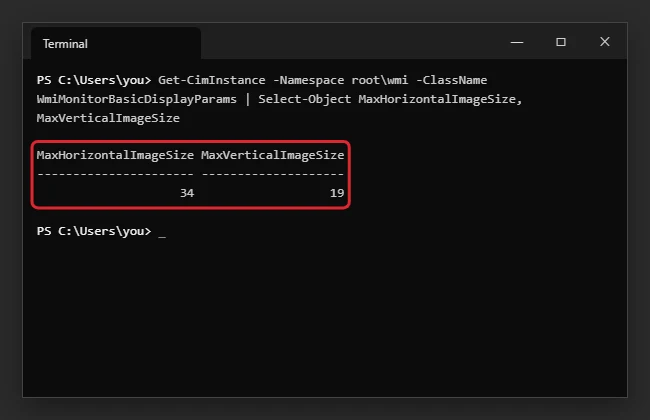
Now do the math on any calculator: square both numbers, add them, take the square root, then divide by 2.54. With a width of 34 and a height of 19:
- 34 x 34 = 1156, and 19 x 19 = 361
- 1156 + 361 = 1517
- The square root of 1517 is about 38.95 cm
- 38.95 / 2.54 = about 15.3 inches, which points to the 15.6-inch class
The result is an estimate. Microsoft says both values are rounded to the nearest centimeter, so the diagonal can be off by roughly a quarter inch. That’s enough to tell a 14-inch from a 15.6-inch screen, but not enough to order a part.
If the output looks wrong
- You get an error or no output: Not every PC returns this data, so use the tape or the spec sheet.
- A zero appears: Microsoft says that if either value is zero, the system makes no assumptions about the display size. The command can’t help on this PC, so use the tape or the spec sheet.
- There are two lines: The extra line is probably an external monitor. Unplug it and run the command again, or pick the line with a plausible laptop width (very roughly 28 to 39 cm).
- The result disagrees with the spec sheet: Go with the spec sheet. Rounding alone can explain a small gap.
Laptop screen size questions
Does the measurement include the bezel?
No. Only the visible display area counts. If you measure frame to frame, you’ll get a number too large for the screen you own.
My laptop is sold as 15.6 inches, so why does the math give 15.3?
Each value the display reports is rounded to a whole centimeter before you see it. A small shortfall like that fits the same size class.
Can I work out the inches from the resolution alone?
No. Resolution counts pixels and says nothing about how big they are. The same 1920 x 1080 can appear on a 14-inch or a 17.3-inch panel.
Does changing the scale change my screen size?
No. Scale only changes how large items are drawn on the same physical screen.
Once you have the number, write it down with your model name, so the next purchase starts with both.

Kermit Matthews runs Live2Tech from just outside Philadelphia. He is an IT specialist with over 20 years of experience, from a university help desk to small-business IT, IT management and his own consulting practice, and has written tech guides full time since 2020. Steps are checked against the current software on a real device or the maker’s official documentation. More about Kermit.