In Windows 10, the Background page in Settings shows the picture that is on your desktop now and tells you how it was set, and for a picture you chose yourself, that tells you where to start looking in File Explorer. Windows spotlight pictures work differently: Settings never gives them a file name. Start by checking which kind of background you have, then follow the matching section below.
What the Background page can tell you
Settings shows a preview of the current wallpaper, but not a file name or folder path. What it does show is how the background was set, and that decides where to look next.
- Right-click an empty part of the desktop and select Personalize. (You can also open Settings > Personalization.)
- Select Background on the left.
- Read the Background drop-down at the top. Microsoft’s desktop background page lists the options as Picture, Solid color, Slideshow and Windows spotlight.
| Background setting | Where the image comes from | Can you find a named file? |
|---|---|---|
| Picture | A file you picked with Browse, set from File Explorer or the Photos app, or one of the built-in pictures | Usually, if the original has not been moved or deleted |
| Slideshow | A folder of pictures you chose | Yes: the image is one of the files in that folder |
| Windows spotlight | Microsoft, which “displays a new image from around the world every day” | No: Settings shows no file name or location |
| Solid color | A color, not a picture | Nothing to find |
One more thing before you start: Microsoft says support for Windows 10 ended on October 14, 2025, and that “technical assistance, feature updates and security updates is no longer provided.” Setting up Windows 10 after end of support covers your options.
A picture you chose yourself
If the drop-down says Picture, the wallpaper came from an image file, so the job is finding that file again.
- On the Background page, look at the preview and the small thumbnails of recently used pictures below it, so you know exactly which image you are looking for.
- Select Browse. An answer on Microsoft Q&A (not from Microsoft staff) notes that this “may reveal the folder location where the image was originally stored.” If it opens a folder that holds the picture, you are done: note the folder, then select Cancel so nothing changes.
- If Browse opens somewhere unrelated, think about how the picture was set. Microsoft lists three ways: Browse in Settings, right-clicking an image file and selecting Set as desktop background, or the Photos app’s Set as option. Pictures set from the Photos app or a browser download are often in Pictures, Downloads or a OneDrive folder.
- Still missing? Search for it in File Explorer. Open This PC, type part of the name in the search box, or use the Search tab to show only pictures. The steps and filters are in finding files in Windows 10 with File Explorer search.
If the original was deleted, emptied from the Recycle Bin or lived on a USB drive that is no longer connected, Windows does not show a path to it anywhere in Settings. The section on copies below explains what you can still do.
A slideshow folder
With Slideshow selected, the Background page shows the folder the pictures come from, with a Browse button to change it. Microsoft describes the setting as a folder of images you select, with an interval and an optional shuffle.
- Note the folder name on the Background page.
- Open that folder in File Explorer and switch to large icons (View tab, Large icons) so you can compare pictures by eye.
- Match the picture on your desktop. To step to the next picture and check again, right-click the desktop and select Next desktop background, as Microsoft’s page describes.
If you have two monitors, each one may be showing a different picture from the same folder; setting two different wallpapers on dual monitors explains how Windows handles that.
Windows spotlight pictures
Microsoft’s Windows spotlight documentation says it “displays a new image on the lock screen and in the background every day.” Microsoft’s Background page lists spotlight as a desktop option but does not split its options by Windows version, so it may not appear on every Windows 10 PC. Either way, a spotlight picture does not come from a folder you chose, and Windows 10 Settings shows no file name or path for it. There is no documented place to open and copy the current spotlight image.
If you just want to keep the picture, capture it (see the copy section below). Spotlight on the sign-in screen is a separate setting under Lock screen; changing the lock screen covers those options.
Theme and built-in pictures
Applying a theme can change the background along with colors and sounds. If the wallpaper arrived with a theme, the Background page shows it as Picture or Slideshow like any other image, but Microsoft does not document where installed theme pictures or the built-in Windows pictures are stored. Re-applying the theme should bring the picture back; changing the theme in Windows 10 shows where themes live in Settings.
When you only need a copy of the image
Sometimes the file name does not matter and you just want the picture, for example to use it on another PC or a phone. A screen capture works for every kind of background, including spotlight:
- Right-click the desktop, select View, and clear Show desktop icons, as Microsoft’s desktop icons page describes, so the icons are not in the picture.
- Minimize every open window.
- Press Windows logo key + Shift + S to open the Snipping Tool overlay and choose a full-screen capture.
- Paste the capture into Paint or another editor and save it, then turn Show desktop icons back on.
The capture is only as sharp as your screen resolution, so it will not match a large original photo. For more capture methods, see taking a screenshot on Windows 11 and 10.
The Themes folder copy (not documented by Microsoft)
Community guides commonly point to a copy of the current wallpaper that Windows keeps in the %AppData%\Microsoft\Windows\Themes folder, in a file named TranscodedWallpaper with no extension, sometimes with a CachedFiles subfolder beside it, and they place spotlight images in an Assets folder inside a Windows package folder under AppData\Local\Packages, with random names and no extensions. Microsoft does not document any of these locations as a way to get your wallpaper back. A Microsoft Q&A answer mentions the Themes files only as something to delete when fixing a wallpaper bug. If you look, copy a file to another folder rather than renaming, editing or deleting anything there. Those guides describe it as a converted copy, not the original photo with its name. Some guides also point to a WallPaper value in the registry, shown in the older illustration below.
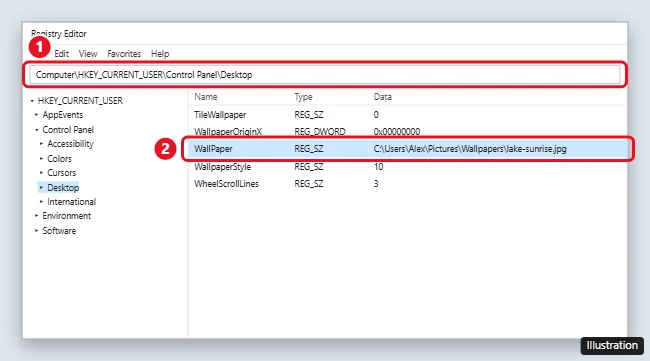
Microsoft does not document this registry location or the WallPaper value as a way to find your wallpaper, and this article gives no Registry Editor steps. Use the Background page and File Explorer steps above instead.
A note for Windows 11
Microsoft’s Background page covers Windows 11 and Windows 10 with one set of steps, so the Picture and Slideshow sections above apply on Windows 11 too. To change the wallpaper rather than find it, see changing the desktop background in Windows 11 and Windows 10.
Other Windows 10 wallpaper questions
Will setting a new wallpaper delete the old picture?
Microsoft’s background page describes choosing a picture, not moving or deleting it, so the original file normally stays where it was saved. A spotlight picture is the exception: there is no file you can go back to.
My wallpaper keeps changing on its own. Why?
The Background setting is probably Slideshow or Windows spotlight. Switch it to Picture and choose one image to keep it fixed. If a work PC changes it back, your organization may manage the background.

Kermit Matthews runs Live2Tech from just outside Philadelphia. He is an IT specialist with over 20 years of experience, from a university help desk to small-business IT, IT management and his own consulting practice, and has written tech guides full time since 2020. Steps are checked against the current software on a real device or the maker’s official documentation. More about Kermit.