Chrome opens a PDF link in its own viewer until you change one setting under Site Settings to download PDFs instead: open Settings > Privacy and security > Site Settings > Additional content settings > PDF documents and select Download PDFs. From then on, the files go to Chrome’s download folder, which is your Downloads folder unless you have picked another one. These steps cover Chrome on a computer (Windows, Mac, ChromeOS and Linux); phones work differently.
What happens to a PDF link in Chrome
Before changing anything, it helps to know which situation you are in. The setting only exists in one of them.
| Where you use Chrome | What a PDF link does | Can you change it? |
|---|---|---|
| Chrome on a computer, default setting | Opens the PDF in Chrome’s built-in viewer in a tab | Yes, with the PDF documents setting |
| Chrome on a computer, set to Download PDFs | Saves the file to your download folder without opening a tab | Yes, switch back with Open PDFs in Chrome |
| Chrome on Android | Google’s help describes no PDF setting for the Android app | No setting; download single files instead |
| Chrome on iPhone or iPad | Google’s help describes no PDF setting for the iOS app | No setting; save single files to Files instead |
| A work or school computer | Whatever your organization has set | Maybe not; an administrator may control it |
Switch Chrome to download PDFs
Google lists this under “Change default PDF download permissions” in its Chrome help page on downloading files. The route is the same on every desktop system.
- Open Chrome and select More (the three-dot icon) at the top right.
- Select Settings, then Privacy and security.
- Select Site Settings.
- Scroll down, open Additional content settings and select PDF documents.
- Select Download PDFs.
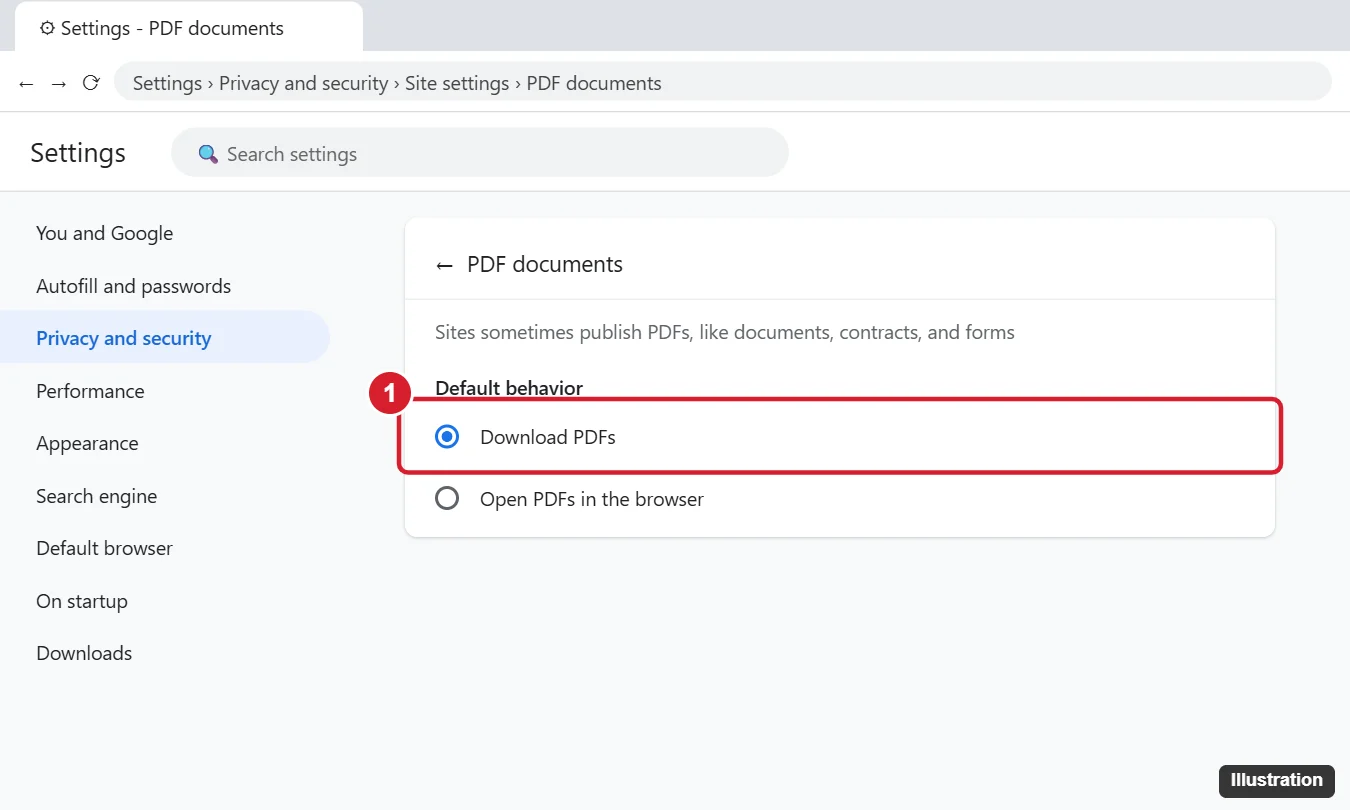
The screenshot above is from an older version of Chrome, so the page around the two choices may look different on yours. Google’s help names only the two options, Download PDFs and Open PDFs in Chrome.
There is also a direct address. Google’s Manage PDFs in Chrome page says you can type chrome://settings/content/pdfDocuments into the address bar to reach the same page. It is a normal Settings page, not an experimental flag.
The setting covers PDFs that sites publish, which Google describes as documents, contracts and forms. Pictures and other file types follow Chrome’s normal download behavior.
To check that it worked, click a PDF link on any site. Instead of a new tab with the document, you should see the download appear in Chrome’s download list. If a tab still opens, the site may be showing the document in a viewer of its own (see the last section).
Save one PDF and leave the setting alone
If you only need a copy now and then, keep the viewer and use one of these instead. Each one is in Google’s help.
- Right-click the link: choose Save Link As and pick a folder. The PDF never opens in a tab.
- Alt + click the link (Option + click on a Mac): Google lists this shortcut as “Download the target of a link.”
- From the viewer: with the PDF open, select Download. If you typed into a form or added notes, Google’s help says you can choose With your changes or Without your changes. On a Chromebook, Google says to select Save to keep your changes.
- Save to Drive: the viewer can also save the file to Google Drive. Google notes this is not available in Incognito or Guest mode.
The form point matters more than it looks. If you fill in a tax or application form in the viewer and choose the version without changes, you get the blank form back.
Pick the folder your PDFs go to
Downloaded PDFs land wherever Chrome saves every other download. To change that, open More > Settings > Downloads and select Change to choose a new default folder, such as D:\Downloads. On the same page, turning on Ask where to save each file before downloading makes Chrome show a save window every time, which suits people who file PDFs by project. There is more detail on that switch in making Chrome ask where to save each file, and on Chrome’s folder alone in changing Chrome’s download folder.
Chrome’s folder is only one piece. If you also want Windows and other browsers to save somewhere new, changing the download location in Windows walks through each setting. To find files that are already saved, press Ctrl + J (Command + Shift + J on a Mac) to open Chrome’s Downloads page, or use the steps for finding your downloads on a PC.
Open the downloaded PDF in a different app
Downloading the file does not decide which program opens it. When you open it from Chrome’s download list or from your folder, your computer uses its default app for PDFs, and that can be Chrome itself.
On Windows: Microsoft’s default apps page gives this route for current versions of Windows.
- Open Settings > Apps > Default apps.
- Under Set a default for a file type or link type, type .pdf in the search box.
- Select the result and choose the app you want, such as your PDF reader.
If that app is Adobe Acrobat, making Acrobat the default PDF app covers the Acrobat side.
On a Mac: Apple’s steps to choose an app to open a file work for PDFs. Select a PDF in Finder, choose File > Get Info, open the pop-up menu under Open with, choose an app, then click Change All. Apple warns not to click Change All if you only want that one file to open with the app.
When a PDF opens by itself after it downloads
This is a different problem from the viewer, and it is one of the most common complaints. The PDF does download, then immediately opens anyway. Chrome causes this when “Always open files of this type” is turned on for PDFs. Google’s fix:
- Download any PDF so it shows in Chrome’s recent download history (the download icon at the top right).
- Right-click the downloaded file in that list.
- If Always open files of this type is checked, uncheck it.
If PDFs still open the moment they finish, check your PDF app’s own preferences, since some readers have their own option for this.
Phones, Edge and Firefox
Android: Google’s Android help for Chrome has no PDF setting. To save one file, touch and hold the link, then tap Download link. Downloads show up in your phone’s Files app.
iPhone and iPad: Google’s iOS help has no PDF setting either. It describes saving a file to the Files app, either through the save option and Save in… > Files or through Share > Save to Files.
Microsoft Edge: Edge has its own PDF setting among its site permissions. It is separate from Chrome’s, so changing one does not change the other.
Firefox: Firefox lets you choose to save PDFs instead of opening them in its Applications settings, as Mozilla’s page on file types and download actions explains. Its download folder is set separately, covered in changing the Firefox downloads folder.
When the setting is missing or a site keeps showing the PDF
- The PDF documents page is locked or missing: look at the bottom of Chrome’s More menu. Google’s managed browser page says that if you see “Managed by your organization,” your browser is managed, and administrators can set up or restrict certain features. Ask your IT team.
- A site still shows the document in a page: some sites display documents in a viewer built into the web page rather than linking to the PDF file, so Chrome’s setting never comes into play. Look for the site’s own download button.
- Old copies keep piling up: the setting does not remove anything. Delete old PDFs from your download folder yourself. Chrome’s record of past downloads is part of its browsing data, which you can tidy up by clearing Chrome’s browsing data.
- You want the viewer back: return to the PDF documents page and select Open PDFs in Chrome.

Kermit Matthews runs Live2Tech from just outside Philadelphia. He is an IT specialist with over 20 years of experience, from a university help desk to small-business IT, IT management and his own consulting practice, and has written tech guides full time since 2020. Steps are checked against the current software on a real device or the maker’s official documentation. More about Kermit.