Passwords on Windows 10 can stay in place while you stop typing them: sign in with a Windows Hello PIN, your face or a fingerprint instead, all set up in Settings > Accounts > Sign-in options. A second setting on that page decides whether Windows asks you to sign in again after the PC has been away, such as after sleep. Windows 10 has reached the end of support on October 14, 2025, so these sign-in protections matter more now, not less.
Which typing do you want to skip?
Usually one moment is the problem. Match yours to a row.
| The moment that annoys you | What to use | What still protects the PC |
|---|---|---|
| Typing a long password every time the PC starts | A Windows Hello PIN, face or fingerprint | The PIN or your face or finger, and the password stays as a backup |
| Signing in again after the lid closes or the screen sleeps | The “If you’ve been away” setting | Nothing between wake-ups if you loosen it, so think about where the PC lives |
| Forgetting to lock a shared or carried PC | Dynamic lock with your phone | Windows locks itself when you walk off |
Signing in with no password or PIN at all is not covered here, because it lets anyone who turns on the PC straight into your desktop.
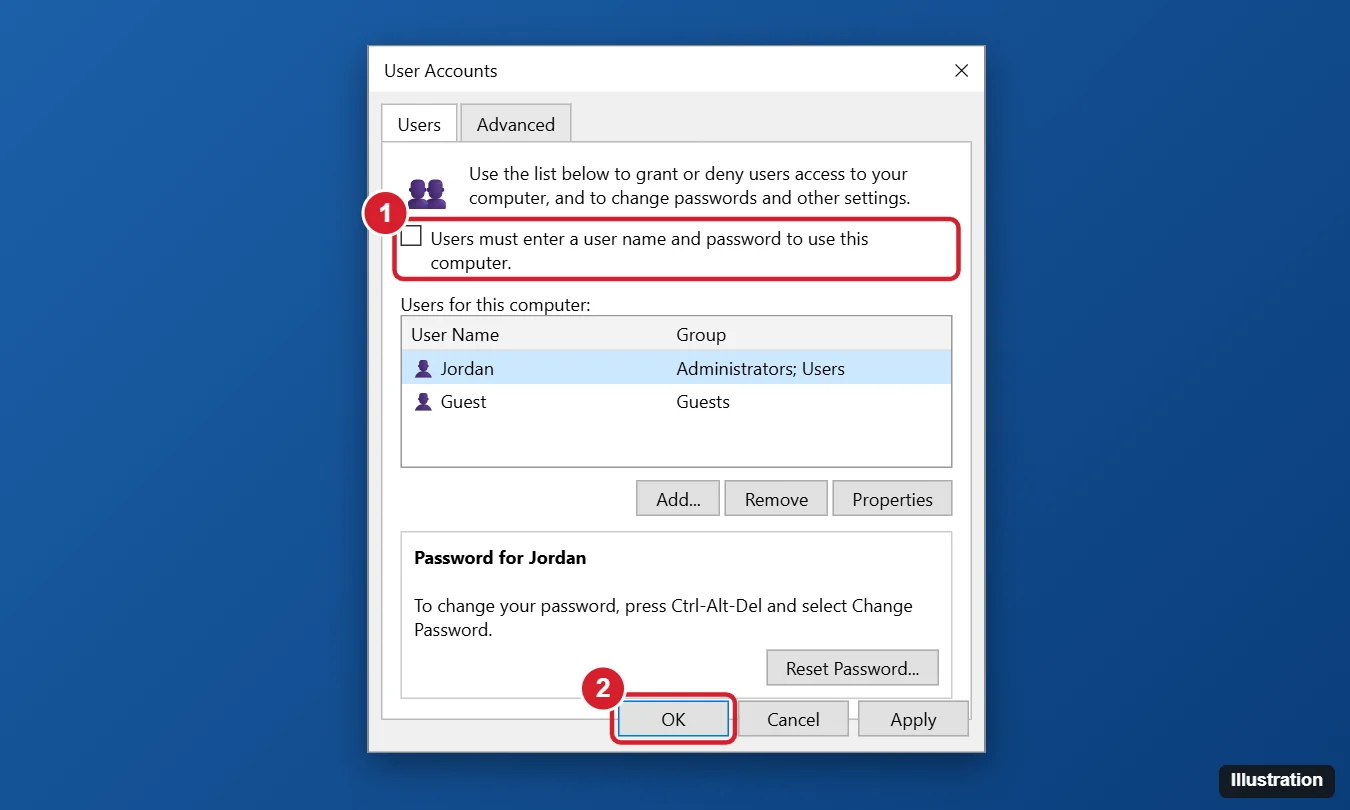
Whoever opens an unprotected PC gets your files, your email and the passwords saved in your browser. On a laptop you carry or a shared PC, keep a sign-in step and make it faster instead.
Sign in with a PIN, your face or a fingerprint
Windows Hello replaces the password at the sign-in screen without deleting it. Microsoft’s Configure Windows Hello page gives one set of steps for Windows 10 and 11:
- Open Start > Settings > Accounts > Sign-in options.
- Pick the method you want. Microsoft names them PIN (Windows Hello), Fingerprint recognition (Windows Hello) and Facial recognition (Windows Hello); Windows 10 may label them slightly differently.
- Select Set up and follow the prompts on screen.
What each one needs:
- PIN: no extra hardware. Microsoft notes that your PIN is tied to one device. To pick a new one later, see changing your Windows PIN.
- Fingerprint: a fingerprint reader, built in or plugged in.
- Face: Microsoft says signing in with your face requires a Hello-compatible camera. If the face option says it isn’t available, the camera is the likely reason.
Wake the PC without signing in again
The prompt after the screen wakes is controlled by one dropdown. Microsoft’s description of the sign-in options page gives its label:
- Go to Settings > Accounts > Sign-in options.
- Find If you’ve been away, when should Windows require you to sign in again?
- Open the dropdown and pick the choice that suits where the PC is used. The choices shown depend on your PC.
Before you loosen it, picture who could open the lid while you are away: a desktop in a locked home office is not a laptop on a train. Microsoft also notes that this dropdown may be disabled by your device’s security policy, which is common on work and school PCs.
Lock the PC when you walk away
Dynamic lock saves no typing, but it covers the gap when you forget to lock the PC. Microsoft’s sign-in options article explains that it uses Bluetooth to pair with your phone.
- Pair your phone with the PC over Bluetooth.
- Go to Settings > Accounts > Sign-in options and find Dynamic lock.
- Check Allow Windows to lock your device automatically when you’re away.
Per Microsoft, Windows will automatically lock within a minute after you’re out of Bluetooth range. Paired with a PIN, this makes a quicker sign-in a safer trade on a laptop.
Microsoft account sign-ins on this PC
A Microsoft account keeps its password even when you never type it on this PC. Microsoft’s page on account access puts it simply: “If you’re using a Microsoft account, make sure you’re using the password for that account.” You still need it for Microsoft’s online services.
To go further on this PC, Microsoft’s go passwordless page describes “For improved security, only allow Windows Hello sign-in for Microsoft accounts on this device”, and says that in Windows 10 this option is under Require Windows Hello sign-in for Microsoft accounts. Turning it on disables the use of passwords for your Microsoft account on that device.
Switching the PC to a local account is a separate decision with its own trade-offs; converting a Microsoft sign-in to a local account walks through them for Windows 11.
Bring the password prompt back
Everything above is reversible from the same Settings page:
- Prompt after waking: open the “If you’ve been away” dropdown again and pick the stricter choice.
- Windows Hello: select the PIN, face or fingerprint entry and use its remove option. Your account password still exists, so you can sign in with it again (if you turned on the Windows Hello-only option, Microsoft’s go passwordless page explains how it affects password sign-in).
- Local account password: Microsoft’s steps for changing a local account password use Password > Change, and you must enter your old password to create a new one. If no password is set, select Password and follow the prompts to add one, as covered in setting a lock screen password in Windows 10.
When a sign-in option is missing or greyed out
- The dropdown or Dynamic lock is greyed out: a security policy controls it, often on work or school PCs. Microsoft notes that sign-in settings vary by device configuration; ask whoever manages the PC.
- No face or fingerprint entry: the PC lacks a Hello-compatible camera or a fingerprint reader. Use a PIN instead.
- You forgot the password while setting this up: Microsoft’s local account page covers the security questions on the sign-in screen and warns that “Microsoft support cannot help you retrieve or circumvent a lost or forgotten password.” For every route back in, see what to do when you forget your Windows password. If you sign in with a Microsoft account, reset that password through Microsoft’s own account recovery page.
Password-free sign-in answers
Does my PIN work on my other computers?
No. A Windows Hello PIN belongs to the PC where you created it, so set one up on each computer. That is also why a PIN someone glimpses is less useful to them than a Microsoft account password, which also opens your account online.
Does Dynamic lock need my phone with me all the time?
It relies on the Bluetooth pairing, so Windows locks once the phone is out of range. Leave the phone on the desk and walk away, and the PC stays signed in. Microsoft describes it only as a locking feature: you still sign back in with your PIN, face or fingerprint.

Kermit Matthews runs Live2Tech from just outside Philadelphia. He is an IT specialist with over 20 years of experience, from a university help desk to small-business IT, IT management and his own consulting practice, and has written tech guides full time since 2020. Steps are checked against the current software on a real device or the maker’s official documentation. More about Kermit.