Local accounts on Windows 11 can be set so their password never expires, while a Microsoft account follows its own online security settings. On a work, school or other managed PC, the expiry rule belongs to your organization, so ask IT instead of changing anything yourself.
Work, school or managed PC? Stop here first
If you sign in with a work or school account, if the PC belongs to an employer or school, or if Settings shows that some options are managed by your organization, password expiration is part of that organization’s security policy. Changing it on your own PC either won’t stick or will put you out of line with the rules that came with the device. Ask your IT department; there is no safe workaround to look for.
Everything below is for a home PC that you own and administer.
Which account do you sign in with?
Current versions of Windows 11 use two kinds of personal account, and password expiry works differently for each:
| Account type | How it looks at sign-in | Where expiry is controlled |
|---|---|---|
| Microsoft account | An email address, often with a PIN or Windows Hello for everyday sign-in | Online, on your Microsoft account’s security page |
| Local account | A user name that only exists on this PC | On the PC, through the local account policy |
If you are not sure which you have, or you want to move from one to the other, switching a Microsoft sign-in to a local account starts by showing where Windows tells you which one you use. If other people share the PC, each of them may have a different account type, which adding a Microsoft or local user in Windows 11 explains.
Microsoft account: the optional 72-day prompt
A Microsoft account password isn’t set by Windows at all. Microsoft’s Change your Microsoft account password page describes an opt-in setting rather than a default: when you change your password, “For additional security, select the optional checkbox which prompts you to update your password every 72 days.”
So if your Microsoft account keeps asking for a new password every couple of months, that checkbox was probably selected at some point. Microsoft’s page only describes turning the prompt on and doesn’t describe a separate off switch. The checkbox appears when you change your password at account.microsoft.com (Security, then the Change Password link), so leaving it clear on your next change is the place to look.
Nothing in Windows Settings changes this, because the rule lives with the account online.
Check whether local passwords are set to expire
Before changing anything on a local account, look at the current setting and write it down, so you can put it back later.
- Select Start, type Terminal or Command Prompt, and open it as an administrator.
- Type
net accountsand press Enter. - Find the line Maximum password age (days). A number means local passwords expire after that many days. Unlimited means they don’t expire.
Microsoft’s Net commands reference shows a sample of this output, including the Maximum password age (days) line. The number you see depends on the PC, and Microsoft’s own pages give different default values, so trust what your PC shows rather than a figure from elsewhere.
Turn off expiration for every local account
The quickest route on a home PC is a single command, and it applies to all local accounts on that computer.
- Open Terminal or Command Prompt as an administrator, as above.
- Type
net accounts /maxpwage:unlimitedand press Enter. - Run
net accountsagain and check that Maximum password age (days) now reads Unlimited.
Microsoft’s description of the switch is short: /MAXPWAGE “Sets the maximum number of days that a password is valid. No limit is specified by using UNLIMITED.” The same page notes that the command “is only used on local computer.”
Turn it off for one account only
If you want one person’s password to stop expiring while the rest of the PC keeps the rule, use the account’s own properties. Microsoft’s local accounts documentation places these accounts in the Local Users and Groups\Users folder in Computer Management.
- Right-click Start and open Computer Management.
- Expand Local Users and Groups and select Users.
- Double-click the account you want to change.
- On the account’s General tab, select the check box that sets the password to never expire, then select OK.
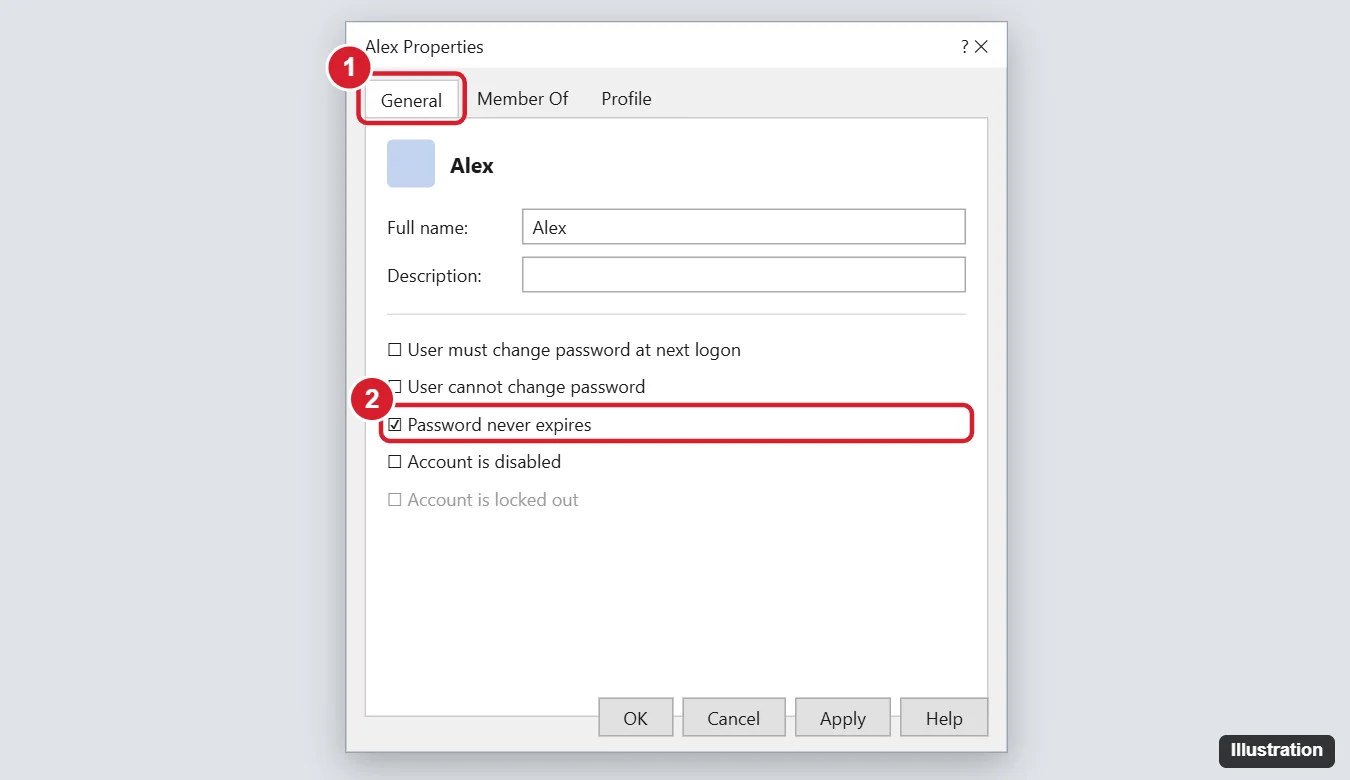
If Local Users and Groups doesn’t appear in Computer Management on your PC, use the net accounts route above instead.
Maximum password age, and what Microsoft recommends
Both routes come down to a policy Microsoft calls Maximum password age. It sits at Computer Configuration\Windows Settings\Security Settings\Account Policies\Password Policy, and Microsoft says you can “set passwords to expire after a certain number of days between 1 and 999, or you can specify that passwords never expire by setting the number of days to 0.” If you manage this PC’s local security policy directly, setting Maximum password age to 0 has the same goal as the command above.
Microsoft’s own guidance has moved away from forced changes: “The security baseline recommended by Microsoft doesn’t contain the password-expiration policy, as it is less effective than modern mitigations.” The same page adds that research “strongly indicates that password expiration has a negative effect.” The same page is clear about the cost: with no expiry, it says, “a compromised password” can be used “for as long as the valid user is authorized access,” and it says organizations without multifactor authentication or other modern protections “should leave this policy in effect.” If you think a password has leaked, change it straight away.
Turn expiration back on
- Every local account: run
net accounts /maxpwage:followed by a number of days, for examplenet accounts /maxpwage:60. Microsoft gives the range as 1 to 999. Use the value you wrote down earlier if you want the PC exactly as it was. - One account: open the account in Local Users and Groups again and clear the never-expire check box.
- Microsoft account: select the optional 72-day checkbox the next time you change the password.
Run net accounts afterward to confirm the new number.
If the password still expires
- The command says access is denied: the window was not opened as an administrator. Close it and open it again with administrator rights.
- The setting changes back by itself: a policy from an organization is probably applied to the PC. Ask whoever manages it.
- The prompt appears when you sign in to Outlook or other Microsoft services, not Windows: that is your Microsoft account, covered in the 72-day section above.
- The password has already expired and you can’t remember the old one: getting back into Windows after a forgotten password covers both account types.
Password expiration answers
Does turning off expiration change or remove my password?
No. Your password stays exactly as it is. Windows simply stops asking you to replace it on a schedule.
Why would a home PC ask for a new password at all?
Either the local Maximum password age has a number of days set, or the account is a Microsoft account with the optional 72-day prompt selected. The net accounts check above tells you which side to look at.
Is 0 the same as Unlimited?
They aim at the same result. Microsoft documents 0 as “never expire” for the Maximum password age policy and UNLIMITED as “no limit” for the net accounts command.
What about a Windows 10 PC?
The same net accounts command is part of Windows 10, and if you also need to add a password to an account there, setting a lock screen password in Windows 10 covers it. Keep in mind that Microsoft says “Windows 10 has reached the end of support on October 14, 2025.”

Kermit Matthews runs Live2Tech from just outside Philadelphia. He is an IT specialist with over 20 years of experience, from a university help desk to small-business IT, IT management and his own consulting practice, and has written tech guides full time since 2020. Steps are checked against the current software on a real device or the maker’s official documentation. More about Kermit.