To copy a chart from Google Forms into Word, open the form, go to the Responses tab, find the summary chart you want, click the copy icon in its top corner, then paste it into your Word document with Ctrl + V. The chart pastes as an image. For a sharper or editable version, copy the matching chart from the linked Google Sheets responses instead.
Steps to Copy the Chart
- Open your form and click the Responses tab.
- Open Summary to see the charts.
- Hover over a chart and click the copy icon that appears in its corner.
- Switch to Word and press Ctrl + V to paste.
- Resize the pasted image by dragging a corner handle.
Why is the pasted chart small?
Drag a corner handle to resize it. Hold Shift to keep the proportions.
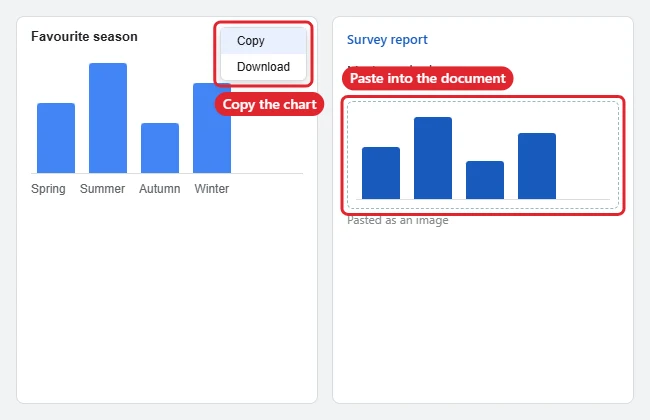
Image or Editable Chart?
| You want | Do this |
|---|---|
| A quick picture | Copy the chart from the Responses summary |
| A sharper chart | Take a screenshot at high zoom, or use the Sheets chart |
| An editable chart | Open responses in Sheets, copy the chart there and paste |
| Just the numbers | Download responses as CSV and build a chart in Word or Excel |
Does this work in Google Docs instead?
Yes, and a Sheets chart pasted into Docs can stay linked so it updates.
If you filled out someone else’s form and want to see your answers, see how to see Google Forms you submitted.
When the Chart Won’t Copy Cleanly
- No copy icon: Make sure you’re on the Summary view; individual and per-question views differ.
- Chart looks blurry in Word: Paste the Sheets version, or insert a higher-resolution screenshot.
- Want the data too: Link responses to Sheets from the Responses tab.

Kermit Matthews runs Live2Tech from just outside Philadelphia. He is an IT specialist with over 20 years of experience, from a university help desk to small-business IT, IT management and his own consulting practice, and has written tech guides full time since 2020. Steps are checked against the current software on a real device or the maker’s official documentation. More about Kermit.