A ZIP file is a container, like a folder that’s been compressed into one file, so you convert the files inside it, not the ZIP itself. Right-click the ZIP file and choose Extract All > Extract. For images, select them all, right-click, choose Print, pick Microsoft Print to PDF and click Print to get one PDF. For Word files, open each and choose File > Save As > PDF. Windows 10 does this with built-in tools.
Step 1: Extract the ZIP File
- Right-click the .zip file in File Explorer.
- Choose Extract All.
- Pick a destination folder (or keep the suggested one), check Show extracted files when complete, and click Extract.
For other archive types like .rar or .7z, use a free tool such as 7-Zip.
Step 2a: Convert Images (JPG, PNG) to One PDF
- In the extracted folder, select the images. Press Ctrl + A for all, or Ctrl-click specific ones. Rename them with numbers first (01, 02…) if order matters.
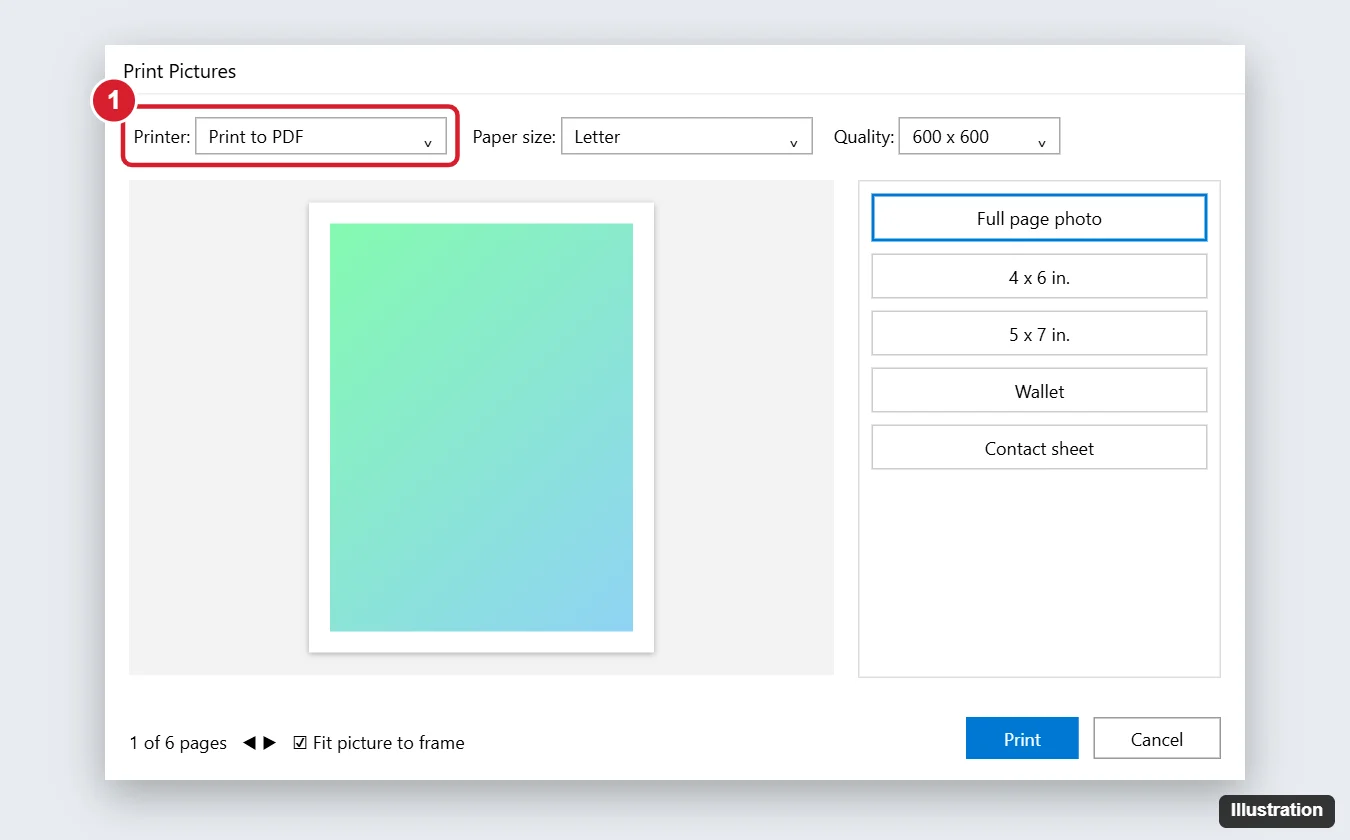
- Right-click the selection and choose Print.
- Set Printer to Microsoft Print to PDF.
- Choose a layout, such as Full page photo, and uncheck Fit picture to frame if you don’t want images cropped.
- Click Print, name the PDF, choose where to save it, and click Save.
Step 2b: Convert Word, Excel or Text Files
- Word or Excel: open the file and choose File > Save As (or Export) and pick PDF.
- Text, web pages and other files: open the file and press Ctrl + P, choose Microsoft Print to PDF, and print.
- Already PDFs: if the ZIP contains PDFs, you just need to extract them, or combine them (below).
Step 3: Combine Several PDFs Into One
Windows doesn’t include a PDF merge tool, but you can:
- Use a free desktop app such as PDF24 Creator or PDFsam Basic to merge files offline.
- Use Adobe Acrobat (paid) with Combine Files.
- Use an online merge tool, but avoid uploading sensitive documents.
If Extract All or Print to PDF Is Missing
- Microsoft Print to PDF is missing: go to Control Panel > Programs > Turn Windows features on or off and check Microsoft Print to PDF.
- Extract All doesn’t appear: the file may not be a ZIP, or another app has taken over ZIP files. Right-click > Open with > Windows Explorer.
- Password-protected ZIP: you’ll need the password to extract the files.
- Images in the wrong order: sort by name before selecting, or rename files with numbers.
Other ZIP to PDF Questions
Can I convert a ZIP to PDF without extracting it?
No built-in tool does this. Some online converters accept ZIPs and do the extraction for you, but you’re uploading all the files.
Will the PDF be smaller than the ZIP?
Not necessarily. ZIP files are compressed; a PDF of high-resolution photos can be larger.
Does this work on Windows 11?
Yes. The same steps work; in Windows 11 you may need to click Show more options to see Print.

Kermit Matthews runs Live2Tech from just outside Philadelphia. He is an IT specialist with over 20 years of experience, from a university help desk to small-business IT, IT management and his own consulting practice, and has written tech guides full time since 2020. Steps are checked against the current software on a real device or the maker’s official documentation. More about Kermit.