Results from Windows Memory Diagnostic land in Event Viewer after the PC restarts, under the source MemoryDiagnostics-Results, and Windows also shows a short notification once you sign in. If you have not run the test yet, start it with mdsched from the Run box, let the PC restart, and come back here when you are signed in again.
The same steps apply to current versions of Windows 11 and to Windows 10.
Catch the notification after you sign in
Microsoft’s instructions in How to fix Error 0xA: IRQL_not_less_or_equal describe what happens when the test ends: the PC restarts on its own and goes to the sign-in screen. After you sign in, a Windows Memory Diagnostic notification appears in the notification area by the time and date. Microsoft notes it might take a few minutes to show up, so give it a moment before you open other apps.
Notifications are easy to miss. They disappear on their own, and if you stepped away during the restart you may never see it. That is not a problem: the full result stays in Event Viewer, and you can read it there at any time.
Read the result in Event Viewer
Microsoft documents two places in Event Viewer that hold the result. Either one works; the first is the location named on Microsoft’s support page, and the second is the route Microsoft’s bug check documentation gives.
Route 1: the MemoryDiagnostics-Results Debug log
- Open Event Viewer. Search for Event Viewer from Start, or right-click the Start button and choose Event Viewer.
- In the left pane, expand Applications and Services Logs > Microsoft > Windows.
- Scroll to MemoryDiagnostics-Results, expand it and select Debug. (Microsoft’s page spells the folder “MemoryDoagnostics-Results”, a typo; the folder in Event Viewer reads MemoryDiagnostics-Results.)
- Select the newest event in the middle pane and read the General tab below the list.
If the MemoryDiagnostics-Results folder or its Debug log is not listed, the View menu in Event Viewer may have a Show Analytic and Debug Logs option that reveals hidden logs. If it still does not appear, use Route 2.
Route 2: filter the System log
Microsoft’s driver documentation for bug check 0x12B says to view the results “under the system log” and to select the MemoryDiagnostics-Results entry. A filter keeps that entry from getting lost among the hundreds of other System events:
- In Event Viewer, expand Windows Logs and select System.
- In the Actions pane on the right, select Filter Current Log.
- Open the Event sources list, check MemoryDiagnostics-Results, and select OK.
- Double-click the newest event, or read its General tab below the list.
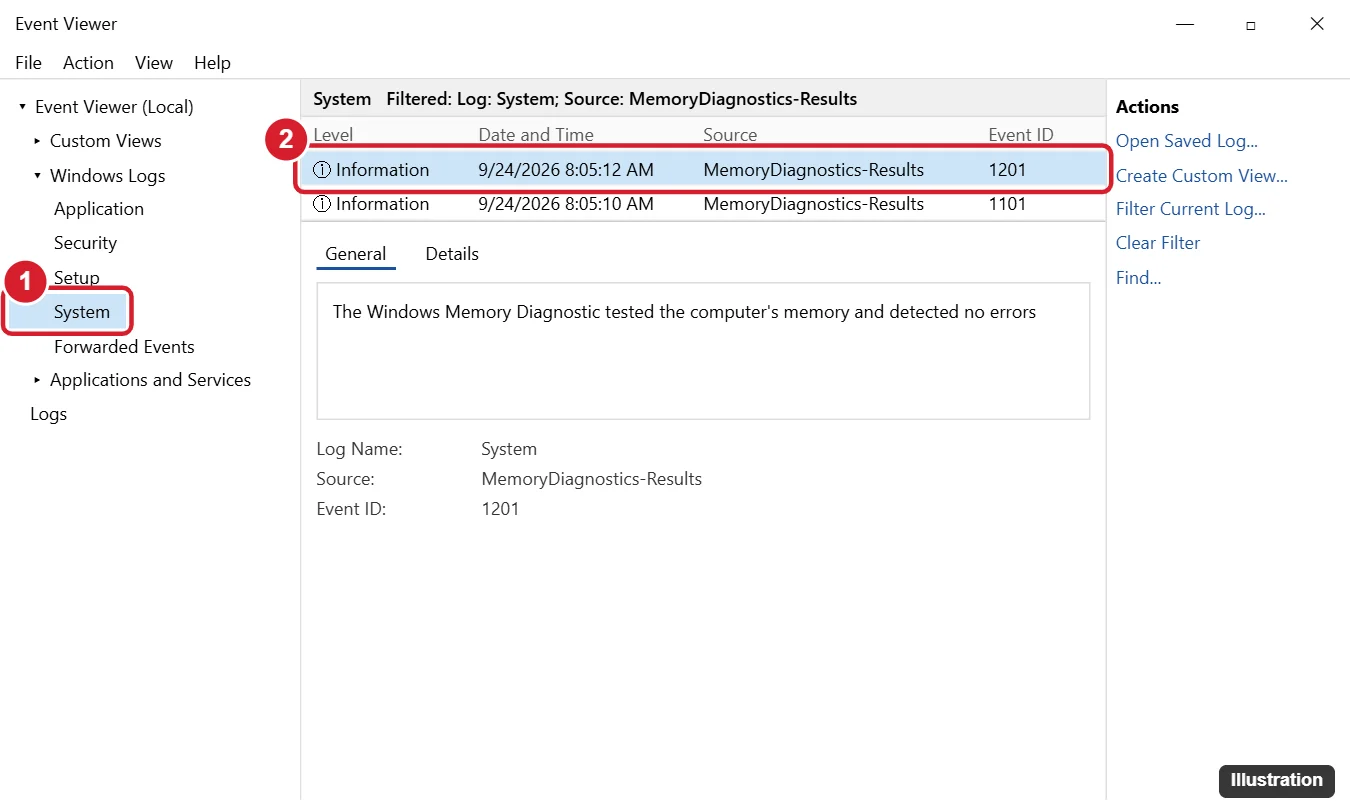
Check the date and time in the Date and Time column before you read anything. If you have run the test more than once, older results stay in the list, and the one that matters is the run you just finished. To clear the filter afterward, select Clear Filter in the Actions pane.
Event Viewer has many more filters and views than this one task needs. For a wider tour of logs, levels and saved views, see checking the Windows event log.
What the result message tells you
The event’s General tab states in plain words whether the memory test found errors. In the Debug log, Microsoft names one ID: “Event ID 2001 means no memory errors were detected.” Microsoft’s pages do not list the other ID numbers that older guides attach to these events, so go by the message text in your own event rather than a number from a table.
- The message says no errors were detected. Windows Memory Diagnostic did not find a fault in the memory it tested on that run. Memory is less likely to be the cause of crashes or freezes, although it is not ruled out completely (see the questions at the end).
- The message reports hardware errors. The test found a problem with the memory. Skip ahead to the section on errors before you change anything else.
- You only find an event about the test being scheduled or started, with no result after it. The test most likely did not finish. Run it again and let it complete.
Pull the result with PowerShell
If you prefer a command, or you want to check several runs at once, the Get-WinEvent cmdlet reads the same System log. Microsoft’s Get-WinEvent reference documents the FilterHashtable keys used here and says wildcard characters are valid in the LogName and ProviderName values.
- Right-click Start and open Terminal or Windows PowerShell.
- Run this command:
Get-WinEvent -FilterHashtable @{ LogName='System'; ProviderName='*MemoryDiagnostics*' } -MaxEvents 5 - Read the time and message for each event listed. Add
| Format-Listto the end of the command if the message is cut off.
The wildcard catches the provider without typing its full name, which Microsoft’s cmdlet page does not spell out. If PowerShell reports that no events match, the System log holds no result yet: use the Event Viewer routes above or run the test again.
No result to read?
An empty filter or a missing Debug log usually comes down to one of these:
- The test never ran. If you did not see the Windows Memory Diagnostic Tool screen during the restart, the test may not have started, and there is nothing to report.
- The test was stopped partway. Turning the PC off or pressing the power button during the test leaves no result, so plan to leave the PC alone until it restarts by itself.
- The progress seems stuck. Microsoft gives no duration and only says the test “takes some time to complete,” so leave it running. If it never finishes, contact the PC maker or Microsoft support.
- The wrong log is selected. The filter in Route 2 works on the System log under Windows Logs, not the Application log.
- You are looking at an old run. Sort by date and look for an event from the restart you just did.
Run the test again (or for the first time)
Save your work and close your apps first, because the PC restarts straight away.
- Right-click Start and choose Run, or press Windows logo key + R.
- Type
mdschednext to Open and select OK. Approve the prompt with an administrator account if Windows asks. - Select Restart now and check for problems (recommended).
Microsoft also gives a Control Panel route on its bug check page: open Control Panel, search for Memory and select Diagnose your computer’s memory problems.
While the test screen is showing, you can change how thorough the check is. Press F1, use the arrow keys under Test Mix to change from Standard to Extended, and press F10 to apply the settings and continue. Microsoft says Standard tests run by default and that Extended tests are more thorough but take longer. Extended is the better pick when a Standard run came back clean but the crashes continue.
Microsoft says Windows 10 reached the end of support on October 14, 2025, and no longer gets security updates. The memory test and both Event Viewer routes above still apply on a Windows 10 PC.
When the test reports memory errors
A failed memory test points at hardware, so the fixes are physical or come from the PC maker. Work through these in order:
- Contact the PC maker if the computer is under warranty. Opening the case or removing memory may matter for warranty coverage, so ask first. Many laptops have memory soldered to the board, which only the maker can replace.
- Return memory settings to their defaults. If you changed memory speed or timings in the BIOS or UEFI settings, restore the defaults as your PC or motherboard maker describes, then test again. Turning off overclocking covers where those settings usually live.
- Reseat the memory on a desktop. Shut down, unplug the PC, and press each memory module firmly back into its slot.
- Test one module at a time. On a desktop with more than one stick, memory maker Corsair advises testing with only one stick installed at a time, which shows which module is at fault. Corsair’s RAM testing page also notes that Windows Memory Diagnostic “is not conclusive,” which is another reason to repeat the test after each change.
- Replace the faulty module through the memory maker’s or PC maker’s warranty process.
Your PC maker may also include its own hardware tests. Running a hardware diagnostic on Windows 10 and running diagnostics on Windows 10 list the built-in checks for drives, batteries and devices.
If the memory passed but the PC still crashes, the cause is elsewhere. Running system diagnostics on Windows 11 matches other tests to each symptom, fixing a blue screen in Windows starts from the stop code on the crash screen, and when memory use keeps climbing for hours without a crash, a leaking app or driver is the likelier culprit.
Memory test result questions
Does a clean result mean my RAM is definitely fine?
Not definitely. It means no errors turned up in that run. Microsoft describes the Extended mix as more thorough than the default Standard mix, and Corsair calls the tool “not conclusive,” so a repeat with Extended is worth it if problems continue.
What does Event ID 2001 mean?
Microsoft says Event ID 2001 means no memory errors were detected. You will see it in the MemoryDiagnostics-Results Debug log described in Route 1.
Why does Event Viewer show the test was scheduled but no result?
Most likely the test did not finish, for example because the PC was turned off during it. Run mdsched again and leave the PC until it signs back in.
Where did the result notification go?
It shows in the notification area near the time and date after you sign in, can take a few minutes to appear, and then goes away. Event Viewer keeps the full result either way.
Once you have the message in front of you, the next move is clear: a clean result sends you to other checks, and an error sends you to the PC or memory maker.

Kermit Matthews runs Live2Tech from just outside Philadelphia. He is an IT specialist with over 20 years of experience, from a university help desk to small-business IT, IT management and his own consulting practice, and has written tech guides full time since 2020. Steps are checked against the current software on a real device or the maker’s official documentation. More about Kermit.