Remove the link from the event, not the meeting. In Google Calendar you can take the Google Meet video conferencing off an event and stop new events from adding one automatically, but Google’s help pages describe no way to delete a meeting code itself. Links you already sent keep working until they expire under Google’s rules, so the guest list and host controls are what keep the wrong people out.
Which Meet link do you have?
What you can do depends on where the link was created. Find your case here, then jump to the matching section.
| Where the link came from | What you can do |
|---|---|
| A Google Calendar event | Remove the conference from the event, add a fresh one, or delete the event |
| The Meet home page, Gmail or Google Chat | Nothing to delete; it expires after a year without use |
| A Google Classroom class | Reset or remove it in the class settings |
| An outside app such as Outlook | Remove it in that app; the code expires after a year without use |
Take the Meet link off a Google Calendar event
You need edit access to the event, which normally means you created it. Google’s page on using Google Meet with Calendar events gives these steps.
On a computer
- Open Google Calendar and open the event.
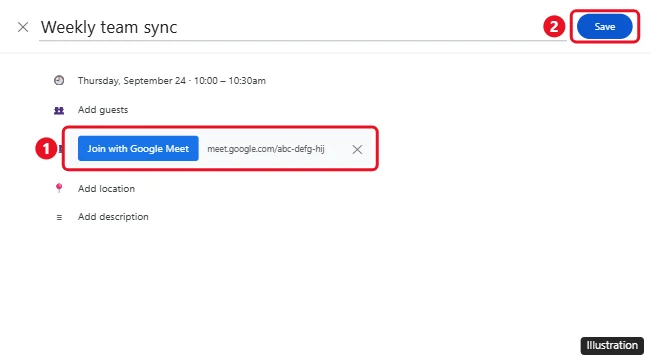
- Find the conferencing field (the row with the Meet link).
- Click Remove next to the conference.
- Click Save. If the event has guests, Calendar may ask whether to email them about the change.
The illustration shows an older layout with an X next to Join with Google Meet; Google now calls this control Remove.
On Android, iPhone or iPad
- Open the Google Calendar app and open the event.
- Start editing it, then tap Remove next to the video conference.
- Tap Save.
The event stays on everyone’s calendar at the same time and place; only the video call details disappear. Google notes that an event can have only one conference, so if you pasted Meet details into the description or location by hand, clear those too.
Give the event a brand-new code
Removing the conference doesn’t make the old code stop working. If a link was shared too widely, Google’s meeting code help for Calendar describes getting a fresh one: remove the conference and save, then edit the event again and click Add Google Meet video conferencing. Calendar generates a new meeting code for the event, and guests see the new link once you save.
The same page explains why this matters. Until it expires, a meeting code stays permanently linked to the original Calendar event, and that event’s guest list controls who can join and who can see recordings and chat. If you reuse an old code for a new meeting, access is still tied to the old guest list.
Stop Calendar from adding Meet links automatically
If every new event you create gets a Meet link you didn’t ask for, turn the default off. Google says this setting is changed on a computer; the phone apps don’t have it.
- In Google Calendar on the web, click Settings in the top right, then Settings again.
- On the left, click Event settings.
- Turn off Automatically add Google Meet video conferences to events I create.
You can still add a call to any single event with Add Google Meet video conferencing. On a work or school account, the administrator can set the default video conferencing for everyone, so the option may be missing or locked; ask your admin if it is. (Gmail can also add events to your calendar on its own, which is a separate setting: here’s how to stop Gmail from adding events to Google Calendar.)
Delete the whole event instead
If the meeting isn’t happening at all, delete the event. Google’s page on how to delete an event says that when you created the event, deleting it takes it off your calendar and off the calendars of everyone else invited, though it may take a while to disappear for them.
- Click the event.
- Click Delete event. On a computer you can also right-click the event and choose Delete.
- For a repeating event, choose whether to delete just this event, this and following events, or all events.
Google’s help page doesn’t say the Meet code stops working when the event is deleted; the code still follows the expiry rules below. If you delete the wrong event, you can see and restore deleted events in Google Calendar from the Trash. If you only meant to send people the event itself, see how to share a Google Calendar event link.
When Google Meet links expire
These rules come from Google’s page Learn about meeting codes in Google Meet:
| Where the meeting was created | When the code expires |
|---|---|
| Google Calendar | When it hasn’t been used for 60 days and isn’t associated with any future calendar events |
| Google Chat, Google Classroom, Gmail or the Meet home page | 365 days after last use |
| Third-party programs such as Outlook | 365 days after last use |
| Breakout rooms | Instantly, once the main meeting ends |
| Nickname meetings (Google Workspace only) | Instantly, once all users leave |
Two details catch people out. First, each use resets the clock: if someone uses a code within the 365-day window, another 365 days are added. Second, a code created in one product and pasted into a Calendar invite expires by the rules of the product where it was created, not Calendar’s.
Keep people out of an old or reused link
Since you can’t delete the code, control who gets in. Google’s page on managing host controls covers the switch that enables most of these tools.
- Turn on Host management. During a meeting, click Host controls at the bottom right and turn on Host management in the side panel. In Calendar it is off by default; set it from the event’s video call options under Host controls. Google says all Google Workspace editions have it.
- Set Meeting access. Google’s options are Open (anyone with the link joins without knocking), Trusted and Restricted. Restricted isn’t available for personal Google accounts. Guests who aren’t allowed straight in have to ask to join.
- End the meeting for everyone. When you’re done, click Leave call and choose End meeting for all, which needs Host management turned on.
- Remove and block someone. A blocked person is kept out of the current meeting and any concurrent meetings that use the same code, according to Google’s page on how to add or remove people from a meeting.
- Start fresh for each group. Google’s meeting code help for Calendar says to always create a new code when you schedule a new event, and its page on adding or removing people advises creating a new meeting each time you meet with a different group.
Before a meeting with new people, it’s also worth checking how you look on screen: how to turn on your camera in Google Meet and blur your background in Google Meet.
Reset or remove a Google Classroom Meet link
Teachers get a real choice here. Google’s Classroom page on Meet links in a class lets you open the class settings (or the Meet section on the Stream, then Manage) and use the menu next to the link:
- Reset creates a new link for the class.
- Remove takes the link away so students can no longer open it from the class.
- Visible to students can be turned off to hide the link without removing it.
Google notes that after a reset or removal, the old link remains available as an independent meeting space. It no longer belongs to the class, and it expires under the Classroom rule above.
Meet link questions
Can I delete a link I made with “Create a meeting for later”?
No. Google’s help pages don’t describe a way to delete a Meet code made on the Meet home page, in Gmail or in Chat. Stop sharing it and let it expire 365 days after its last use; if strangers already have it, create a new meeting.
Can I clear old meetings from the Meet app’s home screen?
Google’s help pages don’t describe a way to hide or delete past links from that list on a personal account.
Why don’t I see Host controls?
Google says only hosts can use host controls. On a work or school account, your admin decides which controls are available; Google notes some meeting features depend on the Workspace edition.
Does deleting a Meet link delete its recordings?
No. Recordings are saved separately in Google Drive and stay there until someone deletes them. Here’s how to find and access Google Meet recordings.

Kermit Matthews runs Live2Tech from just outside Philadelphia. He is an IT specialist with over 20 years of experience, from a university help desk to small-business IT, IT management and his own consulting practice, and has written tech guides full time since 2020. Steps are checked against the current software on a real device or the maker’s official documentation. More about Kermit.