Which list to check in Windows 10 depends on the question: whether an app is installed, which version you have, what arrived recently, or a copy of everything before a reset. Settings > Apps > Apps & features answers the first; Control Panel’s Programs and Features, the Start list and the winget command cover the rest.
Pick the list that answers your question
| Your question | Where to look | Why |
|---|---|---|
| Is a particular app installed? | Settings > Apps > Apps & features, search box | Covers Store apps and desktop programs in one list |
| Which version do I have? | winget list, the app’s own About screen, or Programs and Features | Settings often hides version numbers |
| What was installed recently? | Apps & features sorted by install date | Newest entries rise to the top |
| What can I open from the Start menu? | Start, alphabetical app list | Shows apps that have a Start menu entry |
| I need a copy of the list before resetting the PC | winget list saved to a file, or winget export | Gives text or a file you can reuse |
| Only Microsoft Store and built-in apps | Get-AppxPackage in PowerShell | Lists app packages for your account |
Not sure the PC is on Windows 10? Check first with how to tell if you have Windows 10 or Windows 11, because the Settings labels below differ on Windows 11.
Is it installed? Settings first, Control Panel second
- Select Start > Settings > Apps > Apps & features.
- Type part of the app’s name in the search box above the list. Partial names work, so “visual” finds every Visual C++ entry.
- No result? Clear the search and scroll; some apps are listed under the publisher’s name rather than the product name.
- Select an app to see its buttons. Where Microsoft supports it, Advanced options appears under the app’s name, with Repair and Reset (some apps don’t have this option).
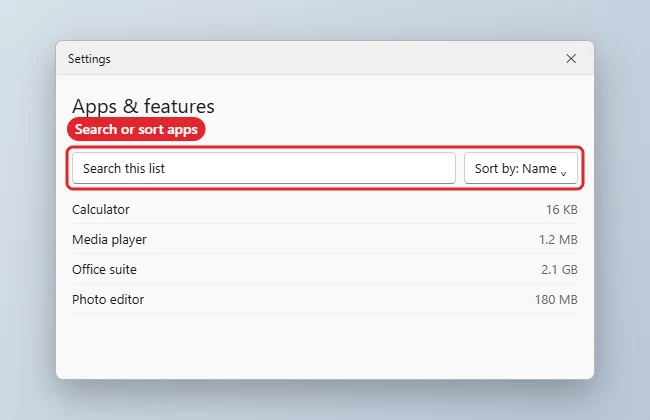
The steps above come from Microsoft’s Repair apps and programs in Windows page, which uses the Apps & features path for Windows 10.
Older desktop programs in Programs and Features
Classic desktop software, the kind installed from a setup file, also shows up in the older Control Panel list. It’s useful when Settings lists a program but you want the publisher and version in columns, or when a program’s own installer offers a Change or Repair option.
- Type control panel in the search box on the taskbar and select Control Panel.
- Select Programs > Programs and Features.
- Right-click a program to see Repair or Change, if the program offers them.
Microsoft Store apps don’t appear here, so a missing entry in Programs and Features doesn’t mean the app isn’t installed. Check Settings as well.
For a quick look at what you can launch, the Start menu works too: Microsoft’s find your files and apps page says to select Start and scroll through the alphabetical list on the left. It only shows apps that created a Start menu entry, so treat it as a launcher list rather than a full inventory.
Save a list you can keep
A saved list is worth making before you reset Windows, move to a new PC or hand a computer to someone else. Windows 10 has two Microsoft-documented tools for this.
winget list
Microsoft’s winget list documentation says the command displays the applications currently installed on your computer, including apps installed by other means than winget, and shows whether an update is available. winget is part of App Installer, which Microsoft says is available on modern versions of Windows 10. If the command isn’t found, see how to install winget on Windows 10.
- Right-click Start and open Windows PowerShell.
- Type
winget listand press Enter. The first run may ask you to accept source agreements. - To check one app, add its name:
winget list --name zoom. - To save the whole list to a text file on the desktop, use PowerShell’s standard redirection:
winget list > "$env:USERPROFILE\Desktop\apps.txt".
Redirection is ordinary PowerShell, not a winget option, so check the file opens correctly in Notepad before you rely on it. Very long names can be cut short in the columns.
winget export
The winget export command writes a JSON file of installed packages, meant to be read back by winget on another PC: winget export -o "$env:USERPROFILE\Desktop\apps.json". winget shows a warning for any app it can’t match to a package source, so keep the plain text list too.
Store and built-in apps with Get-AppxPackage
Microsoft’s Get-AppxPackage reference says it gets a list of the app packages installed in a user profile, meaning .msix and .appx packages. Run Get-AppxPackage | Select-Object Name, Version for a shorter, readable view; the Select-Object part is a standard PowerShell filter. Seeing other users’ packages needs the -AllUsers parameter and administrator permissions. Packages you added yourself from a file are covered in installing an MSIX file.
Version, size and install date
- Size and install date: Apps & features shows them beside many entries, and its sort options can order the list by size or install date.
- Version:
winget listprints a version column for each app. Inside most programs, Help > About gives the exact version the publisher uses for support. - Windows updates: they aren’t in these app lists; Programs and Features has a View installed updates link on the left.
- Which Microsoft 365 apps you have: they appear as one entry; removing them is covered in how to uninstall Microsoft 365.
Sorting by install date is the quickest way to spot something that arrived just before a problem started.
Unfamiliar or missing entries
An entry you don’t recognize
Look before you remove anything. Many unfamiliar names are runtimes and drivers other programs need, such as Microsoft Visual C++ Redistributable packages, graphics or audio drivers, and the PC maker’s utilities. Search the exact name together with its publisher, and leave anything signed by Microsoft, your PC maker or a hardware vendor alone unless you know what it does. If something looks unwanted and you didn’t install it, run a full scan in Windows Security before uninstalling. Apps that launch with Windows can be checked separately in startup apps in Windows 10.
When you are sure, the removal steps are in how to delete apps on Windows 10 and 11.
When an app isn’t in any list
- Portable apps run from a folder or USB drive without installing, so neither Settings nor Programs and Features lists them.
- Apps installed for another user may not show in your own account’s view; Get-AppxPackage with
-AllUsersfrom an administrator PowerShell window checks Store apps for every profile. - Browser extensions and web apps live inside the browser, not in Windows’ app lists.
- Work or school PCs can hide or manage apps through policy; ask your IT admin.
On Windows 11, and Windows 10’s end of support
Windows 11 renames the Settings page to Installed apps (Settings > Apps > Installed apps), and the rest of the routes are similar; the full Windows 11 version is in how to find installed programs in Windows 11, and removal there in how to uninstall a program on Windows 11.
Microsoft’s support page states that Windows 10 has reached the end of support on October 14, 2025, with Consumer Extended Security Updates available until October 12, 2027. A saved app list is a good first step if you plan to move to a current version of Windows 11 or a new PC.
Installed apps answers
Is winget already on my Windows 10 PC?
On most up-to-date Windows 10 PCs, yes, because it ships with App Installer from the Microsoft Store. Type winget --version in PowerShell; an error means it needs installing.
What’s the difference between winget list and winget export?
winget list shows everything Windows reports as installed, including apps winget can’t reinstall. winget export writes a JSON file meant for setting up another PC and shows a warning for any app it can’t match to a package source.
Start with the search box in Apps & features; if the question is bigger than one app, save the winget list to a file and keep it with your backups.

Kermit Matthews runs Live2Tech from just outside Philadelphia. He is an IT specialist with over 20 years of experience, from a university help desk to small-business IT, IT management and his own consulting practice, and has written tech guides full time since 2020. Steps are checked against the current software on a real device or the maker’s official documentation. More about Kermit.