That small number such as 45/160 sitting above the Send button while you type a text is the iPhone’s character counter. To remove it, open Settings > Apps > Messages and turn off the Character Count switch (on older iOS versions, Messages is listed directly in Settings). Turn the same switch back on if you want the counter again. This covers current versions of iOS on any iPhone.
Turn off the character count
The switch lives in the Messages settings. Apple’s support pages describe the Settings > Apps > Messages location but do not document this particular switch, so the exact position on your screen may differ slightly from the description below.
- Open the Settings app.

Older iOS version shown; current screens look different. - Scroll down and tap Apps, then tap Messages. On older iOS versions there is no Apps level: scroll down and tap Messages in the main Settings list.

Older iOS version shown (Messages listed directly in Settings); current screens look different. - Scroll down to the Character Count switch. It is usually grouped with the SMS/MMS options, such as MMS Messaging and Show Subject Field.
- Tap the switch so it turns grey. A green switch means the counter is on; grey means it is off.
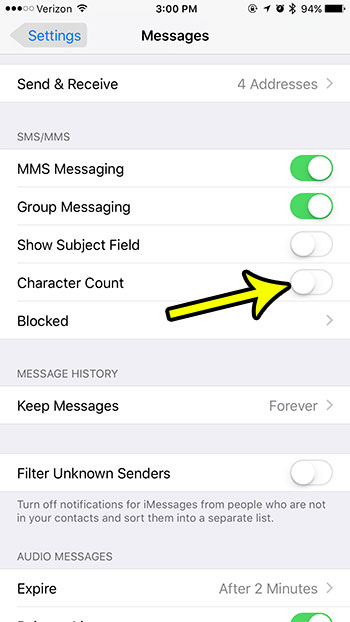
Older iOS version shown with Character Count turned off; current screens look different.
There is nothing to save. Go back to Messages and start a long text to a contact who gets green bubbles; the number should no longer appear.
Turn the counter back on
Follow the same path: Settings > Apps > Messages (or Settings > Messages on older iOS), then tap Character Count so the switch turns green. If you cannot spot it while scrolling, try typing “character” in the search field at the top of Settings.
The setting applies to every conversation on the phone. There is no way to show the counter in one chat and hide it in another.
When the counter shows up and when it doesn’t
Turning the switch on does not put a number on every message. Apple does not document when the counter appears, but it is generally reported to work like this:
- Only for text messages (green bubbles). Apple explains that blue bubbles are iMessage and green bubbles are SMS/MMS or RCS. The counter is aimed at SMS, which has a per-message length limit. iMessage has no such limit, so you should not expect a counter in blue-bubble chats, and it may not appear in RCS chats either.
- Only once the message gets longer. Short texts usually show no number at all. The count typically appears after your text wraps onto a second line in the typing field.
- Above the Send button. It appears in a format such as 85/160, meaning 85 characters used out of 160 for that part of the message.
What 160 means, and why some texts split
A standard SMS segment typically holds 160 characters. When a text runs longer, it is usually sent as several linked segments, or your carrier may convert it to MMS. Most modern phones join the pieces back together, but on some carriers or basic phones a long text can arrive in parts or out of order.
Letters, numbers, spaces and punctuation all count. Emoji and some accented or non-Latin characters use a different encoding, which typically cuts a segment to about 70 characters, so one smiley can shrink how much fits in a single text. These limits come from the SMS standard and your carrier, not from an Apple setting, so treat the figures as typical rather than guaranteed.
Turning the counter off changes only what you see. It does not change how messages are sent, split or billed, and hiding it does not make your iPhone send more messages. The counter simply tells you when you are about to cross into a second segment.
Should you keep it on?
| Keep it on if | Turn it off if |
|---|---|
| Your plan charges per text or caps the number of texts, as some prepaid and international plans do. | Your plan includes unlimited texting. |
| You text services that need short replies, such as alert sign-ups or verification numbers. | Most of your chats are iMessage, where the counter is not expected to appear. |
| You text people with basic phones and want each message to arrive in one piece. | You find the number distracting or prefer a cleaner typing area. |
If the switch or the number is missing
- No Character Count switch: make sure you are in Messages settings, not Notifications. Scroll through the SMS/MMS options near the middle of the screen. The switch is in the iPhone’s Messages settings, because the iPhone is the device that sends SMS texts.
- Switch is on but no number: check the bubble color. Blue means iMessage, which has no counter. If it is green, keep typing until the text wraps onto a second line.
- Number looks wrong or stuck: turn the switch off and on again, then restart the iPhone.
Third-party messaging apps and keyboards follow their own rules and may show their own counters; this setting affects only Apple’s Messages app.
Character count questions
Does the counter count words?
No. It counts characters, including spaces and punctuation. Messages has no word count. If you need one, many apps, such as word processors and social media apps, show their own counts while you type.
Will the other person see my character count?
No. The number appears only on your screen while you write and is not part of the message.
Can I see a count for iMessages?
Not with this setting. iMessages are not limited to 160 characters, so the counter is not designed for them. If you want every chat to go out as SMS, read about what happens when you turn off iMessage on your iPhone before you do it.
Is the red number on the Messages icon the same thing?
No. That badge shows unread conversations. To remove it, see how to hide the number of new messages on iPhone.
For background on the green-bubble side of Messages, Apple’s page on the difference between iMessage, RCS and SMS/MMS explains which message type you are sending. Long texts and photos can also depend on turning on MMS picture messaging. Unrelated to the counter, if your iPhone is short on room, these ways to free up iPhone storage may help.

Kermit Matthews runs Live2Tech from just outside Philadelphia. He is an IT specialist with over 20 years of experience, from a university help desk to small-business IT, IT management and his own consulting practice, and has written tech guides full time since 2020. Steps are checked against the current software on a real device or the maker’s official documentation. More about Kermit.