Got a 500-word essay limit or a 250-word application box to fill? Google Docs counts for you. On a computer, select Tools > Word count or press Ctrl + Shift + C (Command + Shift + C on a Mac), and check Display word count while typing for a live counter. Select text first to count just that part. In the Docs app on iPhone, iPad or Android, tap More (three dots), then Word count.
Word count by device at a glance
| Device | How to open it | What you see | Live counter |
|---|---|---|---|
| Computer (browser) | Tools > Word count, or Ctrl + Shift + C / Command + Shift + C | Pages, words, characters, characters excluding spaces | Yes |
| iPhone and iPad app | More (three dots) > Word count | Words, characters, characters excluding spaces | No |
| Android app | More (three dots) > Word count | Words, characters, characters excluding spaces | No |
Google’s word count help page notes that the tool is only available in Google Docs, not in Sheets or Slides.
Check the word count on a computer
- Open your document at docs.google.com in a browser.
- Select Tools in the menu bar, then Word count. Or press Ctrl + Shift + C on Windows (Command + Shift + C on a Mac).
- Read the totals: Pages, Words, Characters and Characters excluding spaces.
- Select Done (or OK) to close the box.
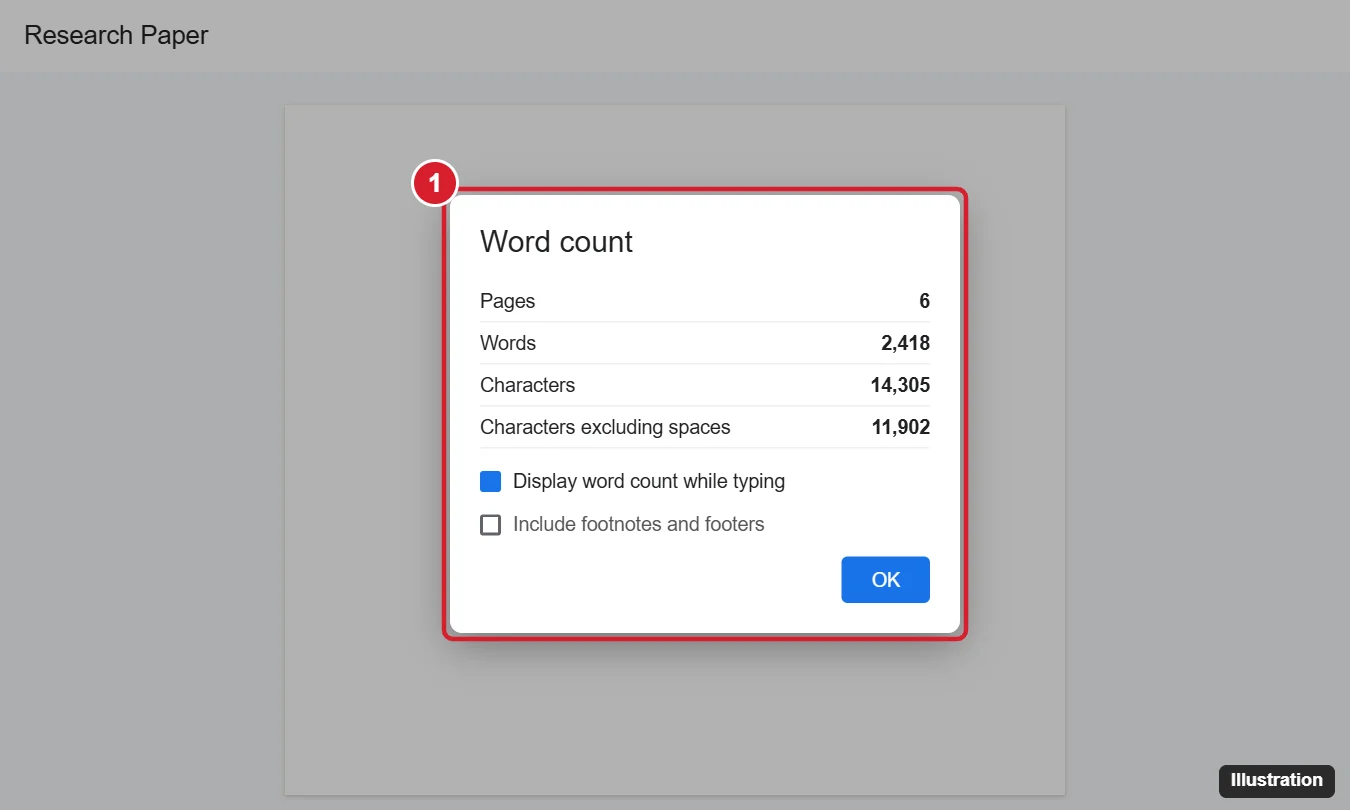
The keyboard shortcuts are listed on Google’s Google Docs keyboard shortcuts page. If you can’t find Word count in the menus, press Alt + / (Option + / on a Mac) to open the Tool finder (formerly called Search the menus), type word count and press Enter.
Keep a live count while you type
The live counter is the easiest way to stay under a limit, because you never have to open the dialog again. It is available only on a computer.
- Open the Word count box with Tools > Word count or the shortcut.
- Check Display word count while typing.
- Select OK.
A small word count box appears in the lower-left corner of the document and updates as you write. Click it to switch the figure it shows between pages, words, characters and characters without spaces. To remove it, click the box and choose Hide word count.
A student writing a 1,500-word report could leave the box on Words while drafting, then switch it to Characters later to check that the abstract stays inside a separate character limit.
Count only part of a document
Selecting text changes the count to cover only what is highlighted. This is useful when a cover page, title or reference list shouldn’t count toward the limit.
- On a computer: highlight the text, then open Word count. The box shows the selection against the total, for example “312 of 1,480 words.” The live counter shows the selected count too while the text stays highlighted.
- In the mobile app: double-tap a word and drag the handles to select a passage, then tap More > Word count. The figures cover only the selection.
If the number looks too small, check that nothing is still selected. A forgotten highlight is the most common reason a count suddenly drops.
Check word count in the Google Docs app on iPhone and iPad
The steps are the same on iPhone and iPad. You need the Google Docs app installed and signed in to your Google account.
- Open the Google Docs app.
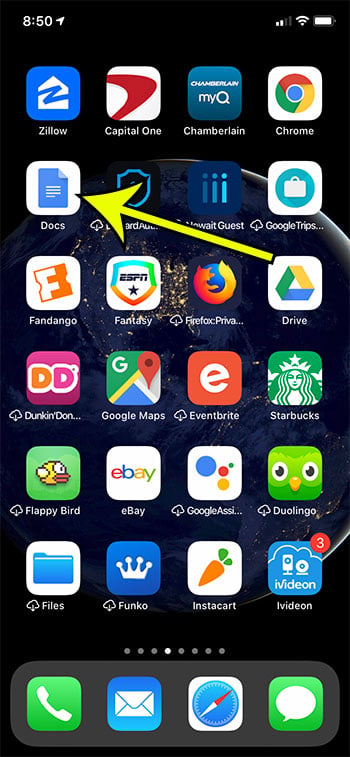
- Tap the document you want to check.
- Tap More, the three dots at the top right of the screen.

- Tap Word count in the menu.

- Read the totals: Words, Characters and Characters excluding spaces. Tap outside the box or the close option to return to the document.

These pictures come from an older version of the app, so the menu may look a little different on current iOS, but the More and Word count names are the same. The app doesn’t show a page total or a live counter. If you need a page count or a running total, open the document in a browser instead.
Once the length is right, you can save the Google Doc as a PDF on your phone to submit it.
Check word count on Android
- Open the Google Docs app on your Android phone or tablet.
- Open the document.
- Tap More (three dots) at the top right.
- Tap Word count to see words, characters and characters excluding spaces.
If Word count doesn’t appear, make sure the document is open for editing in Google Docs and not previewed from another app such as Gmail or Drive.
What Google Docs counts and what it leaves out
Google says that, unless you select part of the document, word count covers everything except headers, footers and footnotes. That matters for assignments with strict rules.
- Footnotes: not in the total. To count them, select the footnote text at the bottom of the page and open Word count, then add that figure to the body total. Another route is to download the document as a Word file and count there with footnotes included. Both are explained in how to include footnotes in the word count in Google Docs.
- Headers and footers: not counted, so a name and page number in the header won’t eat into your limit.
- Comments and suggestions: comments in the margin aren’t part of the text, and suggested edits generally count only once they are accepted.
- Characters vs characters excluding spaces: “Characters” includes spaces; “Characters excluding spaces” doesn’t. Application forms usually mean characters with spaces unless they say otherwise.
- Microsoft Office files: Google says word count isn’t available for documents opened in Microsoft Office Compatibility Mode. Convert the file with File > Save as Google Docs and count the copy.
Why Google Docs and Word give different numbers
Each program decides slightly differently what counts as a word. Hyphenated words, dashes, slashes, symbols and URLs can be split or joined, and Word can be set to include footnotes and text boxes while Google Docs leaves footnotes out. A difference of a few words in a long document is normal. If the limit is strict, check with the same tool your teacher, editor or application portal uses.
If word count is missing or looks wrong
- No Word count in the Tools menu: you may be in Sheets or Slides, or the file is a Word document in Compatibility Mode. Save it as a Google Doc first. Sheets has no word count tool, so copy the cells into a Doc and count them there.
- Count is much lower than expected: some text is still selected. Click once in the body to clear the selection.
- Shortcut does nothing: another app or browser extension may use the same keys. Use Tools > Word count or the Tool finder instead.
- Need a count for a presentation: Slides has no word count tool. Copy the slide text into a blank Google Doc and count it there, or use the word count in PowerPoint if you have the file in Microsoft PowerPoint.
- On a Mac with other apps: checking word count on a Mac covers Word and Pages as well as Docs.
Staying within a word limit
- Turn on the live counter before you start writing, not at the end.
- Keep the title, headings you were told not to count and the reference list out of the total by selecting only the body text when you check.
- For tight character limits, write in the document and watch Characters, then paste the finished text into the form.
- Before submitting, run Word count once more with nothing selected so you know the full total too.
Word count questions
Is there a keyboard shortcut on Chromebook?
Chromebooks generally use the same Ctrl + Shift + C shortcut as Windows. If it doesn’t respond, use Tools > Word count.
Does the Pages figure matter in a pageless document?
Google’s word count help doesn’t cover pageless format, so if you’ve switched the file to pageless format, rely on the word and character figures rather than the page total.
Does the word count update when someone else edits?
Yes. The count reflects the current text of the shared document, so open Word count again after collaborators make changes.
Next time you start an assignment with a limit, switch on Display word count while typing first, and the number will be in the corner the whole way through.

Kermit Matthews runs Live2Tech from just outside Philadelphia. He is an IT specialist with over 20 years of experience, from a university help desk to small-business IT, IT management and his own consulting practice, and has written tech guides full time since 2020. Steps are checked against the current software on a real device or the maker’s official documentation. More about Kermit.