Want the taskbar to show 09/11/2026 instead of 11/9/2026, an ISO date like 2026-11-09, or the full “Monday, November 9, 2026”? On a Windows 10 PC, open Settings > Time & Language > Region, then use the link below Regional format to change the date formats. For a pattern that is not in the lists, the Control Panel Region dialog lets you type your own.
Pick a preset date format in Windows 10 Settings
Windows uses two date formats. The short date is the compact one shown on the taskbar and in File Explorer columns, such as 11/9/2026. The long date spells things out, such as Monday, November 9, 2026, and appears when you hover over the clock and in some apps. Each one can be set separately.
- Press Windows key + I to open Settings, or select Start > Settings.
- Select Time & Language, then select Region in the left pane.
- Check the Regional format drop-down first. It sets the defaults for dates, times, numbers and currency for a country or region. If it is wrong (for example, English (United States) on a PC used in the UK), choose the right one before anything else.
- Below the Regional format box, select the link for changing data formats (on recent Windows 10 builds it reads Change data formats). If you do not see it, use the Control Panel method below.
- Open the Short date drop-down and pick the layout you want. Do the same for Long date if you like. The same page may also list the first day of the week and the time formats.
- Close Settings. The change applies straight away; there is no Save button.
Set the region first: changing the Regional format can replace your individual date and time choices with that region’s defaults, so adjust the formats after picking the region.
The preset lists only offer a handful of common patterns for your region. If the one you want is missing, use the Control Panel method below.
Create a custom date format in Control Panel
The older Region dialog in Control Panel is still part of Windows 10, and it is the only built-in place where you can type a date pattern yourself, such as yyyy-MM-dd for sortable ISO dates or ddd dd MMM yyyy for “Mon 09 Nov 2026”.
Open the Region dialog
Use whichever route is quickest:
- Press Windows key + R, type intl.cpl, and press Enter. Microsoft documents this shortcut on its Windows regional settings support page.
- On the Settings Region page, select Additional date, time, & regional settings under Related settings, then select Change date, time, or number formats.
- Open Control Panel, choose Clock and Region, then Change date, time, or number formats.
Do not confuse this with the Date and Time item in the same category. That one sets the actual date, time and time zone, not how they look. If your clock is wrong rather than formatted badly, see changing the time and time zone on Windows 10.
Type your own pattern
- In the Region dialog, stay on the Formats tab. The Short date and Long date lists here match the presets in Settings.

Windows 7 shown; Windows 10 screens look different. - Select Additional settings at the bottom of the tab. The Customize Format dialog opens.
- Select the Date tab.
- Click in the short date box and type your pattern, for example yyyy-MM-dd. You are not limited to the drop-down entries; the box accepts typed text.
- Do the same for the long date if you want, for example dddd d MMMM yyyy.
- Check the example shown at the top of the tab, then select Apply and OK. Select OK again to close the Region dialog.

Windows 7 shown; Windows 10 screens look different.
To undo a custom pattern, pick a preset from the Short date or Long date list on the Formats tab, or choose a preset in Settings.
Date format codes
Patterns are built from letters that Windows replaces with parts of the date. Case matters: capital M means month, while lowercase m is used for minutes in time formats. The codes below follow Microsoft’s day, month, year and era format pictures reference.
| Code | Meaning | Example for November 9, 2026 |
|---|---|---|
| d | Day with no leading zero | 9 |
| dd | Day with a leading zero | 09 |
| ddd | Short weekday name | Mon |
| dddd | Full weekday name | Monday |
| M | Month number with no leading zero | 11 |
| MM | Month number with a leading zero | 11 |
| MMM | Short month name | Nov |
| MMMM | Full month name | November |
| yy | Last two digits of the year | 26 |
| yyyy | Full year | 2026 |
Separators such as slashes, hyphens, dots, commas and spaces are kept as typed. A few patterns people often want:
- dd/MM/yyyy gives 09/11/2026, the day-first order used in the UK and much of the world.
- yyyy-MM-dd gives 2026-11-09. Files and folders named with dates in this order sort correctly by name.
- dd.MM.yy gives 09.11.26, a compact style common in parts of Europe.
- ddd dd MMM yyyy gives Mon 09 Nov 2026, which puts the weekday on the taskbar if the short date has room.
Weekday and month names come from your Regional format, so a non-English region shows them in that language.
What the new format changes, and what keeps its own
The Windows date format is a system setting that apps can choose to read. In practice:
- Changes: the date on the taskbar clock, Date modified and similar columns in File Explorer, and desktop apps that ask Windows for the user’s date format.
- Excel: only some cells follow it. Microsoft notes that Excel date formats beginning with an asterisk (*) change when you change the Windows regional date settings; cells with any other date format keep it. To set a format in Excel itself, select the cells, press Ctrl+1 and use the Number tab. More detail is in inserting and formatting dates in Excel.
- Web apps and websites usually use the language setting in your browser or account rather than Windows.
- Apps with their own settings, such as some email clients and calendar apps, may have a separate date or language option. Check the app’s settings if it ignores the change.
The format is stored per user account. Other people who sign in to the same PC keep their own formats, so each account needs its own change.
If the date does not update or the settings are locked
- Taskbar still shows the old format: sign out and back in, or restart Windows Explorer. Press Ctrl+Shift+Esc to open Task Manager, select Windows Explorer on the Processes tab, and choose Restart.
- Typed pattern rejected or shows letters: check capital letters. A lowercase mm shows minutes, not the month.
- The date is cut off: long patterns may not fit on a small taskbar. A shorter pattern, or putting the weekday in the long date only, fits better.
- Options are greyed out: on a work or school PC, an administrator may manage regional settings with policy. Ask your IT team.
- One app still shows the old style: close and reopen it.
To check the result, look at the date on the right end of the taskbar and the Date modified column in a File Explorer window.
Windows 10 support status and Windows 11
Microsoft ended support for Windows 10 on October 14, 2025. The date format settings still work, but a PC without updates gets no new security fixes unless it is enrolled in Extended Security Updates, which Microsoft says can protect consumer devices until October 12, 2027. Details are on Microsoft’s Windows 10 end of support page.
Windows 11 moved these settings to a different Settings page with different names. If you have upgraded, follow changing the date format in Windows 11 instead. The Control Panel custom format steps above are much the same on both versions.
On a Windows 7 PC
Windows 7 has no Settings app and is long past its end of support, but the format is still in Control Panel. These are the older screens:
- Click the Start button.

Windows 7 Start menu. - Click Control Panel in the right column of the Start menu.

Windows 7 Control Panel entry. - Click Clock, Language, and Region, then click Change the date, time, or number format.
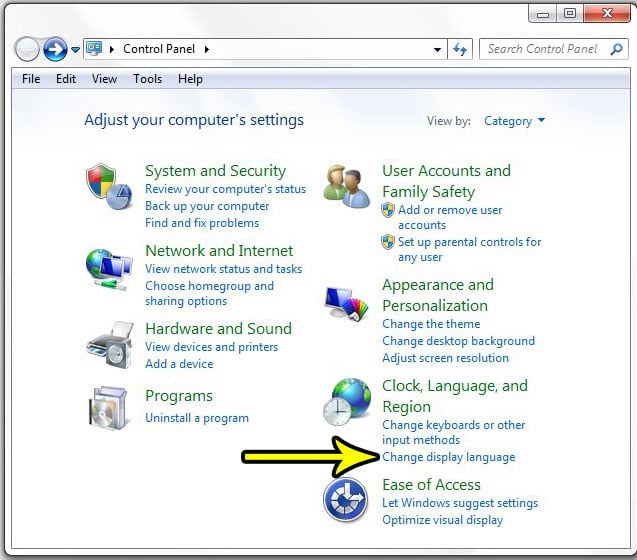
Windows 7 Clock, Language, and Region category. - On the Formats tab, choose from the Short date and Long date lists, or use Additional settings for a custom pattern, then click Apply and OK.
Windows 10 date format questions
Can I change the date format for one user only?
Yes, and that is the default. The format belongs to the signed-in account. If you share the PC, giving each person their own account keeps settings like this separate; see adding an account on Windows 10. An older guide covers creating a user account in Windows 7 if you still use that version.
Will changing the format change my files’ dates?
No. Only the display changes. The dates stored with files, emails and spreadsheet cells stay exactly the same.
How do I switch the clock to 24-hour time at the same time?
The time formats sit next to the date formats on the same pages. Setting 24-hour time on Windows 10 covers the time codes.

Kermit Matthews runs Live2Tech from just outside Philadelphia. He is an IT specialist with over 20 years of experience, from a university help desk to small-business IT, IT management and his own consulting practice, and has written tech guides full time since 2020. Steps are checked against the current software on a real device or the maker’s official documentation. More about Kermit.