Wallpapers in CarPlay come only from the set built into CarPlay: you pick one in CarPlay’s Settings on the car’s screen, and Apple’s instructions describe no way to use your own photo. The same Settings app also controls Appearance, which decides whether CarPlay stays dark. Everything below follows Apple’s current CarPlay help for the iPhone.
Can you use your own photo as a CarPlay wallpaper?
Not on standard CarPlay. Apple’s CarPlay settings page in the iPhone User Guide says to select Wallpaper and then “choose one of the available options,” and those options are the designs CarPlay ships with. Neither that page nor Apple’s general CarPlay article mentions a photo picker, your photo library or any import option for the car screen.
That answers a common surprise: the photo on your iPhone’s Lock Screen does not follow you into the car, because the iPhone’s wallpaper and the CarPlay wallpaper are separate settings. Apps, videos or sites that promise a “custom CarPlay wallpaper” from your camera roll are not something Apple documents or supports, so this article sticks to the options Apple provides.
Change the CarPlay wallpaper from the car’s screen
Do this while the car is parked. Apple’s Use CarPlay with your iPhone article gives the route from the car’s display:
- Connect your iPhone to CarPlay, by cable or wirelessly, whichever your car supports.
- On the car’s display, open the Settings app in CarPlay using the car’s built-in controls (touchscreen, rotary knob or touchpad).
- Select Wallpaper.
- Choose the wallpaper you want to use.
- If a Set button appears, select it to apply the choice.
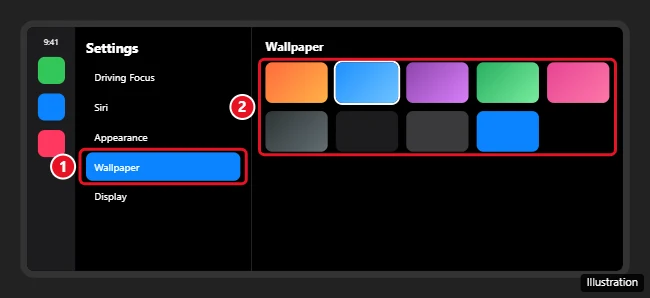
The Set step appears in Apple’s general CarPlay article but not in the iPhone User Guide, which simply says to choose one of the available options, so your screen may apply the wallpaper as soon as you pick it.
If Settings isn’t on the screen
CarPlay Dashboard shows a short list of recent apps on the left, and Settings is not always among them. Apple’s fix: tap the app grid icon to see the pages of all your CarPlay apps, including Settings.
Keep CarPlay dark or let it switch
The wallpaper is only half of how CarPlay looks. The other half is Appearance, which sets whether the screen uses its dark or light look. Apple says CarPlay is set to dark appearance by default in most vehicles, and that the dark appearance is optimized for viewing in low-light environments.
- Open Settings in CarPlay on the car’s display.
- Select Appearance.
- Choose Always Dark to keep CarPlay dark, or the other option on your screen to let CarPlay switch between dark and light.
Go by the choice names shown on your car’s screen.
Other CarPlay settings you can change
Wallpaper sits in the same Settings app as a few other controls Apple lists. Change them on the car’s screen in the same way:
- Driving Focus: select Driving Focus, then Activate With CarPlay. The iPhone side of this is explained in turning off automatic Driving mode on iPhone.
- Suggestions in CarPlay: turn Dashboard suggestions off or on.
- Show Album Art: turn album covers off or on in the audio apps.
Rearrange or remove CarPlay apps from the iPhone
App order is the one look change you make on the iPhone rather than in the car. Apple’s steps:
- On the iPhone, go to Settings > General, then tap CarPlay.
- Select your car.
- Tap Customize.
- Tap the Add button or Delete button to add and remove apps, and tap and drag an app to change the order.
Only apps that are supported by CarPlay appear on your display, and the new order shows up the next time you connect your iPhone to CarPlay.
What depends on your car
CarPlay draws its screens from the iPhone, but the car decides a lot about how you reach them. According to Apple:
- Your country or region and your car both have to support CarPlay. If you aren’t sure about the car, Apple suggests contacting the vehicle manufacturer.
- Cars supported by CarPlay should have built-in controls, such as a touchscreen, rotary knob or touchpad; the car’s manual explains which ones yours has.
- Whether CarPlay connects by USB, wirelessly or both depends on the car.
- Depending on your car, there are different ways to use Siri, including a voice command button on the steering wheel.
The car’s own screen, the one you see when CarPlay is not running, belongs to the car maker. If that system offers its own backgrounds or themes, they are set in the car’s settings and the owner’s manual, not in CarPlay.
CarPlay look answers
Can I change the CarPlay wallpaper from my iPhone?
Apple documents the wallpaper setting only on the car’s display. The CarPlay section in the iPhone’s own Settings (Settings > General > CarPlay, then your car) is described for customizing apps, not for choosing a wallpaper, so plan on changing it in the car.
Will changing my iPhone wallpaper change CarPlay?
No. They are separate settings. To change the phone’s own Home Screen and Lock Screen, see how to change the wallpaper on an iPhone; if the picture lives in Google Photos, setting a wallpaper from Google Photos on iPhone covers the extra step, and old Lock Screen designs can be cleared with how to delete wallpaper on an iPhone.
Why does CarPlay look different in another car?
Cars differ in their screens and built-in controls (Apple lists a touchscreen, rotary knob or touchpad), so the same wallpaper and app layout can look different from one dashboard to the next. If CarPlay doesn’t appear at all in a car, check that the car supports CarPlay and how it connects, as listed above.
Is there something similar for Android phones?
Android phones use Android Auto instead of CarPlay. For maps on the car screen with an Android phone, see how to show Google Maps on your car display with Android Auto.

Kermit Matthews runs Live2Tech from just outside Philadelphia. He is an IT specialist with over 20 years of experience, from a university help desk to small-business IT, IT management and his own consulting practice, and has written tech guides full time since 2020. Steps are checked against the current software on a real device or the maker’s official documentation. More about Kermit.