CarPlay doesn’t let you use your own photo as a wallpaper. You can only choose from Apple’s built-in wallpapers. To change it, open the Settings app on your car’s CarPlay screen, tap Wallpaper, and pick one. In iOS 26, Apple trimmed the list to a set of new designs in several colors plus solid colors, each with light and dark versions. Apps, videos, or sites that promise a “custom CarPlay wallpaper” from your camera roll don’t work with standard CarPlay.
How to change your CarPlay wallpaper
- Connect your iPhone to CarPlay.
- On the car’s screen, open Settings (the gray gear icon).
- Tap Wallpaper.
- Tap the wallpaper you want. It applies right away.
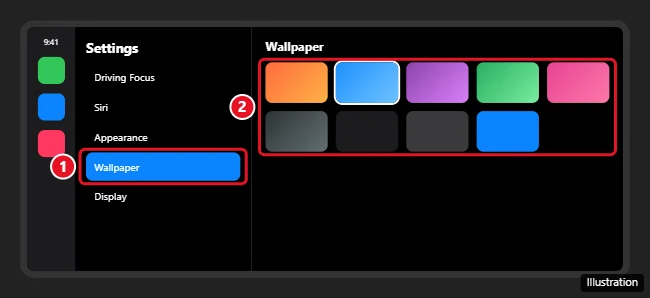
The wallpaper setting is saved for each car, so you can use a different one in each vehicle.
Turn on dark mode or keep CarPlay dark
Each CarPlay wallpaper has a light and dark version. In CarPlay, go to Settings > Appearance and choose whether CarPlay follows your car’s lights, stays dark, or matches your iPhone. Options vary by iOS version and car.
Other ways to personalize CarPlay
- Rearrange or hide apps: On your iPhone, go to Settings > General > CarPlay, tap your car, then tap Customize. Drag apps to reorder them, or tap the minus button to hide some.
- Add widgets: With iOS 26, CarPlay supports widgets, like weather and calendar, on the Dashboard view. Look for widget settings in CarPlay Settings.
- Use Dashboard view: Tap the Dashboard icon in the CarPlay sidebar to see maps, music, and suggestions side by side.
- Change icon style: Some iOS versions let CarPlay icons follow your iPhone’s light, dark, or tinted look.
Why you can’t set a custom CarPlay background
Apple limits CarPlay’s look to reduce distractions and make sure icons and text stay easy to read on every car screen. There’s no setting in iOS or third-party app that can change this on standard CarPlay. Jailbreaking your iPhone to add one isn’t worth it: it can break updates and weaken your iPhone’s security.
If your car’s own infotainment system (the screen you see when CarPlay isn’t running) supports custom backgrounds, you can usually set one in the car’s settings, but it won’t show while CarPlay is active.
Related: show Google Maps on your car display.
Frequently asked questions
Where did the old CarPlay wallpapers go?
Apple removed many older wallpapers in iOS 26 and replaced them with new designs and solid colors.
Can I change the CarPlay wallpaper from my iPhone?
No. Change it from the Settings app on the car’s CarPlay screen while connected.
Does wireless CarPlay change anything?
No. The wallpaper options are the same with wired and wireless CarPlay.
What about CarPlay Ultra?
CarPlay Ultra, available in select new cars, takes over more of the car’s screens, and its look is set by Apple and the carmaker. Check your car’s manual for the options it offers.

Kermit Matthews is a freelance writer based in Philadelphia, Pennsylvania with more than a decade of experience writing technology guides. He has a Bachelor’s and Master’s degree in Computer Science and has spent much of his professional career in IT management.
He specializes in writing content about iPhones, Android devices, Microsoft Office, and many other popular applications and devices.