Firefox on iPhone blocks pop-up windows by default, which is usually what you want. Some sites, such as banking or school portals, need pop-ups for sign-in or downloads. You can turn the blocker off in Firefox settings and turn it back on when finished. The iPhone 7 can run up to iOS 15, and newer Firefox versions may require a newer iOS.
Quick Answer
Open Firefox, tap the menu (three lines), tap Settings, and turn off Block Pop-up Windows. Turn it back on after you finish with the site.
How to Allow Pop-Ups in Firefox on iPhone
- Open the Firefox app.
- Tap the menu button (three lines) at the bottom right.
- Tap Settings.
- Turn off Block Pop-up Windows.
- Reload the site that needed a pop-up, then turn blocking back on when done.
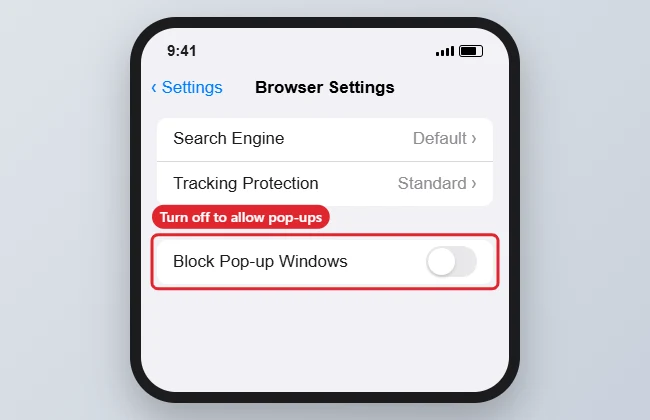
Pop-up Settings by Browser
| Browser | Where to change it |
|---|---|
| Firefox | Menu, Settings, Block Pop-up Windows |
| Safari | Settings, Safari (or Apps, Safari), Block Pop-ups |
| Chrome | Settings, Content Settings, Block Pop-ups |
| All browsers | Turn blocking back on when done |
Too many tabs? See how to close all tabs in Firefox on iPhone.
On a computer, follow how to enable pop-up windows.
Troubleshooting
- Pop-ups still do not appear: the site may open a new tab instead. Check the tab count.
- A site keeps opening pop-ups you did not ask for: close the tab and turn blocking back on.
- For Safari, see how to allow pop-ups in Safari on iPhone.
- On newer phones, read how to allow pop-ups on iPhone 15.
Frequently Asked Questions
Can I allow pop-ups for one site only?
Firefox on iPhone does not offer per-site pop-up settings, so turn blocking off temporarily.
Are pop-ups dangerous?
Most are harmless, but some are scams or ads. Keep blocking on unless a trusted site needs it.
Does this affect other browsers?
No. Each browser has its own setting.
Summary
- Open Firefox Settings.
- Turn off Block Pop-up Windows.
- Use the site.
- Turn blocking back on.

Kermit Matthews is a freelance writer based in Philadelphia, Pennsylvania with more than a decade of experience writing technology guides. He has a Bachelor’s and Master’s degree in Computer Science and has spent much of his professional career in IT management.
He specializes in writing content about iPhones, Android devices, Microsoft Office, and many other popular applications and devices.