Where you make the switch depends on the device. Google Calendar on the web has its own date and time display setting under Settings > General > Language and region, but the Calendar apps for Android and iPhone show no time format option in their settings, so on a phone the control to use is the phone’s own. On Android that is Use 24-hour format, and on an iPhone it is 24-Hour Time under Settings > General > Date & Time.
Turn on 24-hour time in Google Calendar on the web
This works in any current browser on a Windows PC, Mac or Chromebook, and it is saved in your Calendar settings for this Google Account.
- Open Google Calendar at calendar.google.com and check that you are signed in to the account you want to change. If you use several Google accounts, the profile picture at the top right shows which one is active.
- Open Settings. At the top right, click the Settings menu (the gear icon), then Settings.
- Go to General. On the left, click General if it is not already open.
- Open Language and region. Google’s Calendar settings help describes this section as the place to change the language, where you live, and how the date and time look on your calendar.
- Pick the 24-hour time format. Look for the time format choice in this section and select the option that shows times in the 24-hour style, such as 13:00 instead of 1:00pm.
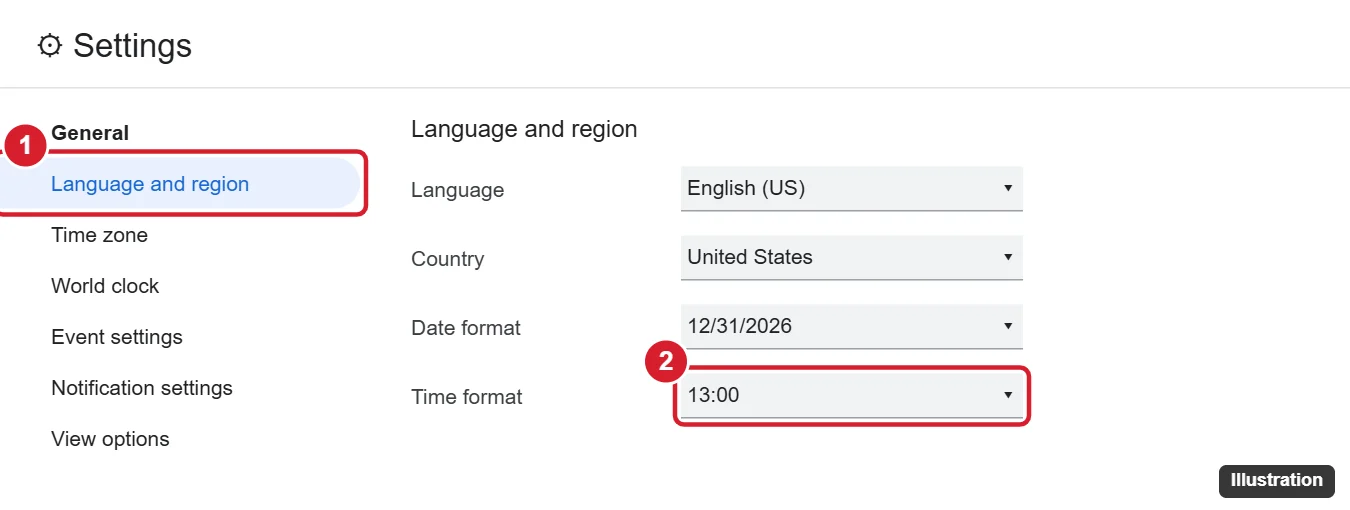
The illustration above shows the kind of menu to look for. Google’s help names the Language and region section but does not list the exact wording of the time format options, so go by the example times in the menu rather than a particular label.
To check that it worked, go back to your calendar. The hours down the side of Day and Week view, and the times on your events, should now read 09:00, 13:00, 18:30 and so on, with no am or pm. If they do not, reload the page.
What the setting changes, and what it does not
Only the display changes. Google’s time zone help for Calendar explains that events are stored in a standard time (UTC) and shown to you in your local time, so switching between 12-hour and 24-hour display does not move a single event. A meeting at 2:00pm is still at the same moment; it is simply labeled 14:00.
Other people’s Calendars keep their own settings, so they will not see your format.
Android: use the phone’s 24-hour setting
Google’s list of settings for the Calendar app on Android (Menu > Settings > General) includes options such as Start of the week, Use device time zone, Default event duration and Theme, but no 24-hour or time format item. The time format control Google documents for Android phones is the phone’s own clock setting, which you can reach from the Clock app:
- Open the Clock app.
- Tap More (three dots), then Settings.
- Tap Change date & time.
- Turn on Use 24-hour format.
- Close and reopen the Google Calendar app, then check the times on your events.
These steps come from Google’s Android help on changing your clock’s display. Phones from other makers may use their own Clock app or a differently named date and time page in the Settings app, so if the steps do not match exactly, search your phone’s settings for “24-hour.” Google does not state in its Calendar help that the app follows this phone setting, but with no switch inside the app, the phone setting is the place to make the change.
iPhone and iPad: use 24-Hour Time in Settings
The Google Calendar app for iPhone and iPad also has no time format item in its Menu > Settings > General list. Apple documents the device setting in its iPhone User Guide:
- Open the Settings app.
- Tap General, then Date & Time.
- Turn on 24-Hour Time.
- Open the Google Calendar app (close it fully first if it was running) and check your event times.
The iPad’s Settings app has the same General > Date & Time page. If the switch is dimmed and will not move, the iPhone may be restricted. Apple’s date and time troubleshooting page says a Screen Time passcode or a corporate profile with device restrictions can dim the Set Automatically option, and a managed device can lock other date and time settings too; the person or organization that manages it has to change it.
Because this is a phone-wide setting, it changes how the time is shown across the phone, not just in Google Calendar. That is usually what people want, but it is worth knowing before you flip it.
If you still see am and pm
- On the web: reload the page. If you have more than one Google account, open the settings again and confirm you changed the account that owns the calendar you are looking at.
- On a phone: close the Google Calendar app completely and reopen it after changing the phone’s setting. A restart of the phone is a reasonable last step.
- Inside event details: times that someone typed into an event title, description or an email invitation are plain text, so they stay exactly as typed. Only the times Calendar itself displays follow your format.
- On another device: the Calendar phone apps have no time format setting of their own, so a tablet or second phone may still show am and pm until you change that device’s clock setting.
Other clocks you may want to match
A 24-hour Calendar next to a 12-hour taskbar clock can be confusing. On a PC, the format comes from Windows rather than from Google: setting 24-hour time on Windows 10 covers the Region settings, and on Windows 11, changing the time and time zone on Windows 11 shows where the time settings live. An Apple Watch has its own switch as well, explained in turning the 24-hour clock on or off on an Apple Watch.
The same General page on the web holds related display settings. Language and region also controls how dates look, and under Time zone you can set your Primary time zone and, by checking Show additional time zones, add a Secondary time zone that appears on the left side of the calendar grid (per the time zone help linked above). For the first day of the week, the Android app’s settings list Start of the week; on the web, look in the View options section, which Google describes as the place to change the look of your calendar.
While you are in Calendar’s settings, two related changes are worth a look: changing the default notification time in Google Calendar, and, if you live in Apple’s Calendar on your iPhone, making Google Calendar the default on iPhone.
24-hour clock questions
Is “24-hour clock” the same as seeing all 24 hours of the day?
No. The 24-hour clock changes how times are written (13:00 instead of 1:00pm). Seeing the whole day from midnight to midnight is a matter of scrolling or zooming the Day or Week view, and it works in either format.
Next step: open one of your upcoming events and check that its start time reads the way you expect on every device you use.

Kermit Matthews runs Live2Tech from just outside Philadelphia. He is an IT specialist with over 20 years of experience, from a university help desk to small-business IT, IT management and his own consulting practice, and has written tech guides full time since 2020. Steps are checked against the current software on a real device or the maker’s official documentation. More about Kermit.