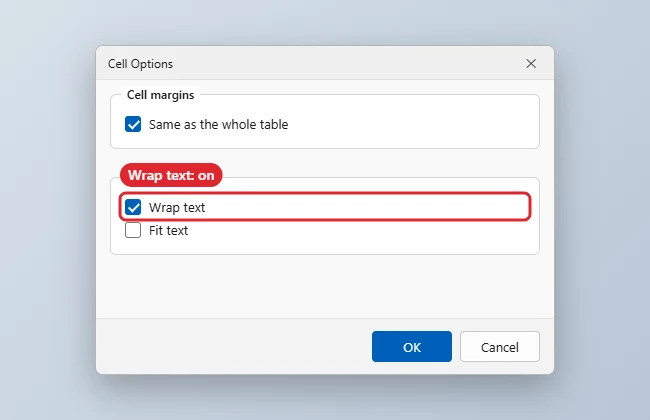
Text in a Word table wraps automatically when it reaches the edge of a cell. If it runs off the page or won’t wrap, the column is set too wide or a cell option is off: right-click the table, choose Table Properties > Cell > Options, make sure Wrap text is ticked and Fit text is not, then use Layout > AutoFit > AutoFit Window so the table fits the page.
Quick Answer
Table Properties > Cell > Options > tick Wrap text. Then Layout > AutoFit > AutoFit Window.
Steps to Make Text Wrap
- Select the cells, or click in the table to change it all.
- Right-click and choose Table Properties.
- On the Cell tab, click Options.
- Tick Wrap text and untick Fit text, then OK.
- On Layout, choose AutoFit > AutoFit Window to keep the table inside the margins.
Fixes for Table Text
| Problem | Fix |
|---|---|
| Text runs past the page | AutoFit Window |
| Text squashed small | Untick Fit text |
| Long URL won’t break | Insert a space or line break, or narrow the font |
| Row won’t grow | Table Properties > Row > set height to At least |
| Text around the table | Table Properties > Table > Text wrapping: Around |
Wrap Document Text Around a Table
Wrapping text inside cells is different from letting your paragraphs flow around a small table, the way they flow around a picture. To do that:
- Click anywhere in the table.
- Right-click and choose Table Properties, or go to Layout and click Properties.
- On the Table tab, set Preferred width to something narrower than the page so there is room for text beside it.
- Under Text wrapping, choose Around.
- Click Positioning to set the distance from surrounding text and the table’s horizontal and vertical position, then click OK.
You can also drag the table by the move handle at its top-left corner once wrapping is set to Around. To put the table back in line with your text, return to Table Properties and choose None.
Keep Long Cell Text Readable
- Use Layout, AutoFit, AutoFit Contents for short entries and AutoFit Window for long paragraphs.
- Drag column borders, or set exact widths under Layout, Cell Size, so wrapped lines are not too narrow to read.
- Turn on Repeat Header Rows (Layout tab) for long tables so headings appear on every page.
- Untick Allow row to break across pages in Table Properties, Row tab if you want each row kept together.
Troubleshooting
- Table off the page: See fixing a table that’s off the page.
- Vertical text in cells: See making text vertical in Word.
- Creating tables: See inserting a table in Word.
Frequently Asked Questions
What’s the difference between Wrap text and text wrapping?
Wrap text keeps text inside a cell; table text wrapping controls how body text flows around the whole table.
Why is the row height fixed?
Row height may be set to Exactly. Change it to At least.
Does this work in Word for Mac?
Yes, via Table Properties.
Summary
- Open Table Properties > Cell > Options.
- Tick Wrap text.
- Untick Fit text.
- AutoFit to the window.

Kermit Matthews runs Live2Tech from just outside Philadelphia. He is an IT specialist with over 20 years of experience, from a university help desk to small-business IT, IT management and his own consulting practice, and has written tech guides full time since 2020. Steps are checked against the current software on a real device or the maker’s official documentation. More about Kermit.