Startup apps in Windows are listed in two places: Settings > Apps > Startup, and the Startup apps page of Task Manager. The startup impact rating next to each entry, from None to High, is Windows’ estimate of how much processor time and disk activity that app uses while you sign in, so it tells you which entries are worth looking at first.
You can switch an app off in seconds, and back on just as quickly.
Where Windows lists its startup apps
Microsoft’s startup applications page explains that any app registered in Windows with a startup task can be configured from Settings or from Task Manager, and that both show the same list. The difference is the detail.
- Settings gives a simple list with an On/Off switch for each app. Open it with Start > Settings > Apps > Startup.
- Task Manager gives what Microsoft calls a more detailed view, including the impact each app has on startup. Right-click Start and select Task Manager, or press Ctrl + Shift + Esc, then select Startup apps.
The same Settings path and Task Manager page apply to Windows 11 and Windows 10, although the Task Manager layout differs between them. On Windows 10 the page appears as a tab across the top of Task Manager, and older guides call it simply the Startup tab. If you are still on Windows 10, note Microsoft’s position: “Windows 10 has reached the end of support on October 14, 2025.”
Programs that start in other ways, such as a shortcut placed in a Startup folder, are handled through File Explorer instead. That is covered further down.
Reading the startup impact column
Task Manager rates every entry. Microsoft defines the ratings like this:
| Rating | What Microsoft says it means |
|---|---|
| None | The startup app is disabled. |
| Not Measured | No data is available to measure it; the startup app is enabled. |
| Low | Total CPU use under 300 milliseconds and total disk use under 292 kilobytes. |
| Medium | CPU use between 300 milliseconds and 1 second, or disk use between 292 kilobytes and 3 megabytes. |
| High | CPU use over 1 second or disk use over 3 megabytes. |
Two things follow from those definitions. A High rating does not mean an app is bad, only that it does more work at sign-in. And Not Measured only means Windows has no data for that app, not that it is light or heavy.
A sensible way to read the list: start with High entries you do not need the moment you sign in, then look at Medium ones. Low entries rarely make a noticeable difference on their own.
Turn an app off or back on
Turning an app off here only stops it from starting automatically when you sign in. It does not uninstall the app, and you can still open it from the Start menu whenever you want it.
In Settings
- Go to Start > Settings > Apps > Startup.
- Set the switch next to an app to Off to stop it starting automatically, or On to start it when you sign in.
- If the app has a chevron (an arrow) beside it, select it to open that app’s advanced settings.
In Task Manager
- Right-click Start and select Task Manager.
- Select Startup apps.
- Select an app, then select Disable to stop it starting automatically, or Enable to turn it back on.
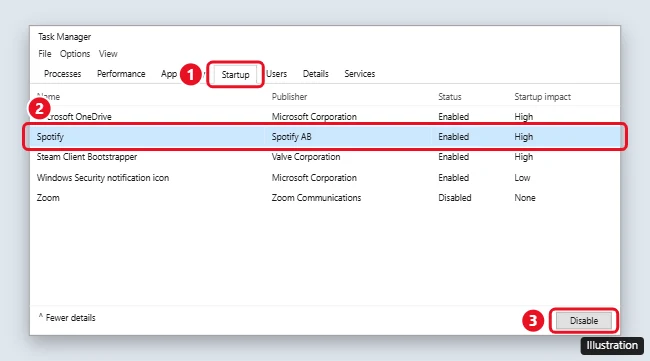
The illustration shows the older Windows 10 Task Manager; current screens may look different.
Changes take effect the next time you sign in. If something you need stops appearing, come back to the same list and turn it on again. For a walkthrough focused on cutting the list down on Windows 11, see how to stop apps from opening on startup in Windows 11; for both versions side by side, see changing what opens on startup in Windows 10 and 11.
Start a program that is not on the list
Some programs never register a startup task, so they never appear in Settings or Task Manager. Microsoft’s route for those is a Startup folder:
- Right-click Start and select Run. Type
shell:appsfolderand press Enter. This window lists your installed apps. - Open Run again, type
shell:startupand press Enter. This opens the Startup folder for your own account. - Drag the app you want from the first window into the second. Windows creates a shortcut there.
- To stop it later, delete the shortcut from the Startup folder.
To start a program for everyone who uses the PC, use shell:common startup in step 2 instead. Microsoft gives the locations behind the two shortcuts:
shell:startup: %userprofile%\AppData\Roaming\Microsoft\Windows\Start Menu\Programs\Startupshell:common startup: %ProgramData%\Microsoft\Windows\Start Menu\Programs\Startup
Not sure what is installed in the first place? Checking installed apps in Windows 10 shows the full list, not just what starts with the PC. For more ways to add a program, see adding programs to startup in Windows 11.
Entries to leave alone
Microsoft does not publish a list of startup apps that are safe to turn off, so treat this as general advice rather than a rule. Most entries fall into one of two groups.
Usually fine to turn off if you open them yourself when needed: music and video apps, game launchers, chat and meeting apps you do not use every day, and update helpers for apps you rarely open. Cloud storage apps can go too, but files stop syncing until you open the app.
Better left on:
- Your security software. Never turn off antivirus protection at startup.
- Apps that control hardware on laptops, such as touchpad, audio or graphics control panels, since special keys and features may depend on them.
- Anything you need the moment you sign in, such as a password manager or a backup tool.
If you do not recognize an entry, leave it on until you know what it belongs to.
When an entry misbehaves
Two problems come up often.
An app keeps starting after you turned it off. Many apps have their own option to launch when you sign in, separate from the Windows list. Turn that option off inside the app as well. The steps for one popular app are in stopping Discord from opening on startup, and most apps follow a similar pattern.
Settings shows “We couldn’t find this app”. Microsoft explains that the app could be on a removable or network drive, the path to it might no longer exist, or the app was uninstalled. Reinstalling the app is the suggested fix. Selecting the icon next to the switch shows where the broken entry points.
A slow start is not always about apps, either. Fast Startup is a separate power setting, and turning off Fast Startup in Windows 10 explains what it does and when to change it.
Looking beyond Settings with Autoruns
Settings and Task Manager do not show everything that starts with Windows. For a deeper look, Microsoft’s Sysinternals team publishes Autoruns, a free tool documented on learn.microsoft.com. Microsoft describes it as showing what programs are configured to run during system bootup or login, including items in the Startup folder, registry run keys, Explorer shell extensions, auto-start services and more. Its Hide Signed Microsoft Entries option filters the view down to third-party items.
Autoruns is optional and aimed at advanced users. It can switch off entries that Windows needs, so use it to look, and make changes through Settings, Task Manager or the app itself wherever you can. Avoid editing the registry by hand to remove startup entries.
Startup list questions
What does Not Measured mean?
Microsoft’s definition is that there is no data available to measure the startup app, and that the app is enabled. It says nothing about whether the app is heavy or light.
What does the arrow next to an app in Settings do?
Microsoft calls it a chevron. Selecting it opens that app’s advanced settings, where you can make further changes.
Why is a program I use every day missing from the list?
The list only shows apps registered in Windows with a startup task. If you open a program yourself, or it starts some other way, it will not appear. To make it start automatically, use the Startup folder steps above.
If I disable an app in Task Manager, does Settings change too?
Yes. Microsoft says Task Manager provides the same list of startup applications as Settings, so a change in one shows up in the other. Task Manager simply adds the impact detail.
Check the list again after installing new software, since new programs can add themselves to it.

Kermit Matthews runs Live2Tech from just outside Philadelphia. He is an IT specialist with over 20 years of experience, from a university help desk to small-business IT, IT management and his own consulting practice, and has written tech guides full time since 2020. Steps are checked against the current software on a real device or the maker’s official documentation. More about Kermit.