Keyboard clicks on an iPad come from one switch in Settings, under Sounds: open Settings, tap Sounds, and turn off Keyboard Clicks. If you would rather quiet every alert and system sound for a while, turn on Silent Mode instead. Apple’s iPad User Guide documents both, and neither one stops music or video audio.
The click stops as soon as the switch is off, and it stays off until you turn it back on.
What each iPad switch silences
Several iPad settings sound like they might control typing noise, but each one covers something different. This table uses Apple’s wording from its Change or turn off sounds on iPad page and its volume page.
| Setting | Where it is | What it does |
|---|---|---|
| Keyboard Clicks | Settings > Sounds | Plays (or stops) a click when you type on the onscreen keyboard. This is the one to turn off. |
| Lock Sound | Settings > Sounds | Plays a sound when you lock the iPad. It is not a typing sound. |
| Silent Mode | Settings > Sounds, or the Silent Mode control in Control Center | Stops ringtones, alerts and system sounds. Alarms, timers, music and audio from videos still play. |
| Volume Down button | On the iPad itself | Press and hold it to silence the iPad, per Apple’s volume page. |
| An external keyboard’s own noise | None | Apple documents no iPad setting for the physical sound a hardware keyboard makes. |
If the only sound bothering you is the tap of typing, the Keyboard Clicks switch is the precise fix. Everything else on your iPad keeps working as before.
Turn off Keyboard Clicks in Settings
- Open the Settings app on your iPad.
- Tap Sounds in the sidebar.
- Find Keyboard Clicks in the list and turn the switch off.
- Open any app with a text field, such as Notes, and type a few letters to confirm the click is gone.
Apple’s guide to typing with the onscreen keyboard on iPad points to the same switch in its “Hear clicks as you type” section.
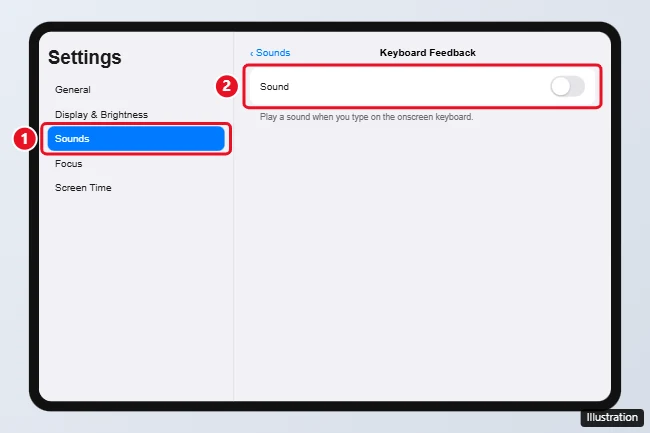
The illustration above comes from an older version of this page and uses the labels shown on iPhone. Apple’s current iPad guide names the switch Keyboard Clicks and lists it directly on the Sounds screen, so current screens may look different.
Quiet everything for a while with Silent Mode
Silent Mode makes sense in a meeting, a classroom or a library, when you want no alert sounds at all and plan to turn sound back on later. Apple gives two ways to switch it on:
- Go to Settings > Sounds and turn on Silent Mode.
- Open Control Center and tap the Silent Mode control.
You can also press and hold the Volume Down button to silence the iPad, as Apple describes on its adjust the volume and silence iPad page.
Two limits are worth knowing. Apple says Silent Mode stops ringtones, alerts and system sounds, but it does not name keyboard clicks in that list, so the dedicated switch is the dependable way to stop typing sounds. And Silent Mode doesn’t mute music, podcasts, movies or TV shows, so a video in another app will still play out loud.
If you still hear clicking
- Go back to Settings > Sounds. Make sure the Keyboard Clicks switch is gray (off), not green.
- Check whether it is the lock sound. A click when the screen turns off is Lock Sound, a separate switch on the same screen. The lock sound has its own explainer in what the Lock Sound setting means, written for iPhone but the same idea.
- Using a Magic Keyboard or another hardware keyboard? Keyboard Clicks is documented for the onscreen keyboard. The noise of physical keys is not an iPad setting, and Apple documents no switch for it.
- Hearing a sound from a video or game? That audio is not a system sound, so neither Keyboard Clicks nor Silent Mode will stop it. Lower the volume or pause the app.
Turn the clicks back on
To bring the click back, go to Settings > Sounds and turn Keyboard Clicks on again. If you used Silent Mode, turn it off in the same place or with the Silent Mode control in Control Center.
If your keyboard has split into two halves while you were typing, switching an iPad back to the regular keyboard is a separate setting.
On an iPhone instead
The iPhone uses a different label. Apple’s iPhone guide puts the typing sound under Settings > Sounds & Haptics > Keyboard Feedback, where you choose Sound, Haptic or both (Change sounds and vibrations on iPhone). For full iPhone steps, see turning off keyboard clicks on iPhone or turning off keyboard sounds and vibration on an iPhone. The vibrations are covered in turning off haptic feedback on iPhone and turning off system haptics.
iPad typing sound questions
Why does my iPad not have a Keyboard Feedback option?
Keyboard Feedback is the iPhone label. On iPad, Apple’s guide lists a single Keyboard Clicks switch on the Sounds screen, with no Sound or Haptic choices behind it.
Does turning off Keyboard Clicks mute anything else?
No. It only controls the typing click. Alerts, the lock sound, music and video audio all have their own controls.
Once Keyboard Clicks is off, you can switch it back on in the same spot whenever you miss the sound.

Kermit Matthews runs Live2Tech from just outside Philadelphia. He is an IT specialist with over 20 years of experience, from a university help desk to small-business IT, IT management and his own consulting practice, and has written tech guides full time since 2020. Steps are checked against the current software on a real device or the maker’s official documentation. More about Kermit.