Break the link to the parent folder in Advanced Security Settings: Disable inheritance stops the folder from picking up new permissions from the folder above it. Windows then asks whether to convert the inherited entries into explicit ones you can edit, or remove them, and that choice decides who can still open the folder.
This covers File Explorer on Windows 10, plus a command-line backup so you can undo the change. You need an administrator account.
When a folder should stop following its parent
Every file and folder on an NTFS drive normally inherits its permissions from the folder that contains it. Give a group read access to C:\Shared, and everything inside C:\Shared gets that access too. That is usually what you want, because you set access once at the top.
Turning inheritance off makes sense when one item has to differ from its parent, for example:
- A Payroll subfolder inside a team’s shared folder, where only two people should have access.
- A folder of finished files that everyone may open but nobody should change, inside a folder where people normally edit.
If you only need to give one more person access, or take one person’s access away, you probably don’t need to touch inheritance at all. Adding or removing an entry is covered in how to change file permissions in Windows 10.
Before you change anything
A mistake here can lock you, other users or Windows itself out of files. Run through this list first:
- Use an administrator account (or own the item). If you’re not sure, giving administrator permission in Windows 10 explains how an admin can grant it.
- Leave Windows folders alone. Don’t change inheritance on C:\Windows, C:\Program Files or other system folders; broken permissions there can stop updates and apps from working. Work only on your own data folders.
- Keep three entries. Whatever else you change, SYSTEM, Administrators and your own account should keep the access they have now.
- Save a copy of the current permissions. The icacls tool can store them in a file you can restore later (see the backup section below). It takes a minute and is the simplest undo there is.
Windows 10 itself has reached end of support: Microsoft’s Windows 10 end of support page says Windows 10 reached the end of support on October 14, 2025, and that technical support, software updates and security updates or fixes are no longer provided. The permission dialogs still work as described.
Disable inheritance in File Explorer
Microsoft’s permission inheritance training unit describes these choices.
- In File Explorer, right-click the folder (or file) whose permissions should stop following its parent and choose Properties.
- Open the Security tab and select Advanced. The Advanced Security Settings window opens with the list of permission entries.
- If the buttons at the bottom are not available, select Change permissions and approve the administrator prompt.
- Select Disable inheritance. A Block Inheritance dialog asks what to do with the entries that came from the parent.
- Choose Convert inherited permissions into explicit permissions on this object or Remove all inherited permissions from this object (the table in the next section helps you pick).
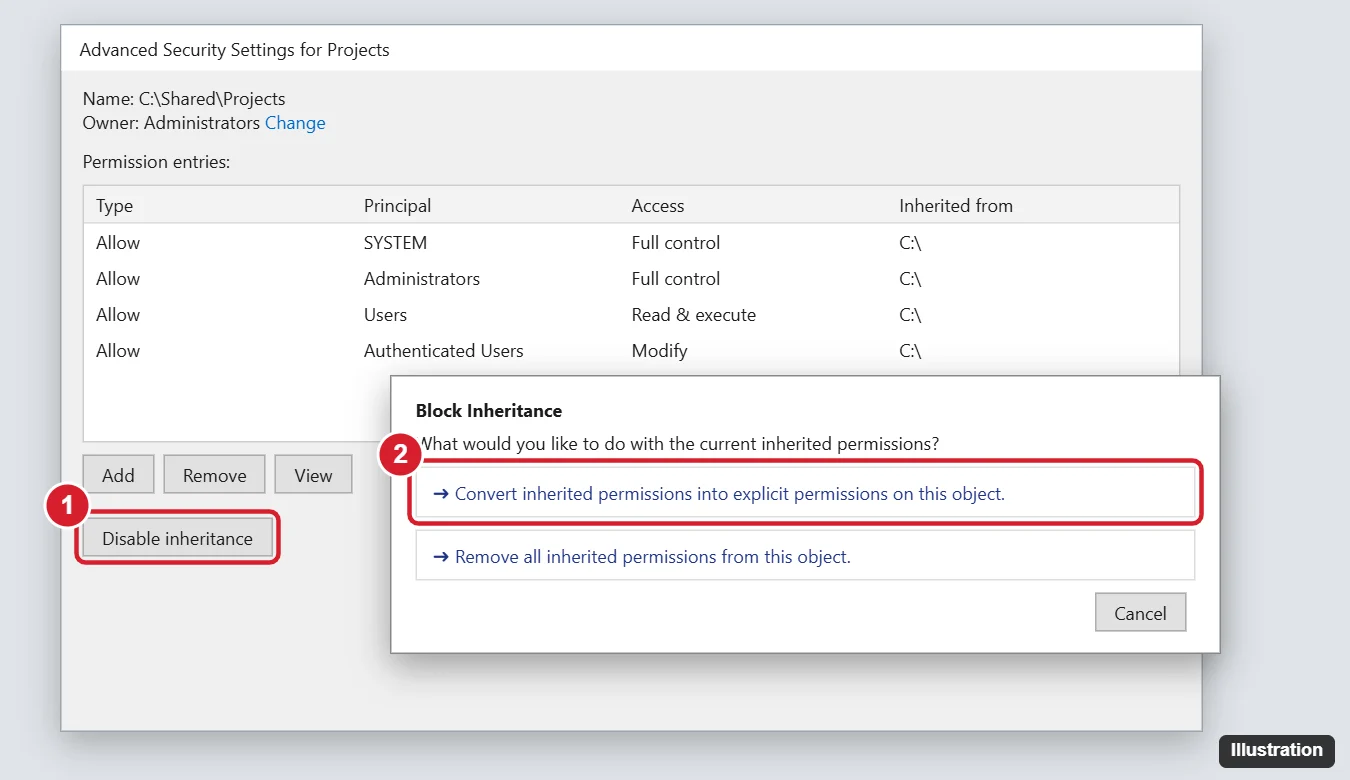
- Back in Advanced Security Settings, edit or remove entries as needed. Select Apply, then OK.
From now on, a change to the parent folder’s permissions no longer flows into this one.
Convert or remove: which choice fits
| Choice | What stays on the folder | Pick it when |
|---|---|---|
| Convert inherited permissions into explicit permissions | The same access as before, now as entries that belong to this folder and can be edited or removed one by one | Almost always. You start from today’s access and trim it, so nobody is locked out by surprise. |
| Remove all inherited permissions | Only entries that were set directly on this folder. If there were none, the list is empty and nobody may be able to open it | You want to rebuild access from nothing and you’re ready to add SYSTEM, Administrators and yourself straight away. |
| Cancel (leave inheritance on) | Everything as it was | You only need to add or remove one person; edit the entries instead. |
For the Payroll example, Convert and then remove the general team group, keeping SYSTEM, Administrators, yourself and the two people who need it, is the safer path. Remove is quicker on paper but leaves a window where the folder may have no usable entries.
What happens to the files and subfolders inside
Disabling inheritance on a folder changes where that folder gets its permissions. The items inside it keep inheriting, but now from this folder, so they follow whatever you set here rather than the old parent’s settings. Items that already had inheritance turned off themselves keep their own permissions.
Advanced Security Settings also offers a check box, Replace all child object permission entries with inheritable permission entries from this object. Treat it with care:
- It pushes this folder’s inheritable permissions down to every file and subfolder inside, replacing their existing permissions.
- That includes subfolders where someone deliberately turned inheritance off, so a private subfolder further down can lose its special access.
- Windows asks you to confirm before it applies the change, and on a large folder it can take a while.
Use it only when you want the whole tree to match this folder, and save the permissions first.
Back up permissions with icacls before you start
Microsoft’s icacls reference (it applies to Windows 10 and 11) describes /save as storing the access lists for all matching files in a file for later use with /restore, and /t as including all subfolders. Open Command Prompt as administrator and run, with your own folder paths:
icacls C:\Shared\Payroll /save C:\PermBackup\payroll-acl.txt /t
Create the C:\PermBackup folder first, and keep it outside the folder you’re changing. To put the saved permissions back, run /restore against the folder that contains Payroll; Microsoft notes that /restore must be used with a directory:
icacls C:\Shared\ /restore C:\PermBackup\payroll-acl.txt
The same reference lists an inheritance-level switch that can enable inheritance, disable it and copy the entries, or disable it and remove the inherited ones. If you prefer the command line, read that switch’s exact syntax on Microsoft’s page, run icacls /? on your PC to see the switch it lists, and try it on a test folder before using it on real data.
Turn inheritance back on
- Open the folder’s Properties > Security > Advanced, and select Change permissions if needed.
- Select Enable inheritance, then Apply and OK.
The parent’s permissions flow back in. Entries you added directly to the folder may still be listed alongside them, so check the list afterwards and remove anything you no longer want. If you saved the permissions first, restoring the backup returns the folder exactly to how it was before you started.
If you lose access to the folder
- “You don’t have permission to access this folder” after Remove: sign in with an administrator account, open Advanced Security Settings, and add SYSTEM, Administrators and your account back. If even that is refused, the owner of a folder can change its permissions, so take ownership first: next to Owner, select Change, enter your account, and try again. If your account isn’t an administrator, giving an account administrator rights shows how an existing administrator can grant them (the steps there are for Windows 11).
- You saved a backup: run the /restore command above as administrator.
- The folder is on another PC: network access also depends on how the folder is shared, so check the host as well; opening a shared folder on a network in Windows 10 covers the sharing side.
- You can’t find the folder at all: it may be hidden rather than locked; showing hidden files and folders on Windows 10 brings it back into view.
Inheritance answers
Should I convert or remove inherited permissions?
Convert, in nearly every case. Access stays exactly as it was until you edit it, so nothing breaks while you work. Remove is for rebuilding access from scratch.
Will files already inside the folder lose their permissions?
Not by disabling inheritance alone. They keep inheriting from the folder they sit in. Only the Replace all child object permission entries check box rewrites them.
Why can’t I select Disable inheritance?
The button may be unavailable until you select Change permissions and approve the administrator prompt. If your account isn’t an administrator and doesn’t own the folder, ask someone who is.
What does turning inheritance back on do to my own entries?
Enable inheritance brings the parent’s entries back. Check the list afterwards to see which of your own entries are still there, because the combination may give wider access than you intended. If you need the folder exactly as it was, restore your saved backup instead.

Kermit Matthews runs Live2Tech from just outside Philadelphia. He is an IT specialist with over 20 years of experience, from a university help desk to small-business IT, IT management and his own consulting practice, and has written tech guides full time since 2020. Steps are checked against the current software on a real device or the maker’s official documentation. More about Kermit.